Rename your first files
Add 3 to 5 files with unclear names, review the new filenames, apply selected results, and verify the changes on disk.
Choose a few files with unclear names, add them to Batch Rename, and wait for RenamerX to create clearer filenames. Review the results, apply only the names you trust, and then check the renamed files in Finder or File Explorer.
Create new filenames in Batch Rename
1. Open Batch Rename
Select Batch Rename in the sidebar. For your first files, leave Target folder empty.
2. Select a built-in template
Use General Naming Template (Default) for mixed documents. It creates names in the form {Date}_{Title}, where Title describes the file's content.
Use Image & Video Naming Template for geotagged media. It creates names in the form {Date}_{Location}_{Title}. Location stays empty when the file has no usable GPS coordinates or RenamerX cannot identify one reliable place.
3. Add the files
Drag files or folders into Batch Rename. You can also click Add more to add files later.
RenamerX supports more than 60 file types, including common documents, images, videos, and camera RAW formats. See Supported File Types for the complete list.
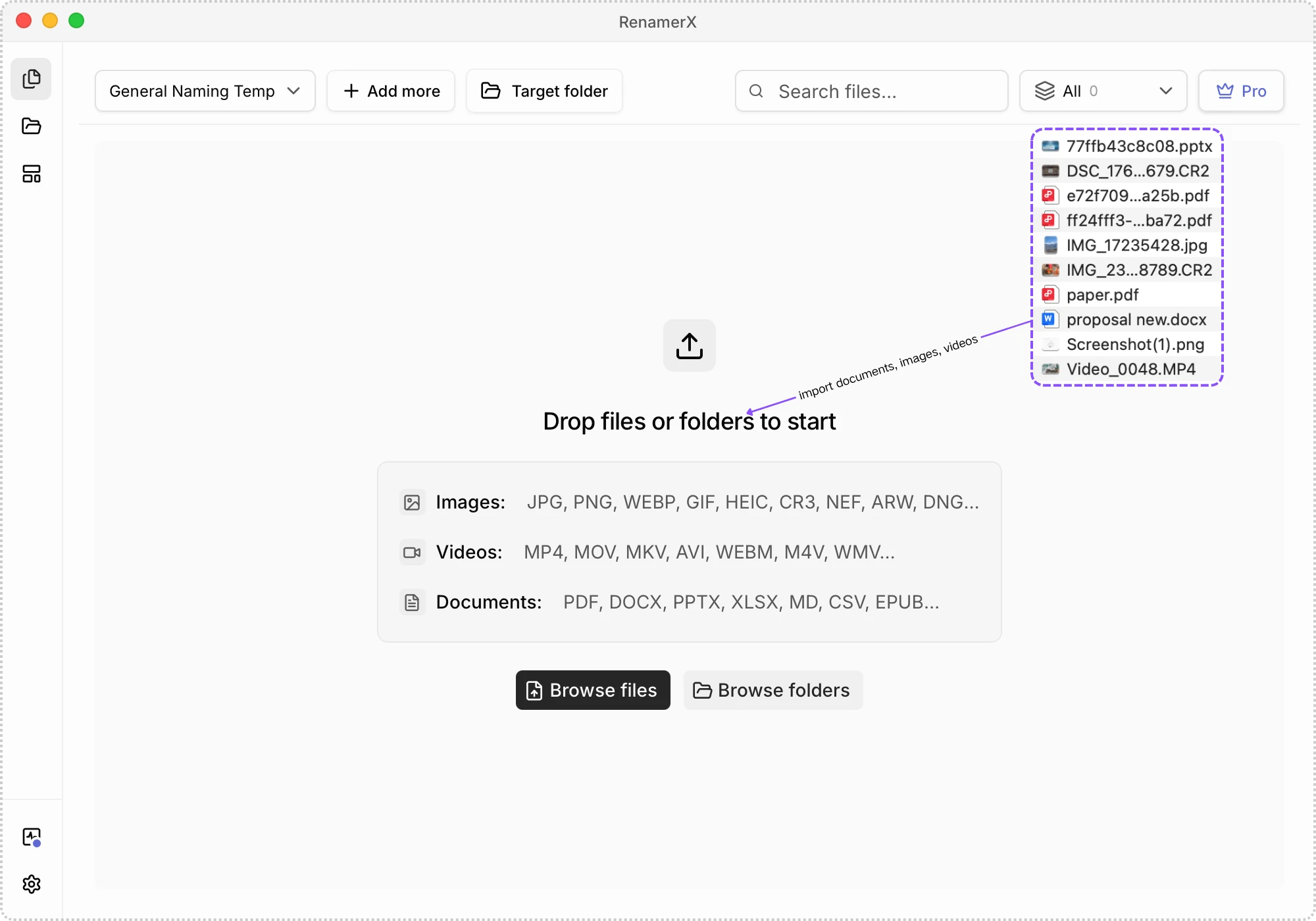
RenamerX adds supported files and starts processing them. Each file moves through these states:
- Pending: waiting to start
- Analyzing: reading file information and creating a new name
- Needs review: the new name is ready
Wait until the files you plan to inspect show Needs review. The files on disk still have their original names.
Review every new name
Check each Needs review item before selecting it:
- Compare the current and new filenames.
- Select the thumbnail to open the preview pane on the right.
- Read the generated Description by hovering over the new filename or opening the preview pane. It can help you understand the file and evaluate the new name.
- Edit a new filename that needs correction.
- Leave any uncertain or failed item unselected.
AI does not always get every detail right. Edit the new filename when needed. If renaming fails, address the reported cause before selecting Retry. See Batch Rename for the complete workspace controls.
Apply the filenames you trust
Select the reviewed files, then click Apply changes. With Target folder empty, RenamerX renames the selected files in place. Unselected Needs review items remain unchanged.
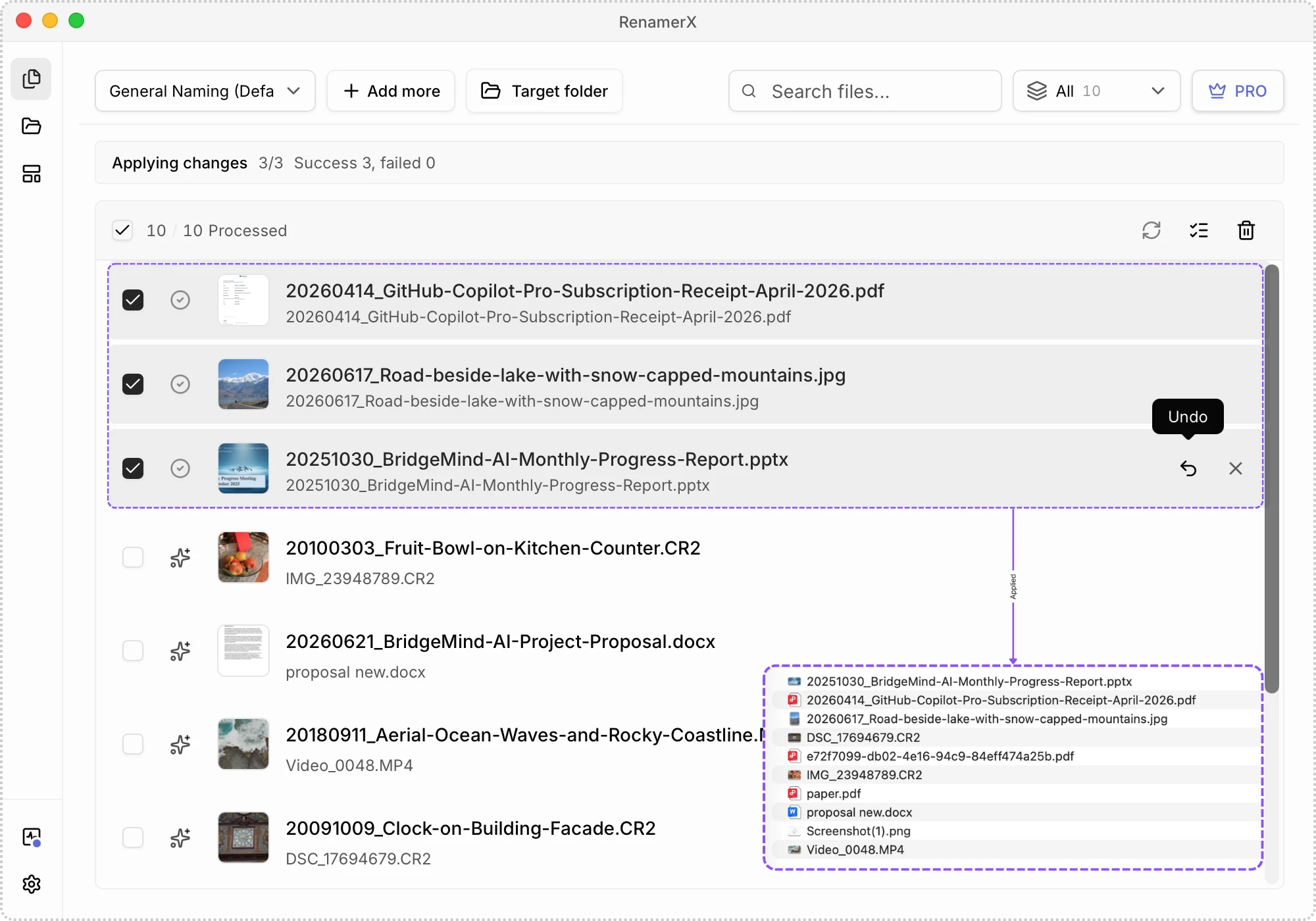
Check the result and keep Undo available
Open the test folder in Finder or File Explorer. Confirm that each selected file has the expected name and that its extension is unchanged.
If a result is wrong, return to RenamerX, select the corresponding Applied item, and use Undo. Keep the item in the workspace until you no longer need to restore its original name and location.
Clear workspace is not Undo. It removes the Batch records and their Undo history without reversing changes already made on disk. See Review, Apply, and Undo for conflicts, partial results, Description, and recovery rules.
Improve the naming rule before adding more files
RenamerX templates let you create different naming rules for different workflows. To design your own, read File Naming Conventions and use Templates to create a filename structure for the task.
Continue with the page that matches your next task:
- Batch Rename for a larger one-time group
- Templates for a scenario-specific filename structure
- Controlled Vocabulary for inconsistent recurring field values
- Watch Folders after the same setup produces reliable Batch results