Rename a batch of files
Add files or folders to Batch Rename, review each new filename, and apply only the results you want.
Batch Rename is designed for one-time cleanup of messy files. Choose a naming template, add files or folders, and wait for RenamerX to generate clearer filenames. You can review every result before changing any files.
Use Batch Rename to clean up a folder, test a new template, or review every filename before applying it. Importing and analysis do not change files. RenamerX changes them only after you click Apply changes.
Before you begin
Before import:
- Confirm that the intended AI Provider is active and ready.
- Choose or create a naming template. Use General Naming Template (Default) for mixed documents, or Image & Video Naming Template for images and videos.
- Decide whether to rename files in place or move them to a target folder. If you are unsure, leave the target folder empty.
See AI Providers, Templates, and Supported File Types for those setup decisions.
Rename a batch
1. Choose a template
Open Batch Rename and use Select template before adding files. The template controls the filename fields, their order, formatting, output language, and organize mode.
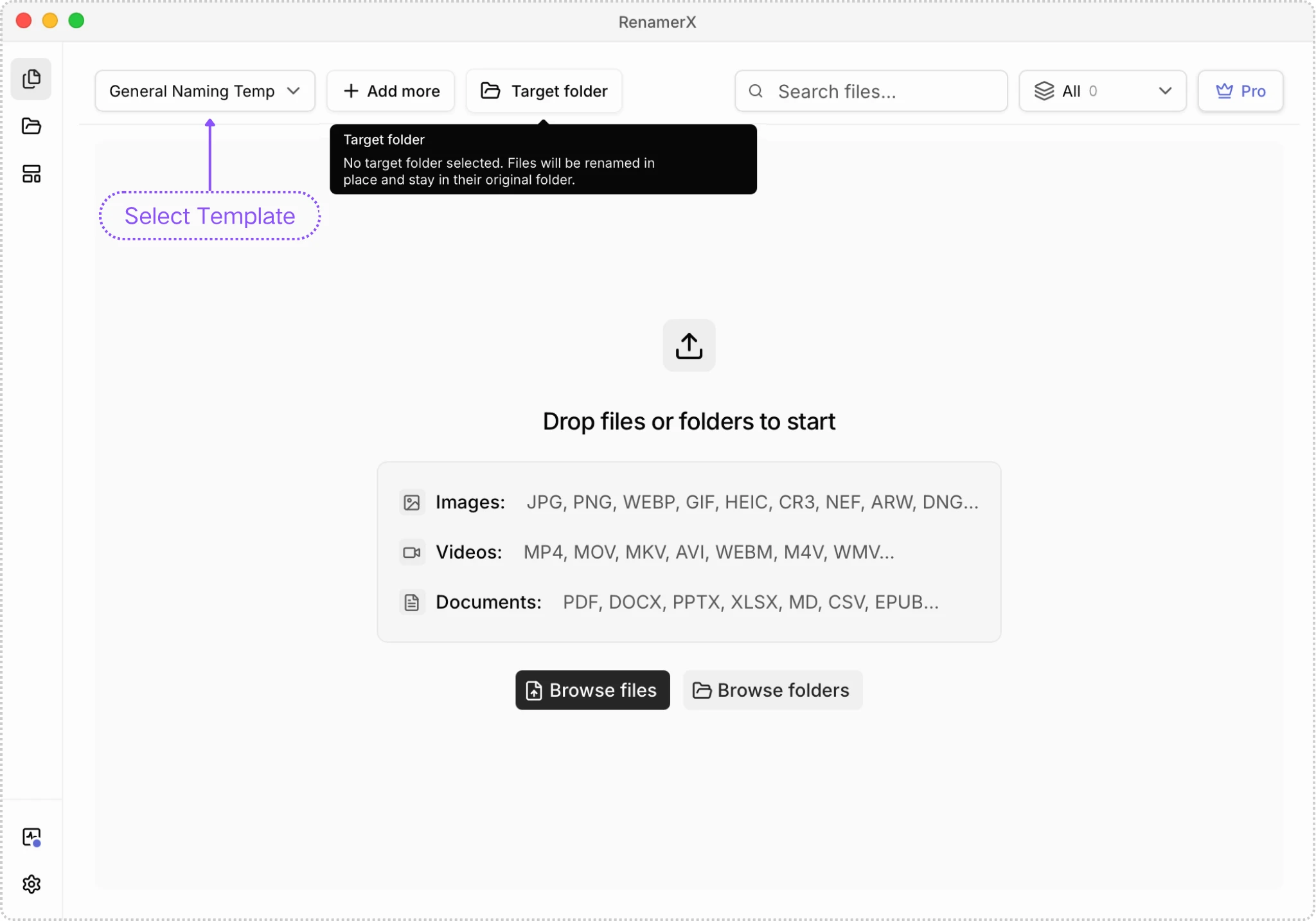
2. Choose a target folder if needed
Leave Target folder empty to rename files in their current folders. Select a target to move renamed files there. The template's organize mode can also classify the files into the appropriate folders within that target.
Review the complete destination rules in Organize Files before using an organize mode.
3. Add files or folders
Drag files or folders into Batch Rename, or use Add more. Folder imports scan subfolders recursively.
RenamerX adds supported files to the workspace and queues them for processing. It skips paths it cannot process, including unsupported or temporary files, missing paths, duplicate workspace entries, and files already managed by a Watch Folder.
4. Wait for suggested filenames
Imported items progress from Pending to Analyzing. When a suggested filename is ready, the item appears as Needs review.
You can choose Cancel queued tasks to cancel queued or unfinished analysis. Files that already reached Needs review remain available for review.
5. Review and select results
Use Search files… and Status filter to narrow the workspace. For each item you plan to apply:
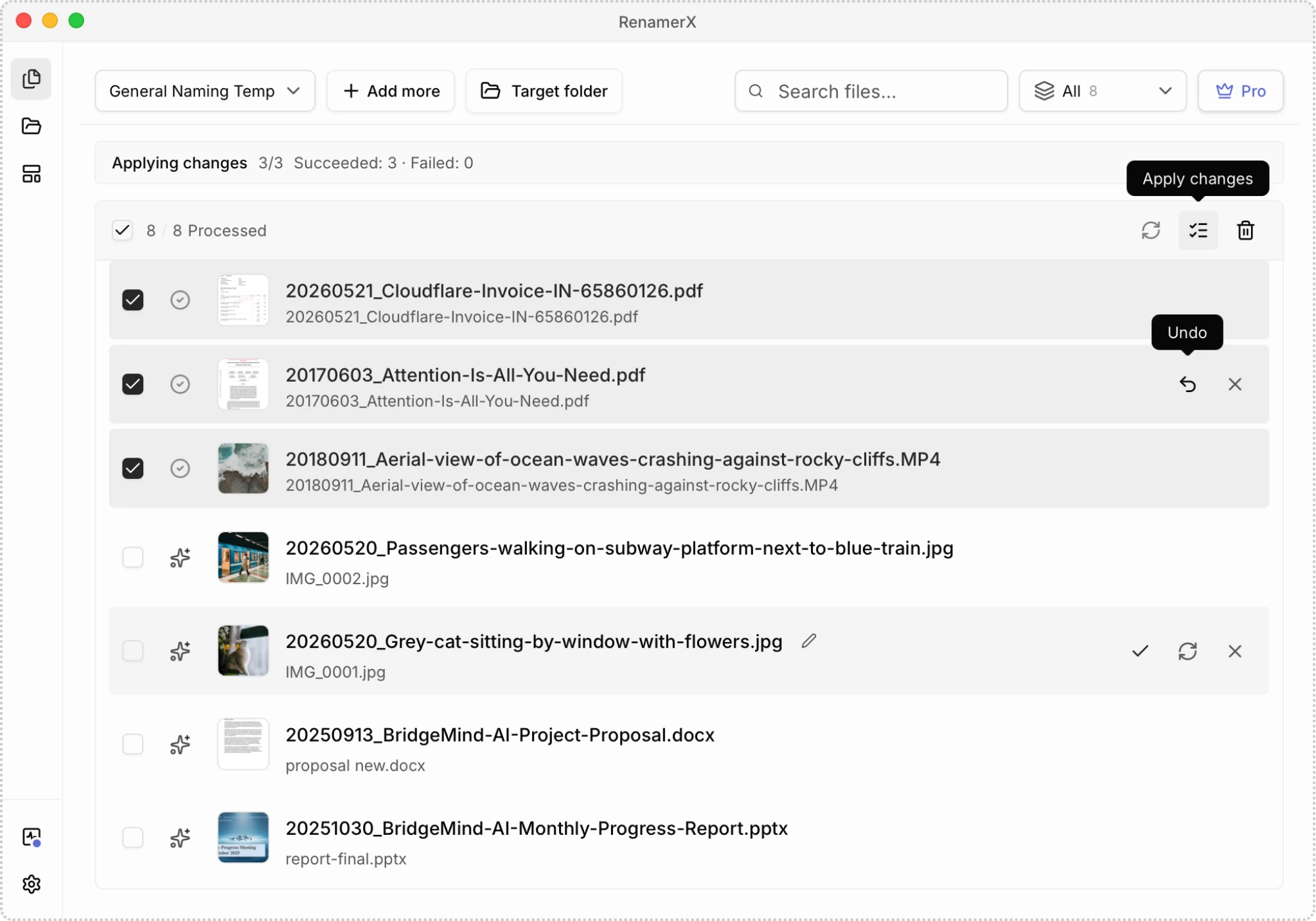
- Compare the original and suggested filenames.
- Select the thumbnail to open the preview pane on the right. You can play supported videos in this pane.
- Read the generated Description by hovering over the new filename or opening the preview pane. It can help you understand the file and evaluate the suggested name.
- Edit the suggested filename if it needs a correction.
- Use Retry for a failed or cancelled item after addressing the cause.
- Use Ignore for an item that should stay out of this batch.
6. Apply only the selected items
Select the reviewed items and choose Apply changes. RenamerX renames each file and, when a target folder is selected, moves it according to the template's organize mode.
Successful items become Applied. If some items fail, the successful files remain changed. Filter for Failed, inspect the disk and error details, correct the cause, and retry only those items.
For conflict suffixes, Description metadata, partial results, and Undo conditions, see Review, Apply, and Undo.
Understand the workspace states
The visible status tells you whether a file is still internal to the workspace or has been changed on disk.
| Status | Meaning in this workflow |
|---|---|
| Pending | Waiting to be processed. |
| Analyzing | RenamerX is preparing input and generating a suggested filename. |
| Needs review | A suggested filename is ready; the file is unchanged. |
| Applied | Apply changed the file on disk. |
| Failed | Processing or a disk action failed for this item. |
| Cancelled | Processing stopped before a suggested filename was ready. |
| Ignored | The item is excluded from the current batch. |
| Undone | Undo restored the original name and path. |
Search and filters change what you see, not what is selected or stored. Before a bulk action, confirm that the visible selected items are the files you intend to change.
Keep the active AI Provider stable
RenamerX reads the active AI Provider when each file begins AI processing. If you switch Providers while a batch is still processing, different files in the same batch can use different Providers.
Wait for the current batch to finish before switching when you want consistent provider behavior. If you intentionally switch, review the resulting items as a mixed-provider batch.
Do not clear history before recovery
Clear workspace removes the Batch Rename records but leaves files on disk unchanged. It is not Undo, and it removes the Undo entries for applied items.
Use Undo first if you need to restore any applied files. Read Review, Apply, and Undo before clearing an applied workspace.
Scale up after the result is stable
A controlled rollout helps separate template problems from unusual source files:
- Process a few representative files that you can safely rename.
- Review every suggested filename and destination.
- Apply the trusted subset and inspect the files on disk.
- Correct the template or vocabulary when a pattern is wrong.
- Repeat with a larger batch only after the results remain consistent.
If the same type of file arrives continuously, move the proven template to Watch Folders. Start that workflow with Review first before considering Auto apply.