Configure RenamerX preferences
Configure interface, AI Provider, GPU, local AI, license, update, diagnostic, and support settings on this device.
Preferences contains device-wide RenamerX settings. Use it to change the interface, Quick Pane shortcut, active AI Provider, Built-in Local AI behavior, license state, updates, diagnostics, and support options.
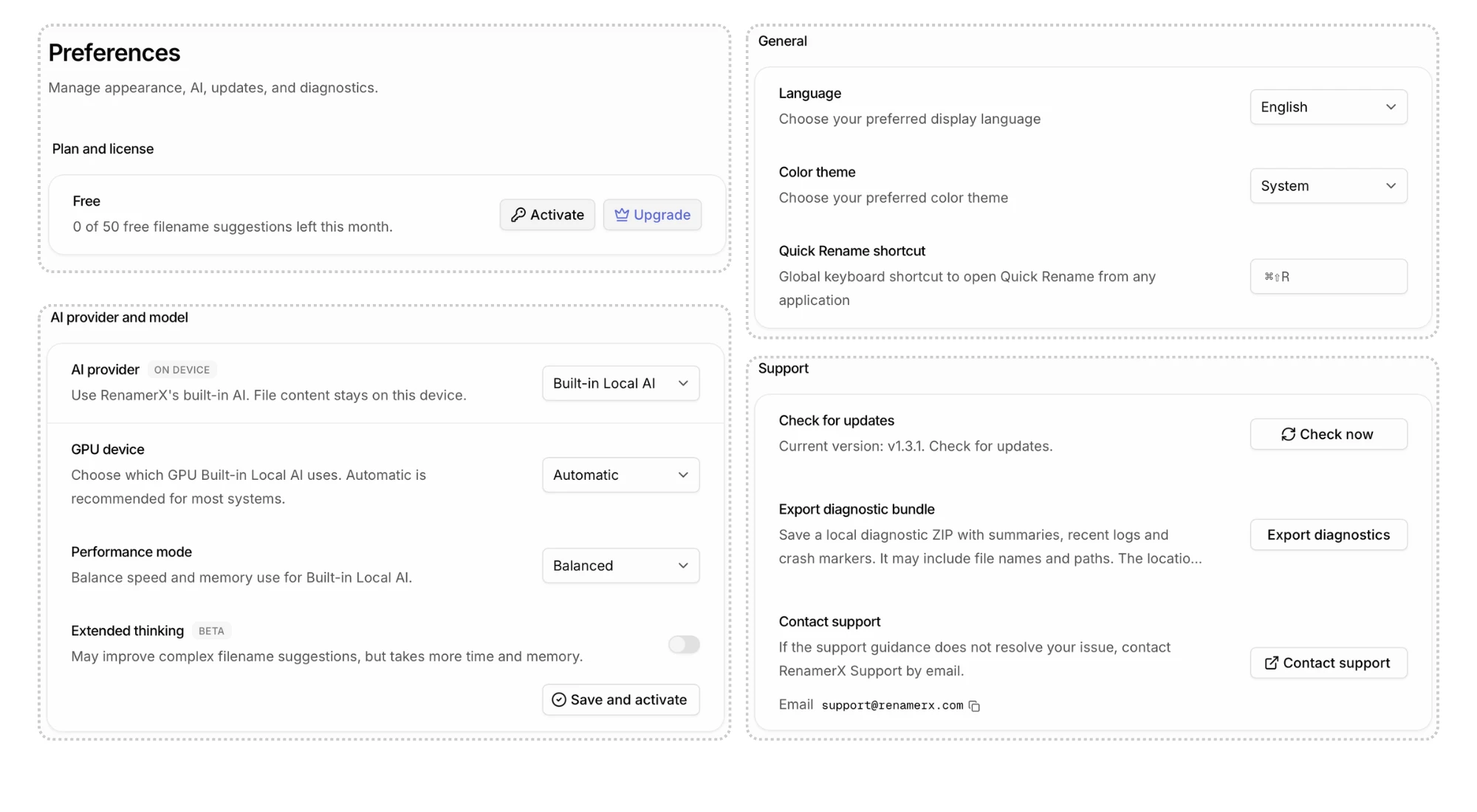
Find the setting you need
The following table shows what each group changes and when the change becomes effective.
| Setting | Default or starting point | What it affects | When it takes effect |
|---|---|---|---|
| Language | System Default | RenamerX interface language. It does not set template output language. | Immediately after selection. |
| Color Theme | System | App appearance. | Immediately after selection. |
| Quick Pane Shortcut | ⌘⇧R on macOS; Ctrl+Shift+R on Windows | The global shortcut that opens Quick Pane. | After the shortcut is saved. |
| AI provider and model | RenamerX Built-in Local AI | Where future AI processing happens and which model handles it. | After Save and activate passes its connection test; each file reads the active Provider when AI processing begins. |
| GPU device | Automatic: selects a suitable GPU | Which detected GPU Built-in Local AI uses. | The next time local AI starts. |
| Performance mode | Balanced | Built-in Local AI memory use and processing speed. | The next time local AI starts. |
| Extended thinking | Off | Whether Built-in Local AI spends more time analyzing difficult files. | The next time local AI starts. |
| License & Billing | Depends on the current device and account | Plan state, credits, activation, upgrade, and deactivation actions. | After the action succeeds. |
| Updates | Platform-specific | App update checks or the store update page. | According to the update flow. |
| Export diagnostics | No persistent setting | Creates a local troubleshooting ZIP. | When you choose Export diagnostics. |
Change General preferences
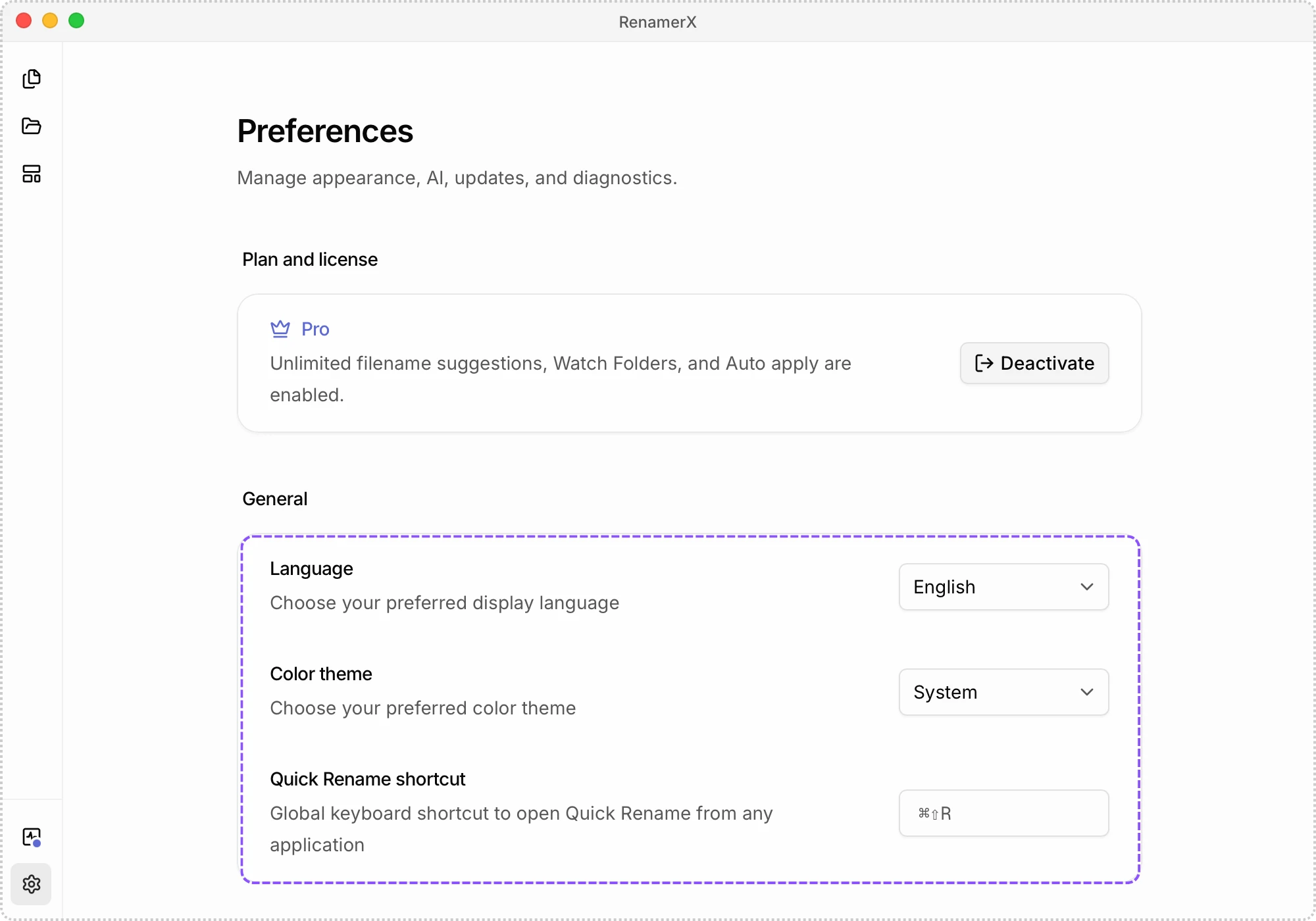
General contains the interface and shortcut settings for the current device.
Language
Choose System Default, English, Français, العربية, or 简体中文. With System Default, RenamerX follows a supported system language and falls back to English when it cannot match one.
Interface language and template output language are separate. To change words generated for filenames, edit the template’s output language.
Color Theme
Choose Light, Dark, or System. System follows the operating-system appearance and is the default.
Quick Pane Shortcut
The displayed default is ⌘⇧R on macOS and Ctrl+Shift+R on Windows. Save a different combination when another app already uses it. The shortcut opens Quick Pane; it does not change a filename or start Apply by itself.
AI provider and model
Choose RenamerX Built-in Local AI, Ollama, LM Studio, OpenAI, Google Gemini, or Custom Provider. The fields below change according to the selected Provider and can include Model, Model ID, Server URL, and API Key.
External Providers offer Test connection to validate the current fields without activating them. Save and activate runs a real image test and makes the configuration active only after it succeeds.
When you switch to Built-in Local AI, RenamerX checks for a compatible GPU before offering the model download. Once the download finishes, choose the GPU device, performance mode, and extended-thinking setting, then click Save and activate.
Built-in Local AI
GPU device defaults to Automatic, which lets RenamerX choose a suitable GPU for Built-in Local AI. Open the selector to view the detected GPUs or choose a different one.
Choose Low memory, Balanced, or High performance according to your device's available memory. These modes primarily change memory use and processing speed, not suggested filename quality.
Extended thinking is off by default. It can increase processing time and memory use and does not guarantee a better result. GPU, performance, and extended-thinking changes apply when the local AI service next starts. Stop and start it from System Status when it is already running.
See Built-in Local AI for platform limits, downloads, GPU selection, performance guidance, and recovery.
Manage your plan and license
Open License & Billing to check whether the current device uses Free or Pro and, when applicable, the remaining monthly credits. You can also activate a License Key, upgrade, or deactivate the current device.
Plan state controls access and processing capacity; it does not change the template’s naming rules. See Credits & License for current plan behavior.
Check for updates, diagnostics, and support
On macOS, click Check for updates, then Check now. On Windows, click Open Store to update RenamerX through Microsoft Store.
Click Export diagnostics to create a troubleshooting ZIP on your device. RenamerX does not upload it automatically. Review the bundle before sending it to support@renamerx.com. See System Status and Diagnostics for its contents and privacy boundaries.
Click Contact support to open the RenamerX support page. The section also displays the support email and a copy button.
Start with the default settings
For a new installation, start with:
- Language: System Default
- Color Theme: System
- Quick Pane Shortcut: the displayed platform default, unless it conflicts with another app
- AI Provider: RenamerX Built-in Local AI
- GPU device: Automatic
- Performance mode: Balanced
- Extended thinking: off
Change a default when representative files or device constraints show a need. After changing an AI Provider, template, or extended thinking, review new suggested filenames before Apply.