Set up Built-in Local AI
Prepare RenamerX Built-in Local AI, choose the GPU that runs it, and adjust its performance settings.
RenamerX Built-in Local AI analyzes files on your device without uploading them. It does not require an API key or a separate AI app. RenamerX downloads and manages everything needed to run local AI, including the model. You can switch the GPU that runs local AI, adjust its performance mode and extended thinking, and start or stop it.
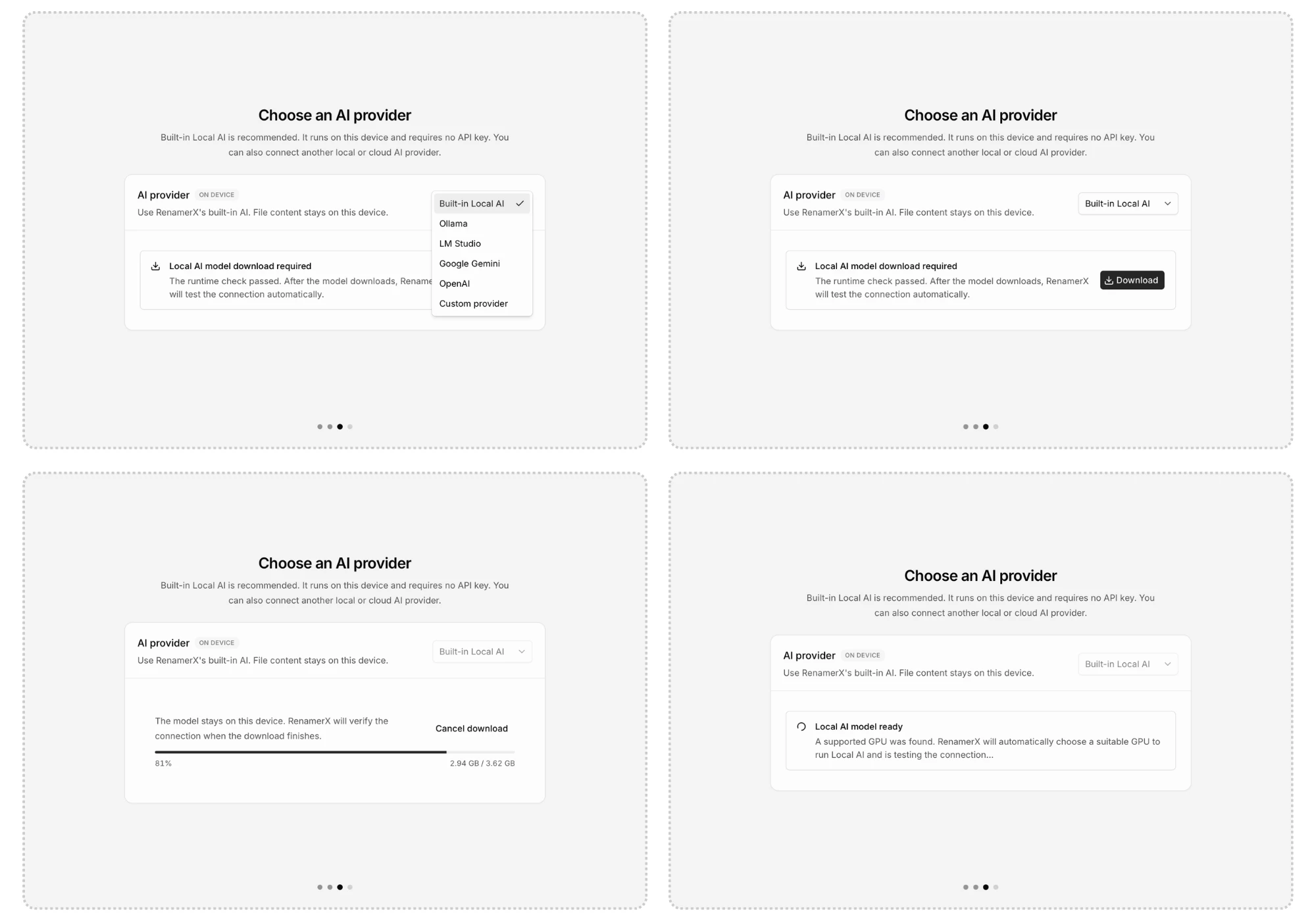
Prepare the local resources
Choose Built-in Local AI during setup or in Preferences → AI provider and model. RenamerX prepares it in this order:
- First-launch setup downloads the resources needed to process files and resolve GPS locations offline.
- RenamerX checks which GPU can run the local model.
- Click Download to install the local AI model files.
- RenamerX starts local AI and tests it with a sample image.
- RenamerX activates Built-in Local AI after the test succeeds.
Resources ready means the required files are installed. A successful compatibility check means RenamerX found a usable GPU. The sample-image test then confirms that the model can start and analyze an image.
Check device compatibility
Built-in Local AI supports Apple silicon Macs and Windows x64 PCs with a compatible GPU. It does not support Intel Macs, Windows ARM64 devices, or Linux. It also cannot run on the CPU alone.
RenamerX checks the GPU and its driver directly. It does not decide compatibility from the device name or a fixed memory requirement. The final model test determines whether the device can process files.
Built-in Local AI selects a suitable GPU automatically. If it fails to run, open Preferences → AI provider and model → GPU device, choose another detected GPU, and try again.
Start and stop Built-in Local AI
Open System Status from the status icon in the sidebar. When setup is complete but local AI is stopped, the status shows Ready to Start and the Start Built-in Local AI action. When local AI is running, the status shows Available and you can select Stop Built-in Local AI.
RenamerX also starts local AI when a test or file needs it. After five minutes without work, it releases the model from memory but remains ready for the next file. Stop Built-in Local AI closes the service without removing downloaded files or changing the active Provider.
Choose a performance mode
Open Preferences → Built-in Local AI to choose a performance mode. Balanced is the recommended default.
| Mode | Use it when | Expected tradeoff |
|---|---|---|
| Low memory | Available memory is limited or local AI becomes unstable. | Lower memory use and slower processing. |
| Balanced | You want the recommended setting for most devices. | A balance of resource use, stability, and speed. |
| High performance | The device has enough capacity for more work. | Faster processing with greater memory use. |
Performance modes change memory use and processing speed. They do not directly control filename quality. Use templates, custom instructions, and review to improve naming results.
A performance mode change takes effect the next time local AI starts. If it is already running, open System Status, select Stop Built-in Local AI, then select Start Built-in Local AI.
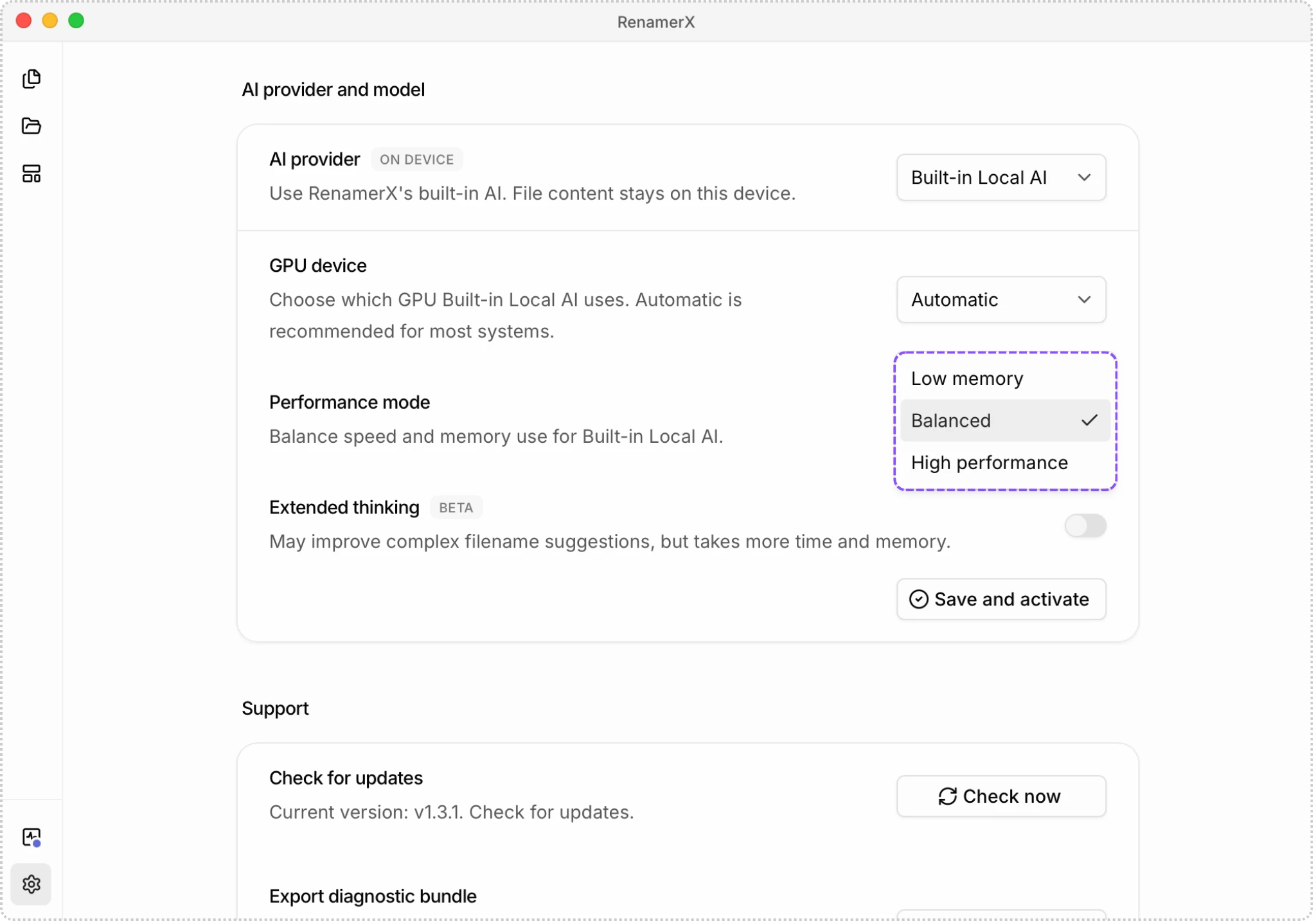
Use Extended thinking (Beta)
Extended thinking (Beta) is available only for Built-in Local AI and is off by default. It adds reasoning time for difficult content, but increases processing time and memory use.
Enable it after testing representative files with the setting off. The change takes effect the next time local AI starts.
Troubleshooting
Use Troubleshoot RenamerX for Intel Mac, Windows ARM64, missing GPU, integrated or multiple GPUs, insufficient memory, missing dynamic libraries, slow processing, download, startup, and image-processing problems. The troubleshooting guide also explains which details to include with a diagnostic bundle.