Automate recurring file renaming with Watch Folders
Monitor a folder for new files, review the generated filenames, and enable Auto apply after the workflow produces reliable results.
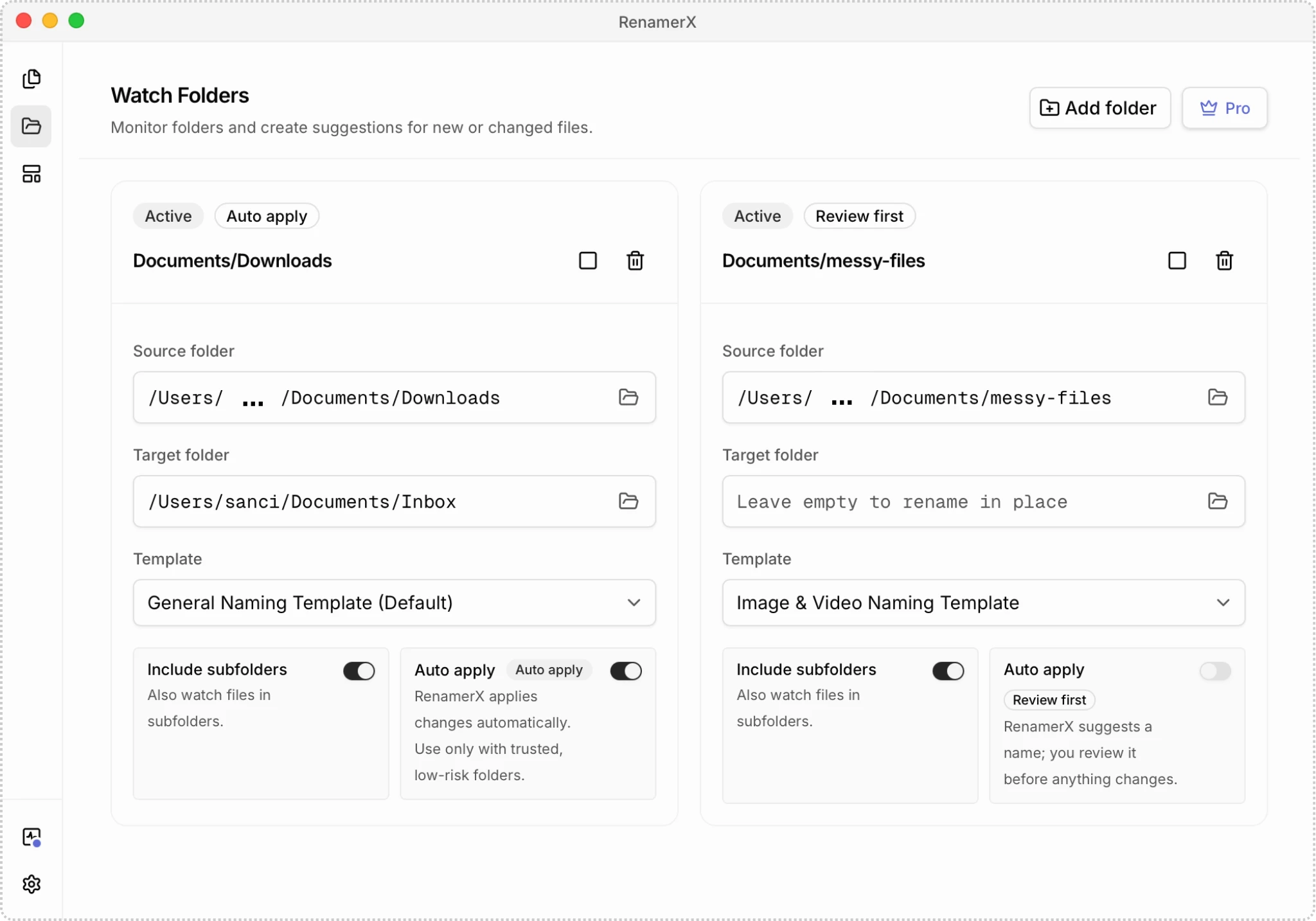
Watch Folders process files that repeatedly arrive in the same source folder, such as Downloads, a scan folder, or a camera export folder. Each configuration combines a source folder, an optional target folder, a template, subfolder scope, and an execution mode.
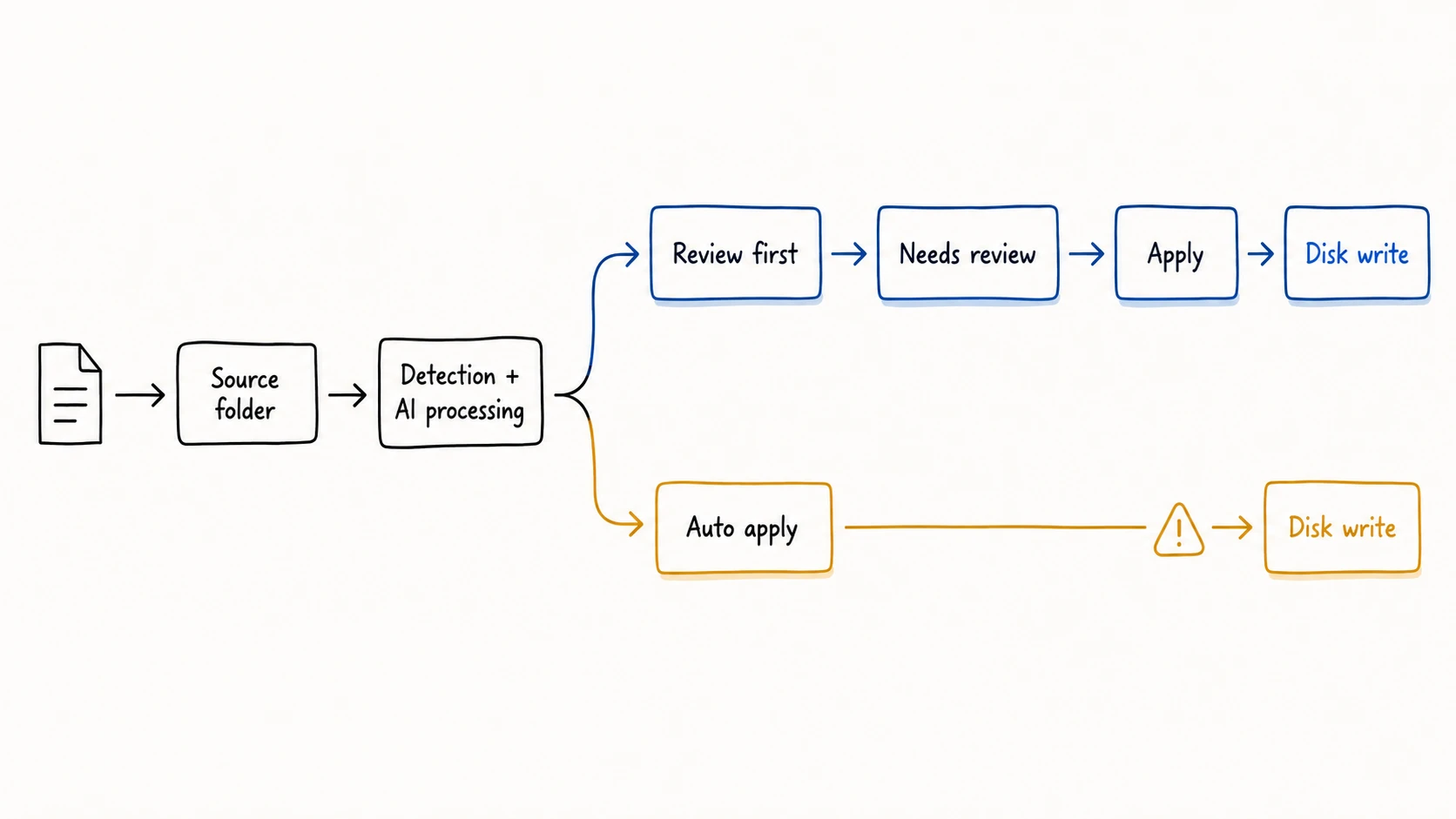
Watch Folders are a Pro feature. Start with Review first so you can inspect suggested filenames before any file changes. Use Auto apply only after representative files produce reliable names and destinations, because it writes successful results without per-item approval.
When to use a Watch Folder
Use a Watch Folder when files of the same kind arrive repeatedly and a stable template can handle them. Common examples include a scanner inbox, a camera ingest folder, a downloads folder for recurring statements, or a project handoff folder.
Use Batch Rename instead when the work is one-time, inputs vary widely, or you are still making large changes to the template. A proven Batch workflow is a better starting point for automation than an untested rule.
RenamerX must be running for active monitoring to process filesystem events. Enabled Watch Folders attempt to resume when the App starts and an active Pro license is available.
Create a Watch Folder
Open Watch Folder, choose Add folder, and configure each part deliberately.
1. Select the source folder
The source is the folder RenamerX monitors. Turn on Include subfolders only when files inside nested folders should use the same template and execution mode.
Avoid overlapping Watch Folder sources. A narrower source that receives one kind of file reduces the scope of validation and troubleshooting.
2. Select an optional target folder
Leave the target empty to rename files in place. Select a target to move applied files there and use the template’s organize mode to sort them into category folders.
Review Organize Files before using By Subject, By Type, By Organization, By Project, or By Date.
3. Select a template
Use a template tested with the types of files expected in this source. The template controls the generated filename and supplies the organize mode used when a target is selected.
4. Choose the execution mode
Choose the write behavior before saving:
| Mode | After a suggested filename is generated | When the file changes |
|---|---|---|
| Review first | The file item waits as Needs review in that Watch Folder’s results. | Only after you select it and Apply. |
| Auto apply | RenamerX proceeds to Apply without waiting for individual approval. | Automatically after a suggested filename is generated successfully. |
Auto apply can rename, move, and try to write Description metadata without asking you to approve each item. It is available only with Pro. Read Review, Apply, and Undo before enabling it.
5. Save and confirm the state
Saving creates the configuration and immediately attempts to start monitoring. A successful start shows Active.
If start fails, the configuration remains on the page. Correct the reported folder, permission, resource, or license issue, then use Watch On to try again.
What happens when monitoring starts
Starting a Watch Folder begins filesystem monitoring and also scans files already present in the configured source. You do not need to move existing files out and back in to make them eligible.
While the folder is Active, new and modified files enter or refresh its processing flow. RenamerX waits for file activity to settle before processing, so a large copy or export may not appear in results at the first filesystem event.
Unsupported and temporary files are skipped. If a source contains many unrelated file types, use a narrower folder or separate Watch Folders with templates suited to each intake.
Review results
Open a Watch Folder’s results to inspect its own processing history. You can search and filter the list, edit suggested filenames, retry failed items, ignore an item, Apply reviewed items, and Undo applied items.
Select a thumbnail to open the detail panel. You can play supported videos in this panel.
In Review first, wait for Needs review, check the original and suggested filenames, and Apply only the trusted items. In Auto apply, inspect Applied and Failed results regularly so silent source changes do not go unnoticed.
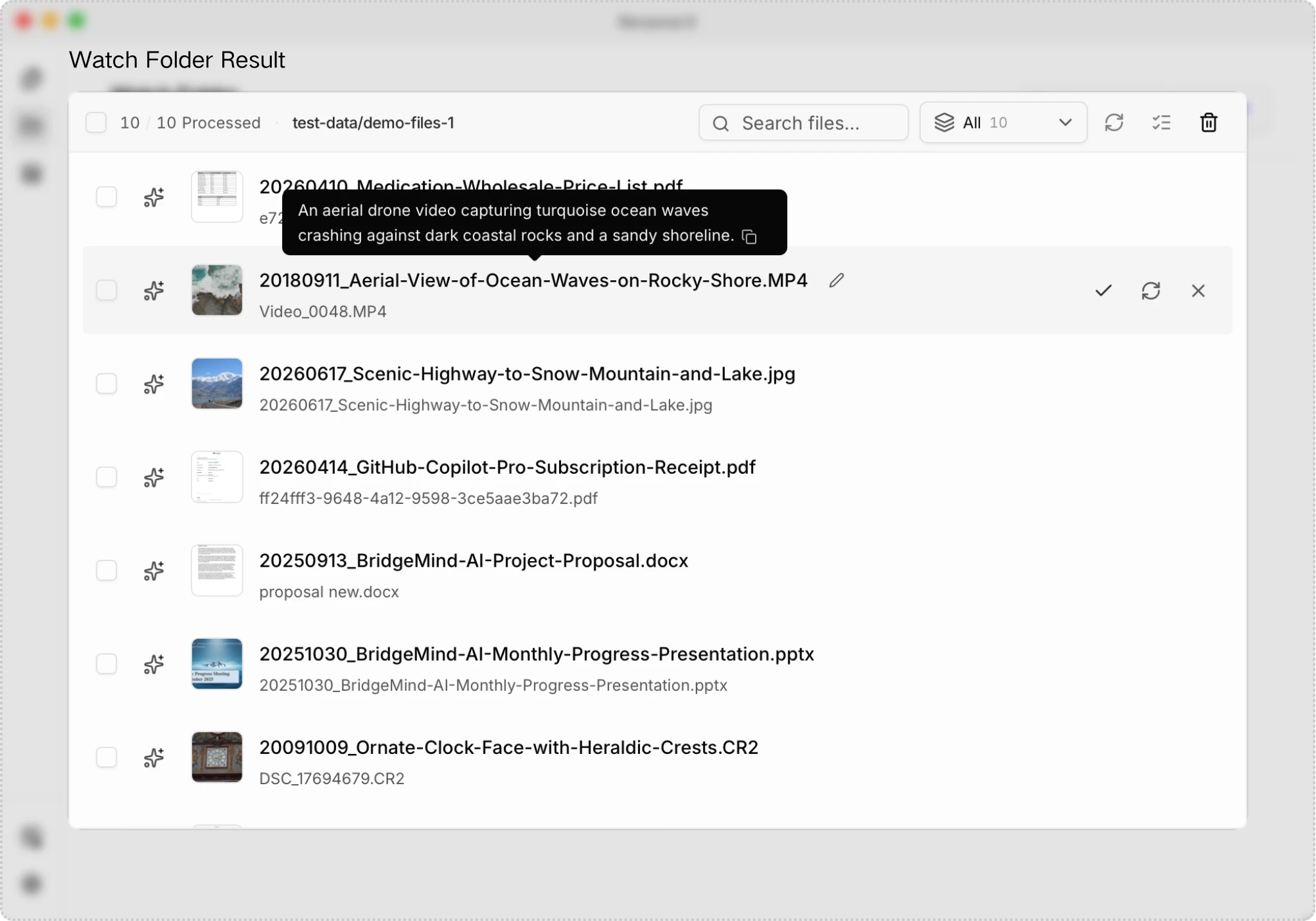
The statuses follow the same trust boundary as Batch Rename. Pending and Analyzing are still processing. Needs review has not changed the file, Applied has changed it, and Undone means Undo restored it. Failed, Cancelled, and Ignored need your decision before they re-enter processing.
Pause and resume monitoring
Use Watch Off to stop monitoring without deleting the configuration. The card becomes Paused; existing results and applied files remain as they are.
Remove stops monitoring, removes the configuration and its result records, and cancels queued rename work for those records. Files already applied on disk stay changed, but their Undo entries are removed with the history. Use Undo first when you may need to restore them.
Use Watch On to start it again. Starting performs another scan of existing files, and an enabled Watch Folder also attempts to resume the next time RenamerX starts with an active Pro license.
Pausing is not Undo. It prevents new monitoring activity but does not restore files already marked Applied.
Edit a Watch Folder carefully
Changing the source, Include subfolders, or template changes which files or rules belong to the workflow. RenamerX responds by removing non-Applied results so they can be rebuilt from the new configuration. Applied history is retained for Undo.
If the Watch Folder is Active, RenamerX stops and restarts monitoring around that structural change. The restarted folder scans its current source again.
Changing only the target folder or execution mode does not clear existing non-Applied results. Existing Needs review items use the current target when you manually Apply them. Changing to Auto apply affects items when they finish suggestion generation; it does not retroactively Apply items that were already waiting for review.
Keep or clear applied history
The results list is also part of the recovery record. Clear applied items does not change files on disk, but it can remove Applied records whose current files are outside the watched scope. Once a record is removed, its Undo entry is gone.
Use Undo before clearing if any file might need to return to its original path. Keep the history until you have checked both the results and the destination on disk.
Roll out automation safely
Move from observation to automation in stages:
- Test the template in Batch Rename with representative files that you can safely rename.
- Create the Watch Folder with Review first.
- Observe existing files and new arrivals across normal source variations.
- Apply reviewed results and inspect destinations on disk.
- Correct the template, vocabulary, source scope, or target as needed.
- Enable Auto apply only when repeated results are predictable and recoverable.
Successfully generated filenames use credits, including filenames followed by Auto apply. See Credits & License for the current monthly allowance and Pro features.