Understand how RenamerX works
See how RenamerX reads a file, creates a new filename with AI and a template, and waits for your approval before changing the file.
This guide explains how RenamerX reads file content and metadata, then uses AI and a naming template to create clear, searchable filenames. RenamerX changes a file on disk only when you click Apply changes or enable Auto apply for a Watch Folder.
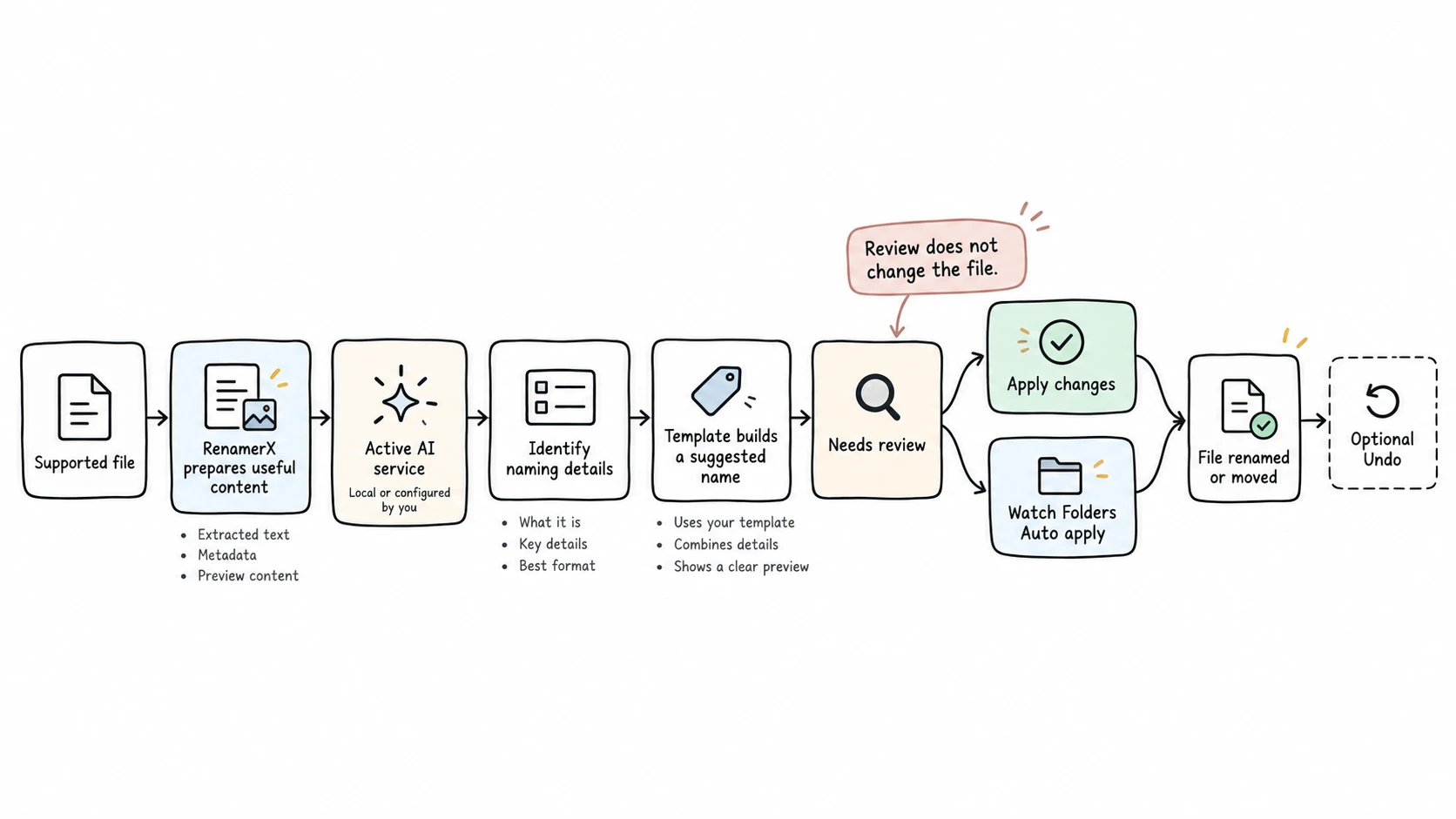
See what happens after you add a file
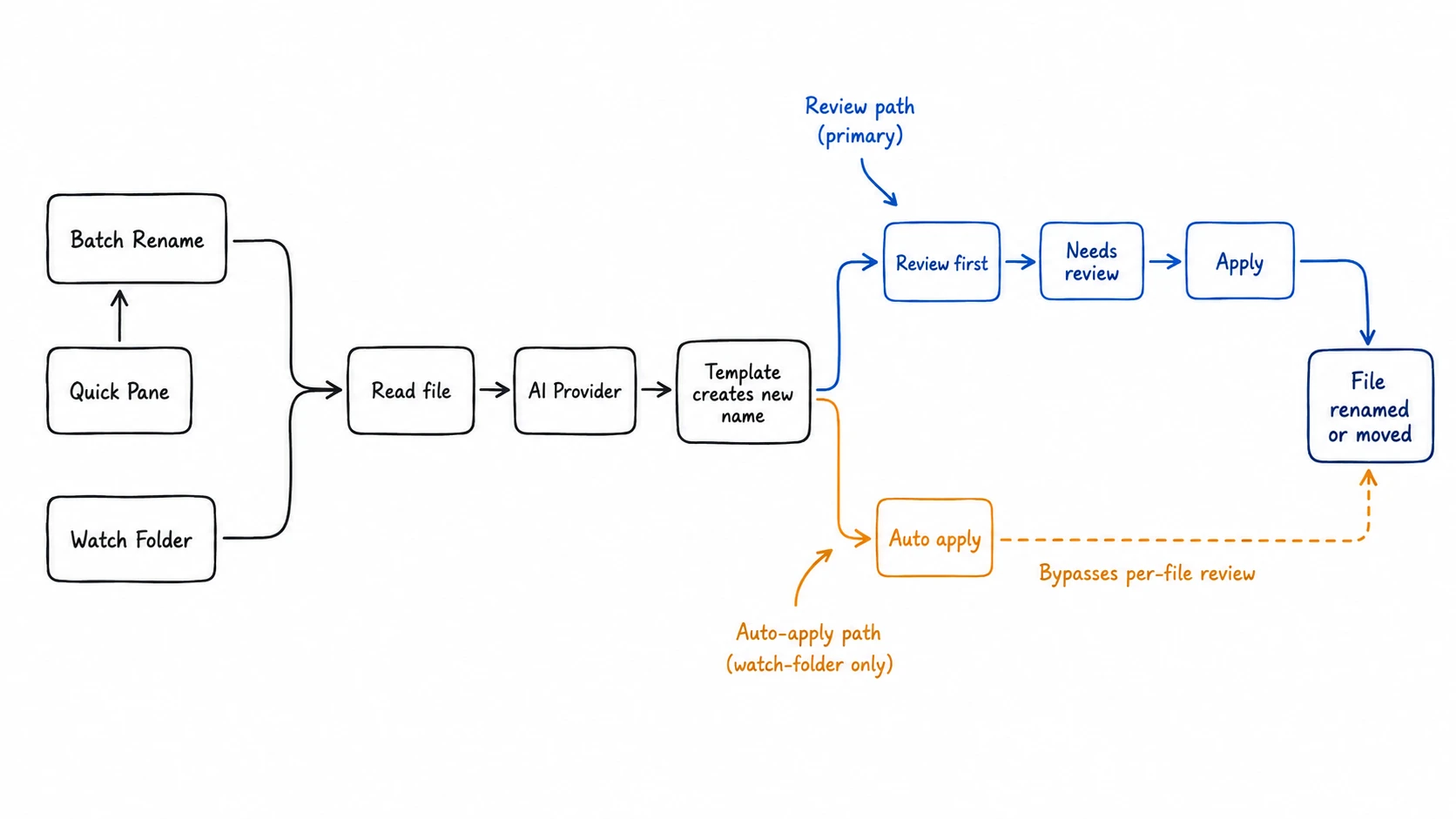
Batch Rename, Quick Rename with Quick Pane, and Watch Folders all use the same naming steps.
1. RenamerX checks the file
You can add files or folders in Batch Rename, import a file or folder through Quick Pane, or let a Watch Folder detect new files. When you add a folder, RenamerX scans its subfolders and adds supported files to the processing queue. See Supported File Types for formats and intake rules.
2. RenamerX reads the file on your device
RenamerX reads the information it can use from each file. Depending on the file, this can include document text, metadata such as dates, an image preview, or representative video frames. RenamerX prepares this information on your device without uploading the original file.
The file keeps its current name and location during this step.
3. AI identifies useful information in the file
RenamerX asks AI only for the fields required by the selected naming template and organization rule. It validates the response before creating a filename and rejects incomplete or invalid results.
RenamerX also creates a Description for each file. Use it to understand the file and review the suggested filename.
RenamerX Built-in Local AI processes content and metadata on your device. Ollama and LM Studio process the prepared request at the server URL you configure, which may be on this device or your local network. OpenAI, Google Gemini, and Custom Provider send the prepared request to the configured cloud service.
RenamerX checks the active Provider when it starts each file. If you switch Providers before all files finish, those files can use different Providers. See AI Providers for configuration and Security and Privacy for data handling.
4. RenamerX creates the new filename from the template
AI identifies requested fields such as Title, Description, Type, Subject, Organization, Project, and Client. RenamerX converts GPS coordinates stored in the file's metadata into a readable Location. It leaves the field empty when it cannot identify one reliable place.
For Date, RenamerX first uses the date that best describes the file's content. If no reliable date is found, it uses the file's saved creation date and then its modification date. The template chooses which fields appear, their order, separator, Date format, and output language.
For example, processing can identify an invoice’s Date, Organization, Type, and Identifier. A template can format those values as 2026-05-16_Stripe_invoice_42558262.pdf.
Controlled Vocabulary helps RenamerX use consistent names for recurring Subjects, Types, Statuses, Organizations, and Projects.
RenamerX removes characters that your operating system does not allow in file and folder names.
5. Review the new filename
New filenames are placed in Needs review by default. You can inspect or edit a new name while the file keeps its current name and location. The file is renamed or organized only after you finish reviewing it and select Apply changes.
An Auto apply Watch Folder renames or moves a file after RenamerX creates its new name. It does not wait for per-file approval, so test the template and destination with files you handle regularly.
Choose how to add files
Choose a workflow based on where the files come from and whether you want to review each new name.
| Workflow | Best for | What happens after you add files |
|---|---|---|
| Batch Rename | A one-time set of files or testing a naming rule | New names wait in the Batch Rename workspace for review |
| Quick Pane | Sending paths copied to the clipboard or entered from anywhere on the desktop | Paths enter Batch Rename and wait for review; Quick Pane never applies files |
| Watch Folder | Files that repeatedly arrive in one source folder | Review first waits for approval; Pro-only Auto apply can rename or move files automatically |
Know when your files change
The status tells you whether RenamerX has created a new name or changed the file.
| State | Meaning | File changed on disk? |
|---|---|---|
| Pending or Analyzing | RenamerX is waiting to create or is creating a new name | No |
| Needs review | The new name is ready to inspect | No |
| Applied | Apply or Auto apply renamed or moved the file | Yes |
| Undone | Undo restored the recorded original name and location | Yes |
Adding a file, creating a name, reviewing it, and editing it do not change the file. Apply and Auto apply rename or move it. Undo restores the recorded original name and location.
RenamerX handles files one at a time, so some files can succeed while others fail. See Review, Apply, and Undo for statuses, Description, conflicts, and recovery rules.
Know when RenamerX consumes a credit
On Free, RenamerX uses 1 credit each time it successfully creates a new name for one file. Adding a file, reviewing its name, Apply, and Undo do not use another credit.
See Credits and License for monthly limits, Pro features, and license behavior.
Continue by task
- Rename Your First Files to complete the reviewed workflow
- Batch Rename for a one-time group
- Quick Rename for Quick Pane intake
- Watch Folders for recurring sources
- Templates to design the filename structure