Organize renamed files into folders
Choose a target folder and organization rule, then check where RenamerX will place each file when you apply it.
In addition to renaming a batch of files, RenamerX can move renamed files into the appropriate category folders. The target folder sets the root destination. The template's organize mode determines whether files go directly into that destination or are classified by Subject, Type, Organization, Project, or Date.
Importing, analyzing, and reviewing do not move files. RenamerX moves files into the selected destination and category folders only during Apply or Auto apply.
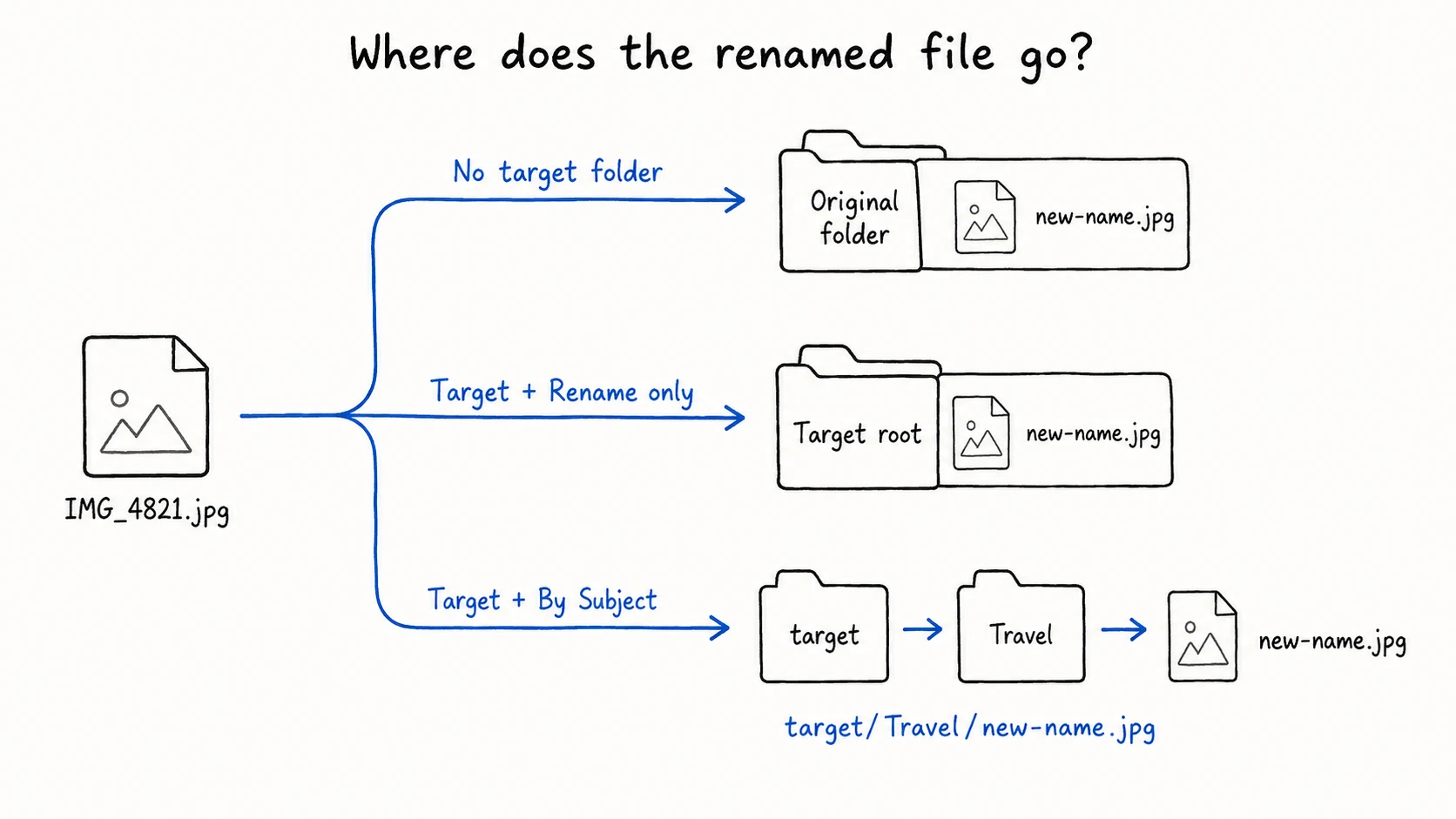
See how RenamerX chooses the destination
The target folder is the first decision. It determines whether RenamerX renames in place or moves the file.
| Target folder | Result when Apply runs |
|---|---|
| Not selected | Rename the file in its current folder. Do not create an organization folder. |
| Selected | Move the renamed file into the target root or the corresponding category folder, based on the template. |
This means a template set to By Subject does not create a Subject folder when the workflow has no target folder. The organize mode only affects a move into a selected target.
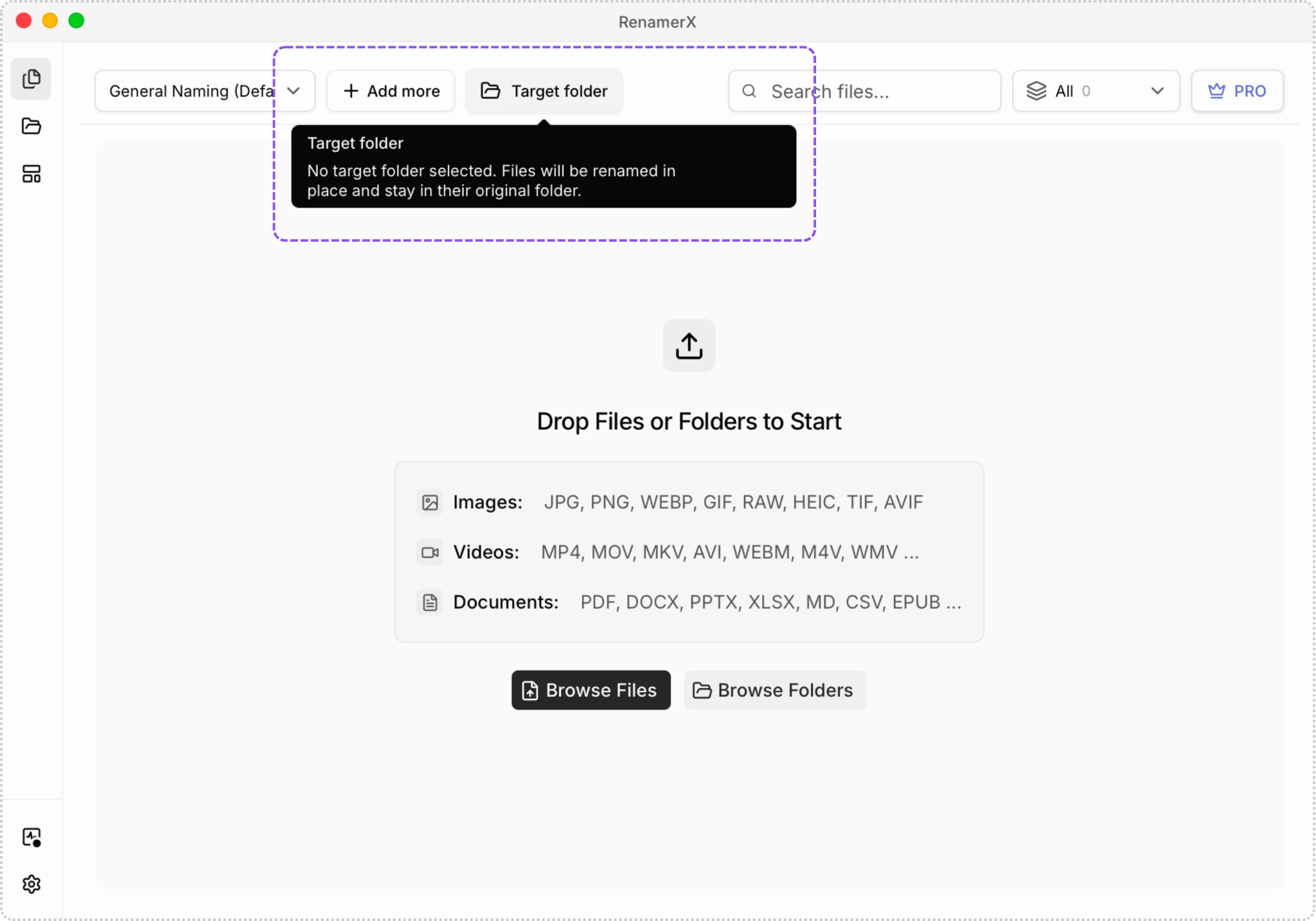
Choose how to classify files in the template
The template’s Organize mode decides whether a moved file goes to the target root or a category folder. Each field-based mode uses the value generated for that file. RenamerX creates one category folder for this classification, not a nested folder tree.
| Organize mode | Folder inside the target | Required result | If the result is missing |
|---|---|---|---|
| Rename only | None | None | The renamed file goes directly into the target root. |
| By Subject | The dcSubject value | Subject | RenamerX uses uncategorized. |
| By Type | The dcType value | Type | Apply fails for that item. |
| By Organization | The extOrganization value | Organization | Apply fails for that item. |
| By Project | The extProject value | Project | Apply fails for that item. |
| By Date | The resolved dcDate value in the template’s date format | Date | Apply fails if no resolved date is available. |
Example output paths
Assume the original file is:
/Inbox/IMG_4821.jpg
The suggested filename is:
20260810_Summer_Market.jpg
The selected target folder is:
/Archive
The output changes with the organize mode:
| Organize mode | Generated value | Output path |
|---|---|---|
| Rename only | Not used | /Archive/20260810_Summer_Market.jpg |
| By Subject | Travel | /Archive/Travel/20260810_Summer_Market.jpg |
| By Type | Photo | /Archive/Photo/20260810_Summer_Market.jpg |
| By Organization | Northwind Studio | /Archive/Northwind Studio/20260810_Summer_Market.jpg |
| By Project | City Guide | /Archive/City Guide/20260810_Summer_Market.jpg |
| By Date | 2026-08-10 | /Archive/2026-08-10/20260810_Summer_Market.jpg |
RenamerX sorts each file into one category folder rather than building a nested category tree. It also removes characters that the filesystem does not allow in folder names instead of treating them as additional path levels.
Organize files by date
By Date uses the Date value and format selected in the template. If RenamerX cannot identify a reliable date from the content, it uses the creation date saved in the file and then the file modification date.
If none of these dates is available, Apply fails instead of guessing a destination.
For the available formats and date semantics, see Date Formatting and Naming Fields Dictionary.
Set up file organization
RenamerX places these controls in different areas because one belongs to the reusable template and the other belongs to the current workflow.
- Open Templates and create or edit a template.
- Set Organize mode to Rename only, By Subject, By Type, By Organization, By Project, or By Date.
- Save the template.
- Open Batch Rename, Quick Pane, or a Watch Folder configuration.
- Select that template.
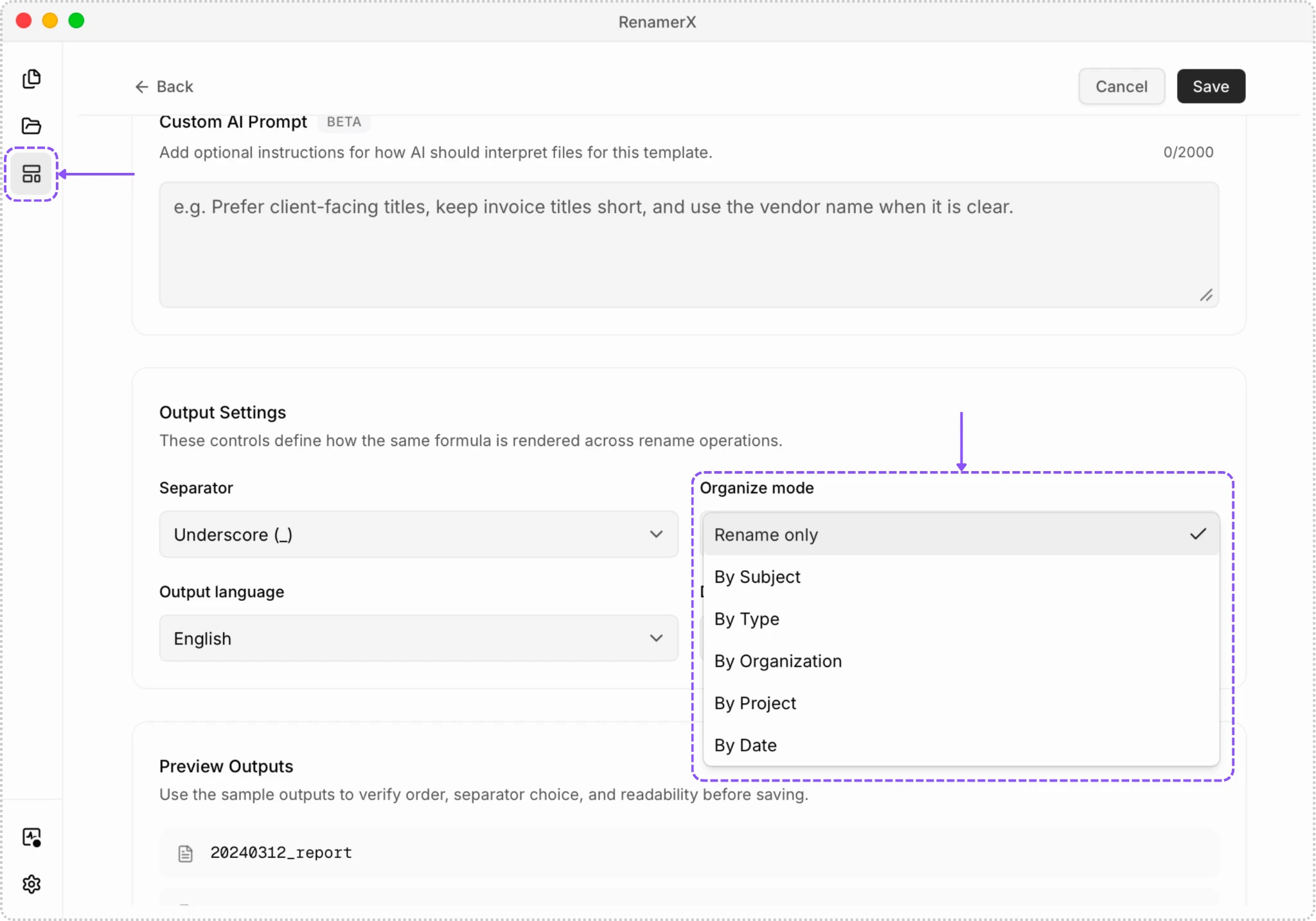
- Select a target folder if you want files moved or organized.
- Generate suggested filenames and review the field used by the organize mode before Apply.
Review the destination before Apply
Before applying a batch, check:
- A target folder is selected if you expect files to move.
- The template uses the intended organize mode.
- Every Needs review item has the field required by that mode.
- Subject values are specific enough that
uncategorizedis an acceptable fallback only when no Subject is available. - The destination has enough free space and you can write to it.
If one file item lacks a required field, that item can fail while other selected files are applied. RenamerX does not roll back the successful items. See Review, Apply, and Undo for conflict handling, partial results, and recovery.
Use organization in each workflow
The same path rules apply across RenamerX, but the target is selected in a different place.
- In Batch Rename, choose Target folder before Apply.
- In Quick Pane, choose an optional target before importing into Batch Rename.
- In Watch Folders, save a target folder in the Watch Folder configuration.
Leaving the target empty always means rename in place, even when the selected template has a field-based organize mode.