Choose and configure an AI Provider
Learn how to choose and set up Built-in Local AI, Ollama, LM Studio, OpenAI, Google Gemini, or a custom AI service.
RenamerX supports six AI Provider types: Built-in Local AI, Ollama, LM Studio, OpenAI, Google Gemini, and any OpenAI-compatible service through Custom Provider.
RenamerX Built-in Local AI is the recommended starting point. RenamerX manages the local AI runtime and model. Your files and their data stay on your device, and you do not need an API key or a separate AI app.
Choose another AI Provider when you already use a compatible local service such as Ollama or LM Studio, or when you want to use a cloud model. Before connecting one, check where it runs, whether the model can understand images, and which service terms or usage charges apply.
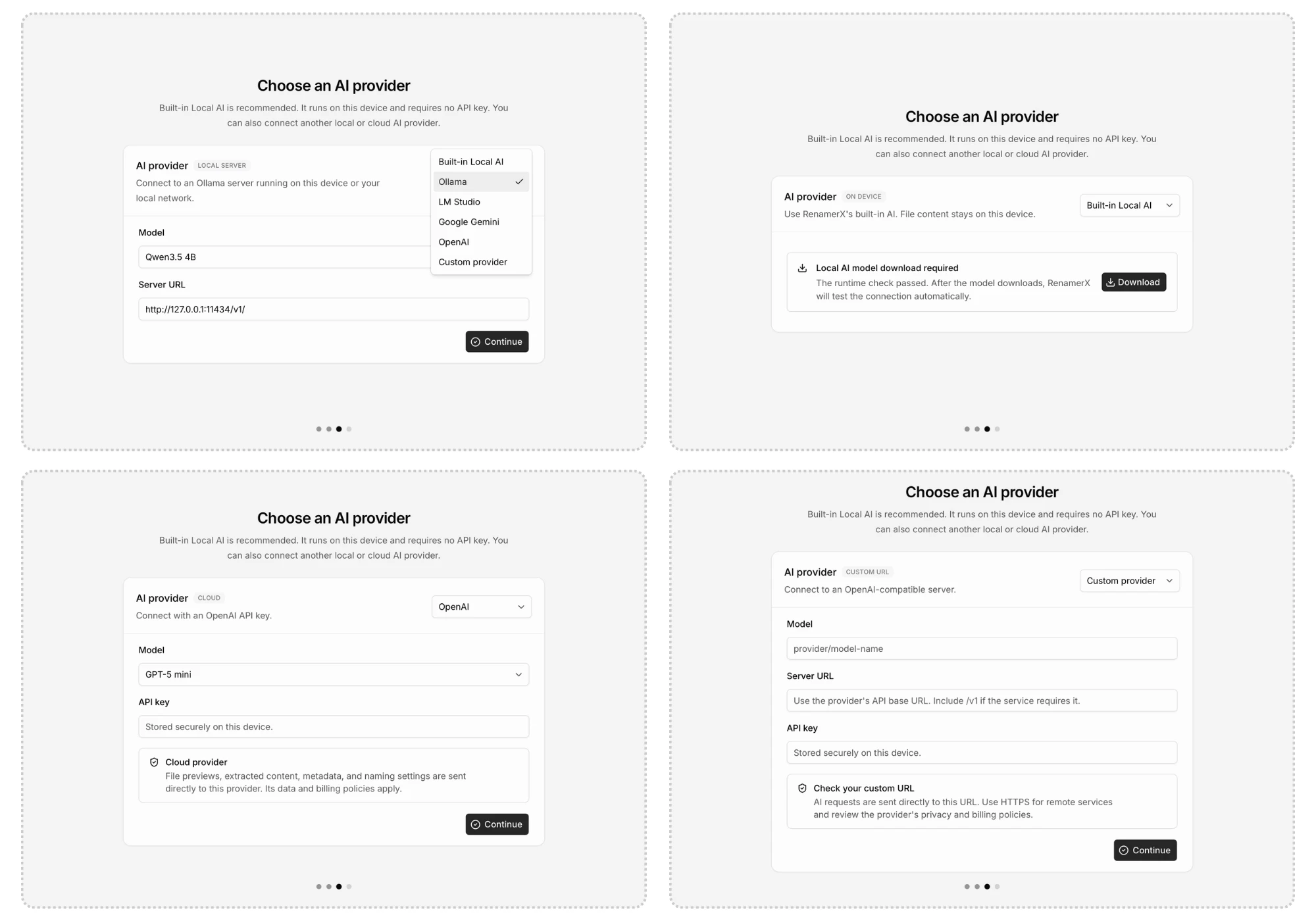
Choose a Provider
For Ollama, LM Studio, OpenAI, Google Gemini, and Custom Provider, choose a model that supports image input. RenamerX needs a vision-capable model to understand supported images, scanned PDFs, and videos.
| Provider | Where AI processing happens | API key | What you configure |
|---|---|---|---|
| RenamerX Built-in Local AI | On this device | No | RenamerX prepares and manages it. |
| Ollama | At the Server URL you enter | No | Server URL and a model that can understand images. The default URL is http://127.0.0.1:11434/v1/. |
| LM Studio | At the Server URL you enter | Optional | Server URL and a model that can understand images. The default URL is http://127.0.0.1:1234/v1/. |
| OpenAI | OpenAI cloud | Required | API key and model. |
| Google Gemini | Google cloud | Required | API key and model. |
| Custom Provider | At the OpenAI-compatible service you enter | Optional | Server URL and Model ID. |
RenamerX includes recommended model choices for each Provider. Choose one of them, or enter another compatible Model ID when the configuration allows it.
For an editable Server URL, enter the complete address, including http:// or https://. Do not include an API key or other credentials in the address. Use HTTPS for a remote service. Ollama, LM Studio, and Custom Provider process files locally only when their Server URL points to this device.
Connect and activate a Provider
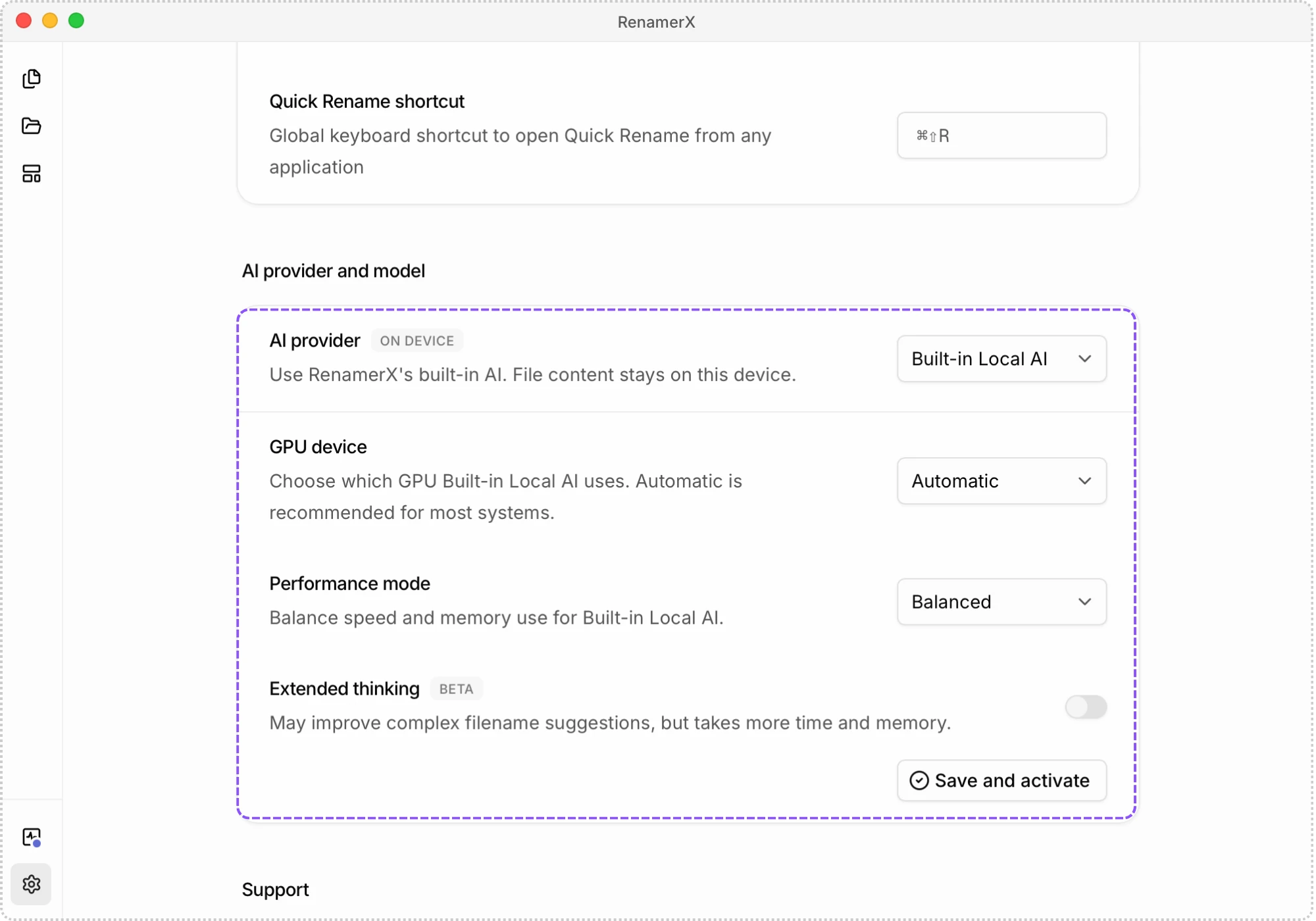
Open Preferences → AI provider and model, then complete the fields shown for your AI Provider.
- Select an AI Provider.
- Select a model or enter a Model ID when required.
- Check the Server URL when it is editable.
- Enter an API Key when the Provider requires one.
- Click Save and activate.
RenamerX tests the selected Provider before activating it. If the test fails, the new configuration remains inactive.
When you select Built-in Local AI, RenamerX checks for a compatible GPU and offers the model download when needed. Once the resources are ready, choose your local AI settings and click Save and activate. RenamerX then verifies that Built-in Local AI can process a test image.
What the connection test verifies
The connection test sends a sample image to the selected service and checks whether the chosen model returns a response before the test times out.
A successful test confirms only that this configuration completed the sample request. It does not evaluate suggested filename quality or guarantee that every file will work. If the service later becomes unavailable, test it again from Preferences.
Ollama and LM Studio on this device do not depend on your system proxy settings. Cloud and remote services use your normal network connection.
Switch Providers without mixing results
RenamerX reads the active AI Provider when each file reaches the AI processing step. It does not lock one AI Provider to an entire batch or processing queue.
Files already waiting or being analyzed can use different AI Providers if you switch during processing. Stop or finish current processing before switching when a group of files must use one AI Provider. Suggested filenames that are already ready do not change automatically. Retry those files if you want new results from the new AI Provider.
Protect keys and account usage
RenamerX stores AI Provider API keys in a dedicated encrypted file on the device. Keys are not stored in normal preferences, logs, diagnostic bundles, or cached naming results.
Removing a key takes effect immediately. Enter the replacement key and use Save and activate again if the AI Provider requires authentication.
Third-party quotas, billing, privacy terms, and service availability remain the AI Provider's responsibility. A RenamerX Pro license does not include OpenAI, Google Gemini, or other third-party usage.
Understand the data boundary
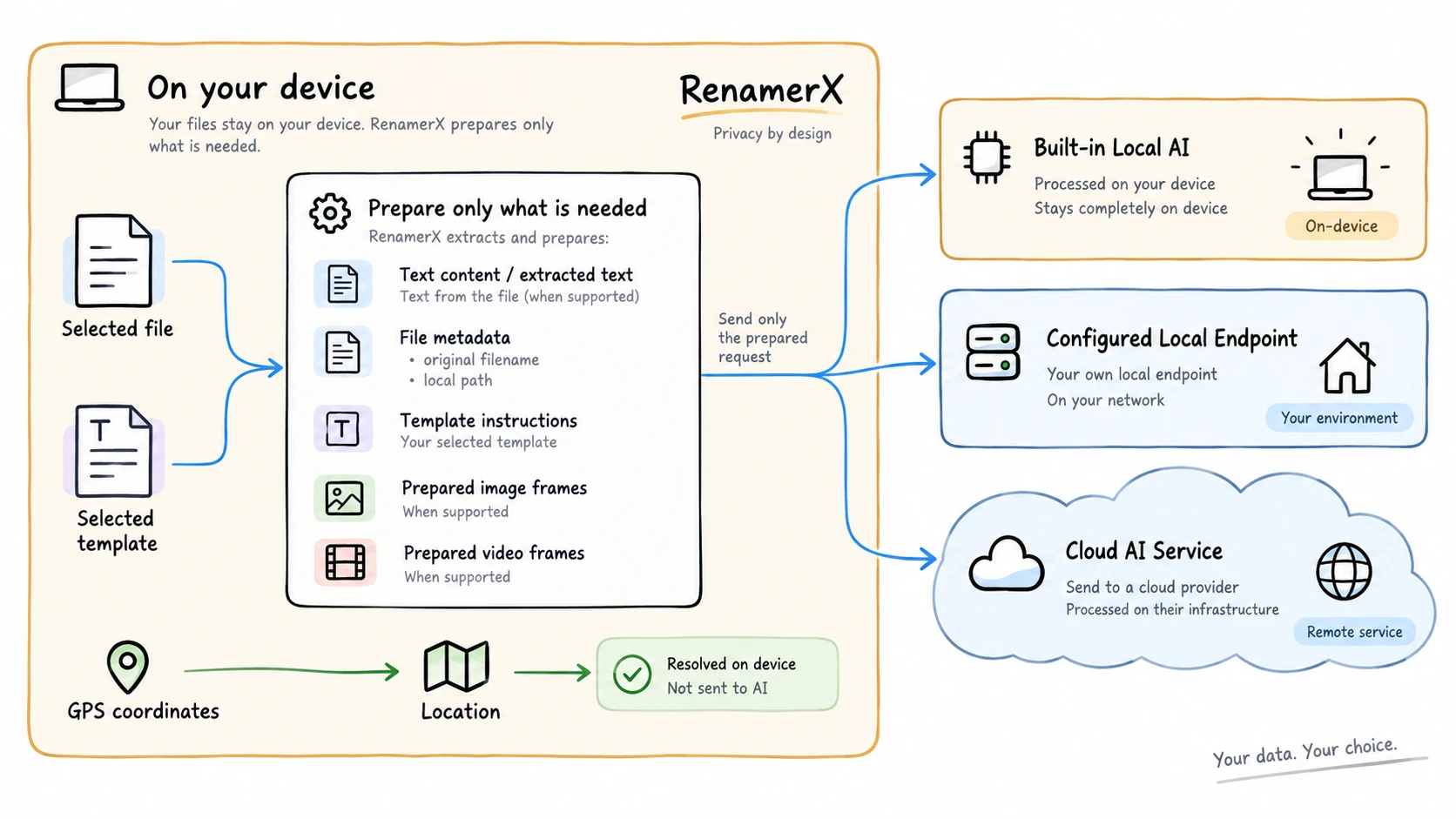
RenamerX sends requests directly from the desktop app to the active Provider. It does not pass those requests through RenamerX servers.
Depending on the file and template, a request can include:
- text extracted from text files and documents
- file metadata, such as the original filename and local path
- the naming fields, output language, and custom instructions from the selected template
- an image preview, a scanned PDF page, or selected video frames
RenamerX does not include the file's GPS coordinates in the information sent for AI processing. It identifies Location on your device afterward, so the Provider does not determine or receive that value.
OpenAI and Google Gemini process requests in their cloud services. Ollama, LM Studio, and Custom Provider process them at the Server URL you configured.