Send files to Batch Rename with Quick Pane
Open Quick Pane from anywhere, paste file or folder paths, and send them to Batch Rename with the right template and destination.
Open Quick Pane over any app without opening the main RenamerX window. Add file or folder paths, choose a naming template and an optional target folder, then send the files to the Batch Rename processing queue.
Pressing Enter in Quick Pane does not rename, move, or apply files. After import, RenamerX analyzes the files and generates suggested filenames for you to review and Apply.
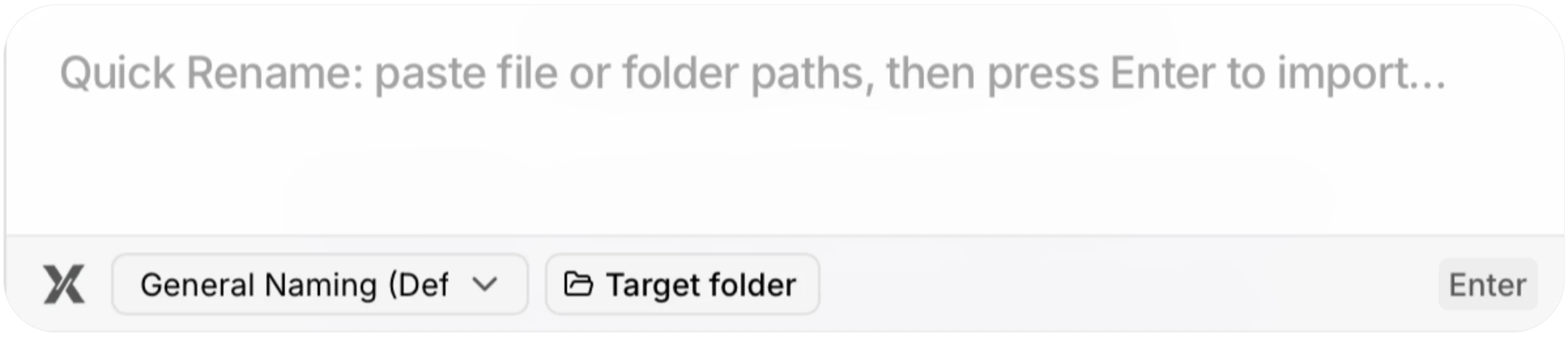
Open Quick Pane
Use the global shortcut from any application:
- macOS:
⌘ + Shift + R - Windows:
Ctrl + Shift + R
These are the default shortcuts. If you changed Quick Pane Shortcut in Preferences, use the shortcut shown there.
Quick Pane closes when you press Escape or move focus to another window. Reopen it with the shortcut when you are ready to continue.
Add paths
Enter one file or folder path per line. You can type paths, paste path text, or copy items in Finder on macOS and paste them into Quick Pane.
Quick Pane prepares the input as follows:
- Empty lines are ignored.
- Leading and trailing spaces are removed.
- Matching straight single or double quotes around an entire line are removed.
- Duplicate path lines are kept only once.
- A folder path is scanned recursively when it reaches Batch Rename.
On macOS, Quick Pane first checks the clipboard for copied file URLs from Finder. If none are available, it uses clipboard text. On Windows, paste file or folder paths as text, one path per line.
Use Shift+Enter when you need to insert another line without submitting.
Choose a template and destination
Select the template that should generate the names. Quick Pane cannot submit the paths until a template is selected.
The target folder is optional:
- Leave it empty to rename files in their current folders after you review and Apply them.
- Select a target to move applied files there, with any one-level organization defined by the template.
See Organize Files before using a field-based organize mode.
Import into Batch Rename
Press Enter or choose Press Enter to import. Quick Pane then:
- Sends the unique paths, selected template, and optional target to the main window.
- Imports supported files and recursively scans any folders.
- Queues imported items for suggested filename generation.
- Opens Batch Rename.
Unsupported, temporary, missing, or already Watch Folder-managed files are skipped under the same intake rules as a normal Batch import.
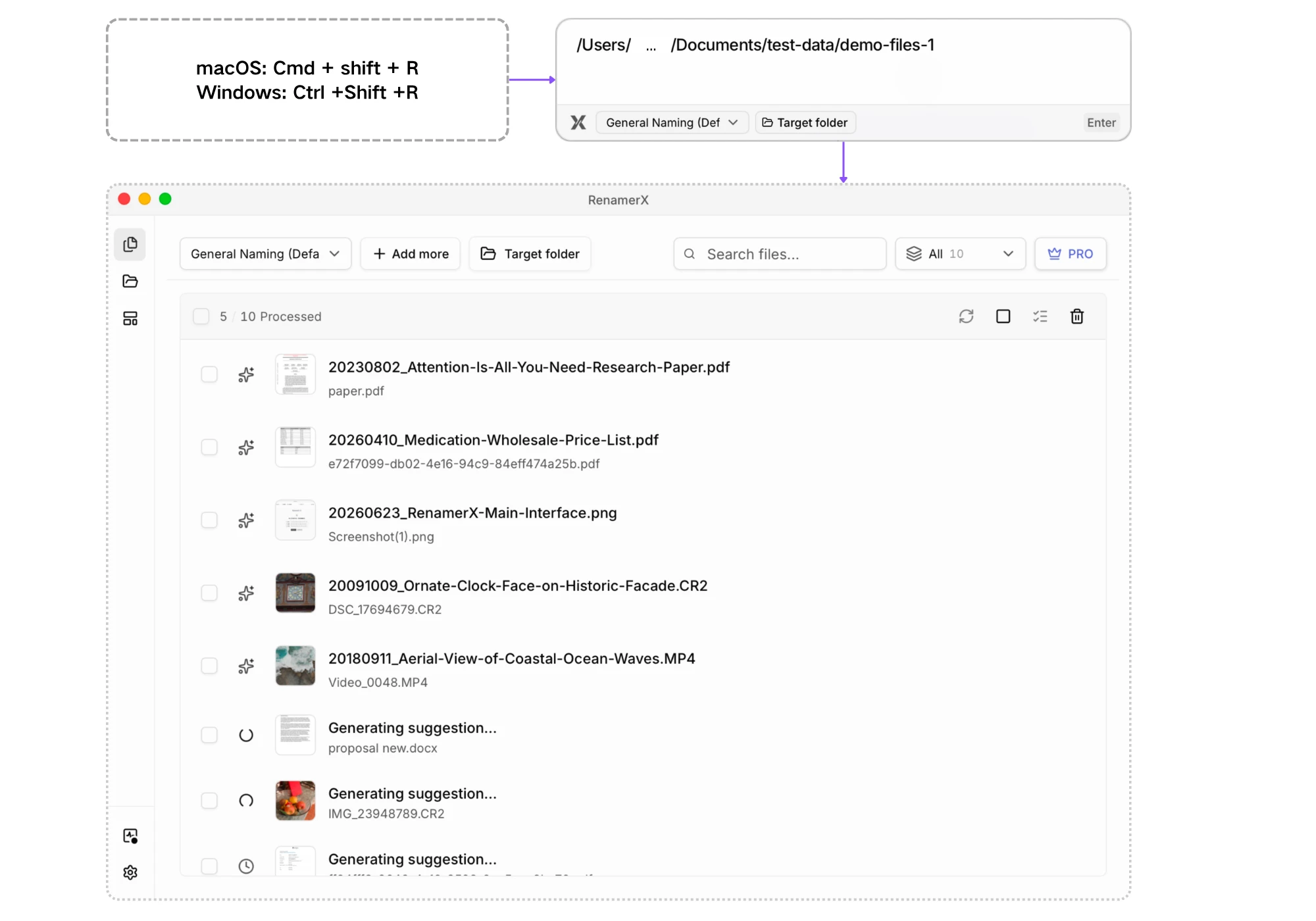
Finish in Batch Rename
Wait until imported items reach Needs review, then compare the original and suggested filenames. Edit or retry individual items as needed, select the trusted results, and choose Apply changes.
Read Batch Rename for the full workspace procedure. Read Review, Apply, and Undo before applying files when you need the complete disk-write and recovery rules.
If nothing is imported
Start with the input that Quick Pane can validate directly:
- Confirm that a template is selected.
- Put each path on its own line.
- Check that each path still exists and is accessible.
- Remove labels or any other text that is not part of a file or folder path.
- Confirm that the files use supported formats.
If Quick Pane closes with no input, reopen it and paste the paths again. If Batch Rename opens but some sources are absent, review the intake rules in Supported File Types and Troubleshooting.