Review, apply, and undo file changes
Check new filenames and destinations before Apply, recover completed changes with Undo, and preserve the history needed for recovery.
RenamerX uses a review-first workflow. After you add files, it generates a suggested filename for each one. You can review and edit the new filename while the file keeps its current name and location. RenamerX changes a file only when you use Apply, a Watch Folder uses Auto apply, or you use Undo.
Before Apply, review each suggested filename, selected file, and destination. Keep each Applied record until you are certain that you will not need Undo.
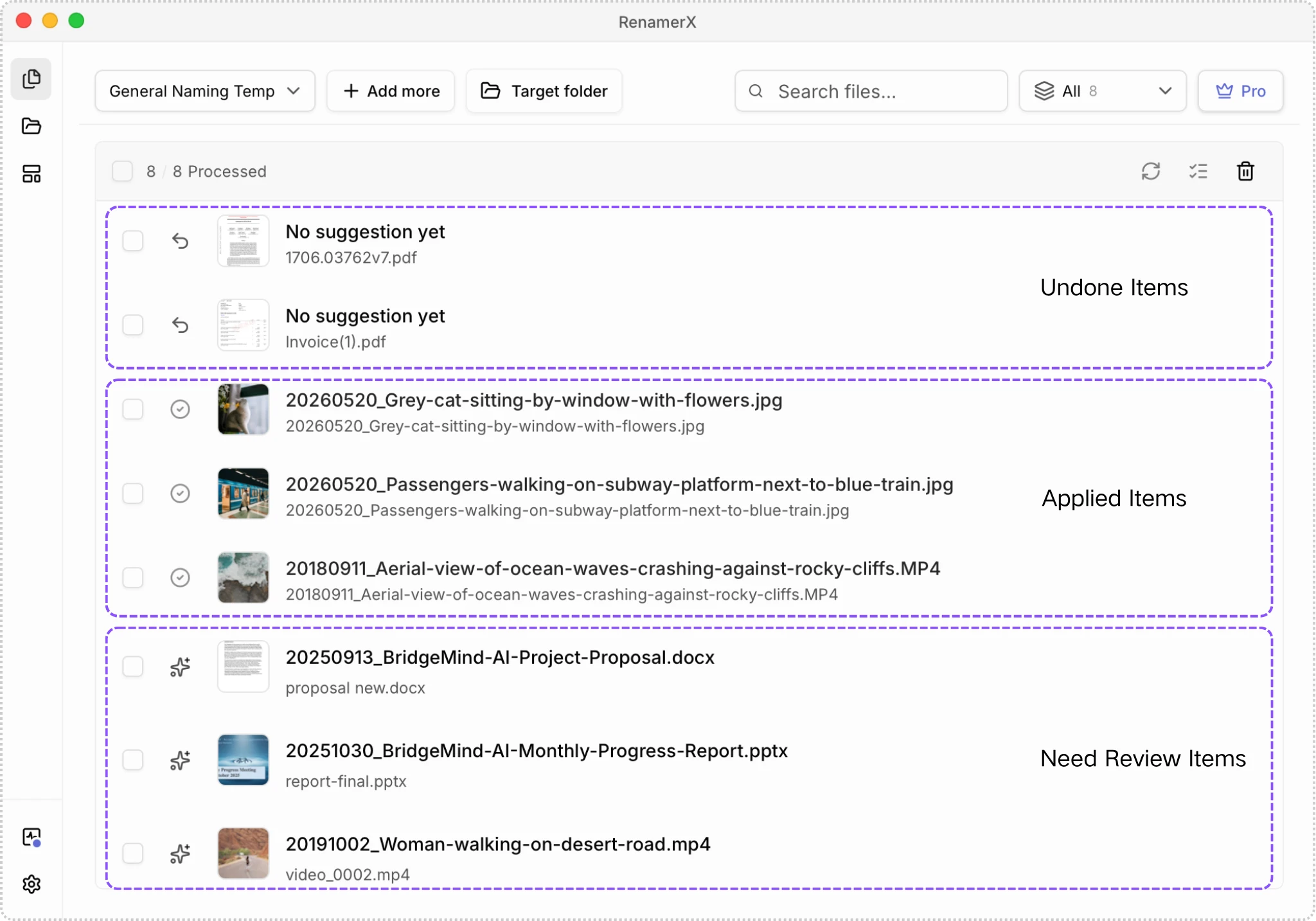
Before you apply
Apply only after the selected files, names, and destination all look correct. Check the following details:
- Filter the workspace to Needs review.
- Compare each original filename with its suggested filename.
- Select the thumbnail to open the preview pane on the right.
- Read the generated Description by hovering over the new filename or opening the preview pane. It can help you understand the file and evaluate the suggested name.
- Edit any suggested filename that needs correction.
- Confirm the selected template and target folder.
- Select only the file items you intend to change.
If you are testing a new template, start with a few representative files that you can safely rename. One successful example does not establish that every input will produce the same quality.
What Apply does
Apply processes each selected file item separately. RenamerX confirms the final filename and destination, then handles any destination conflict it can resolve. It renames or moves the file and updates the item to Applied.
The destination depends on the target folder and the template’s organize mode:
- With no target folder, RenamerX renames the file in its current folder.
- With a target folder, RenamerX moves the file there and, when configured, sorts it into the corresponding category folder.
See Organize Files for the complete path rules and required fields.
The generated base filename is limited to 140 Unicode characters. If a file already exists at the destination, RenamerX tries numbered suffixes from -01 through -999. Apply fails for that file item if no destination is available.
If one file fails, the other files can still succeed
RenamerX applies files one at a time. If three files succeed and one fails, the three successful changes remain on disk while the failed item stays available for inspection.
After a partial result:
- Filter for Failed and read each error.
- Check the affected paths on disk before retrying.
- Correct the conflict, missing field, permission, or destination problem.
- Retry only the failed items.
Do not assume a failed summary means that every selected file stayed unchanged.
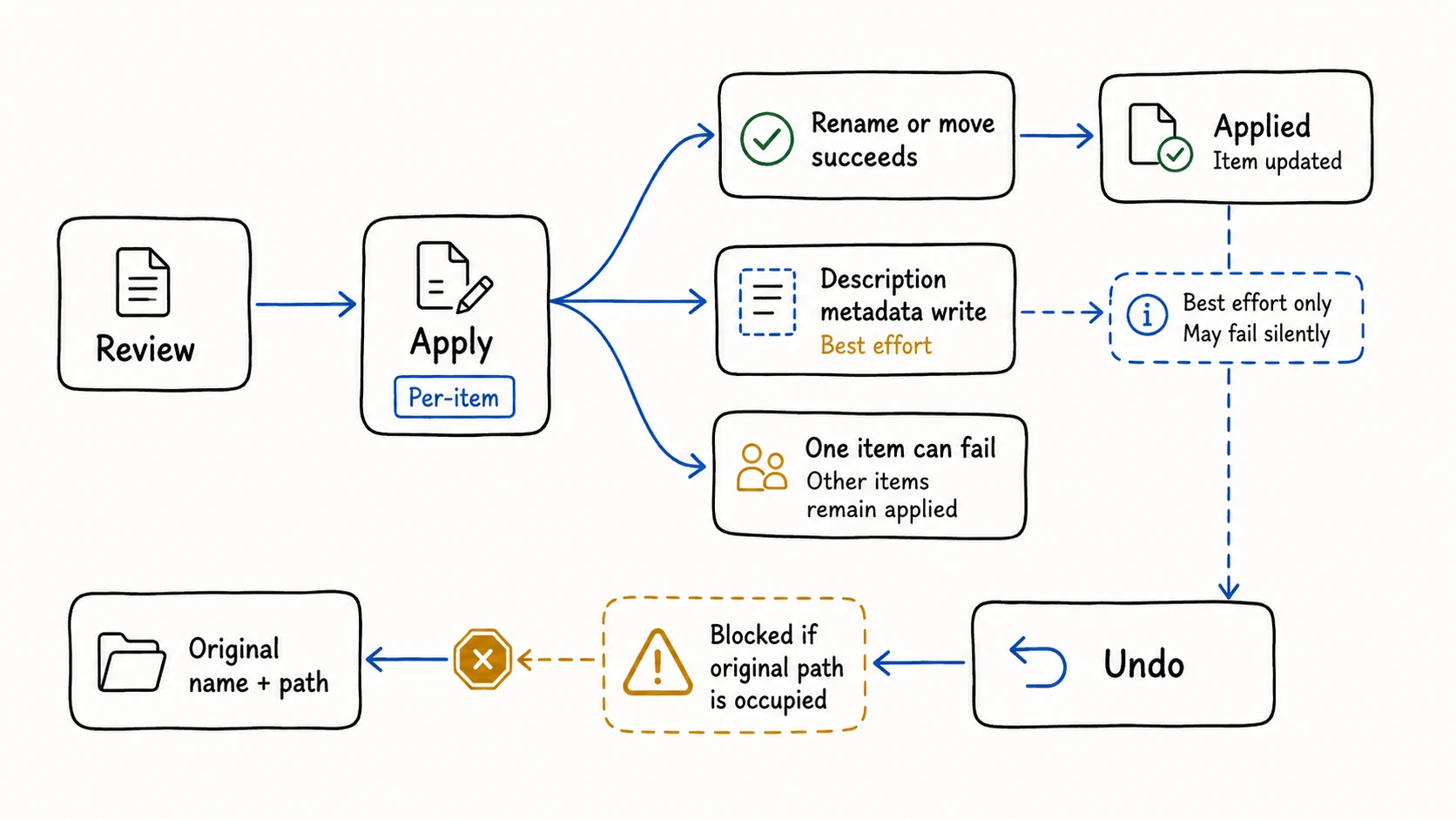
Writing Description metadata can fail separately
After a successful rename or move, RenamerX attempts to write the generated Description to the file's metadata. It does not write into a document body or change visible content. You can view or edit it with an app that supports this file metadata.
Writing Description metadata can fail without reversing a rename or move that already succeeded. The item can therefore be Applied even when its Description metadata was not written. Support varies by file type; see Supported File Types.
What Undo does
Undo attempts to restore an Applied item to its original name and path. It also attempts to restore the original Description state captured before Apply, when that information is available.
Undo has two important conditions:
- The original destination must still be available. RenamerX does not overwrite a different file that now occupies the original path.
- The applied item’s history must still exist in RenamerX.
If the original path is occupied, move or rename the conflicting file, verify that the path is free, and try Undo again. A successful Undo changes the item to Undone.
Undo also runs item by item. Some selected items can be restored while another fails, so review the result and resolve only the remaining failures.
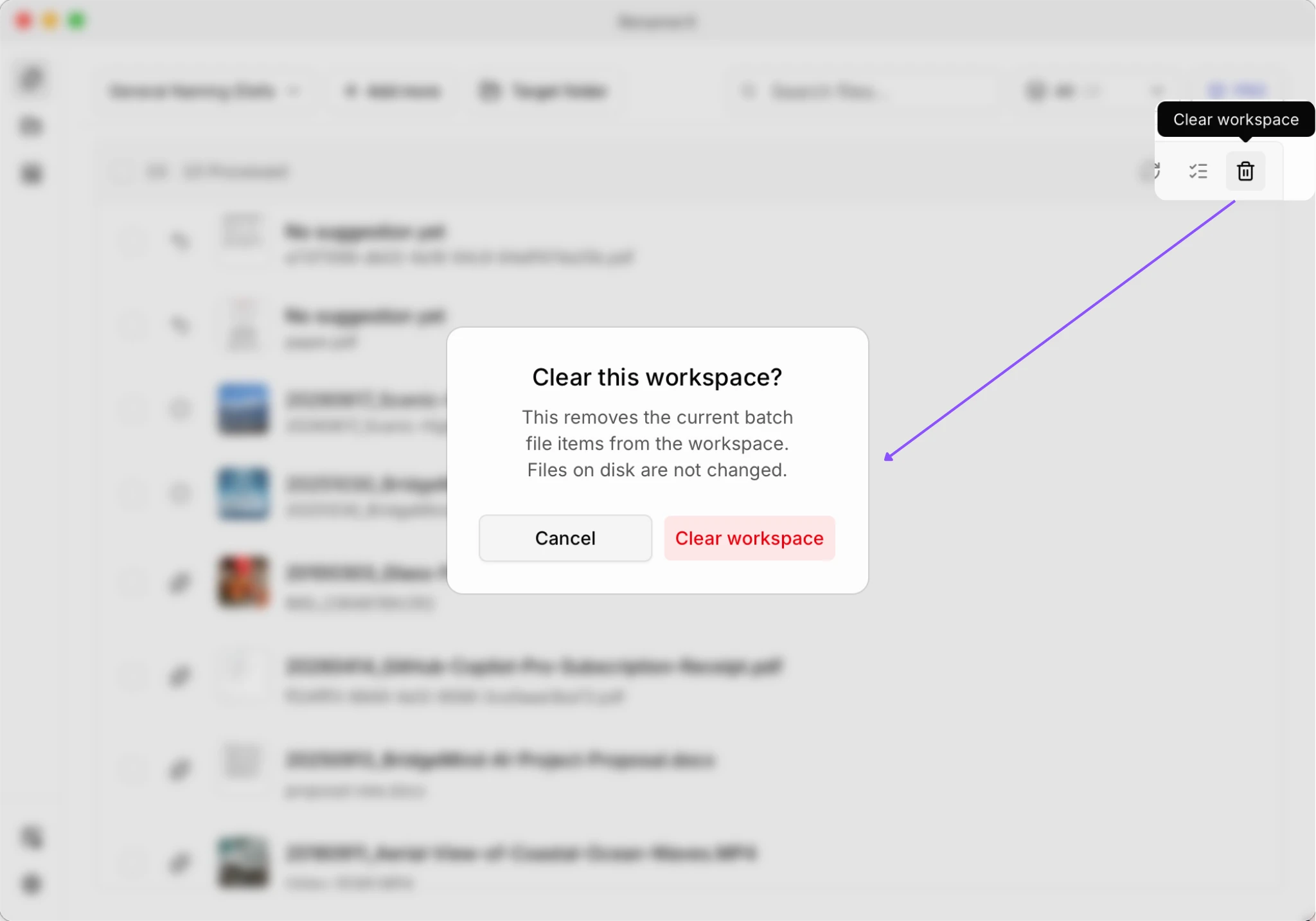
Clearing the workspace is not Undo
Clear workspace removes Batch Rename records. It does not change files on disk, and it removes the history that makes Undo available for those Batch items.
In Watch Folder results, Clear applied items removes eligible Applied records from the results list without changing files on disk. Applied files that have moved outside the watched scope can be removed by this action, and removing a record also removes its Undo entry.
Use Undo before either clear action if you need to restore files. Use a clear action only when the current disk state is correct and you no longer need the corresponding history.
Auto apply uses the same write path
Auto apply skips per-item approval after a Watch Folder generates a suggested filename. It can rename, move, and attempt Description write-back without waiting for you to open the results dialog.
Use Review first until the template, source files, and destination rules produce reliable results with representative files.
Auto apply is a Pro feature. Successfully generated filenames use credits under the same rules as other workflows. See Watch Folders and Credits & License for setup and plan details.
Statuses you will see
Statuses tell you what has happened and which action is available next.
| Status | What it means | Typical next action |
|---|---|---|
| Pending | The item is waiting to be processed. | Wait, or stop pending tasks if needed. |
| Analyzing | RenamerX is preparing input and generating a suggested filename. | Wait for processing to finish. |
| Needs review | A suggested filename is ready, but the file has not been changed. | Review, edit, apply, or ignore it. |
| Applied | RenamerX changed the file on disk. | Keep the result or use Undo. |
| Failed | Processing, Apply, or Undo could not finish for that item. | Read the error, verify the disk state, and retry after correction. |
| Cancelled | Processing stopped before a suggested filename was ready. | Retry if you still want to process it. |
| Ignored | The item was excluded from the current workflow. | Leave it ignored or retry it later. |
| Undone | Undo restored the original name and path. | Keep it undone or process it again. |
A safe recovery sequence
When an applied result is wrong, preserve the history and recover in this order:
- Stop further Apply or Auto apply activity for the affected workflow.
- Inspect the current and original paths in RenamerX and on disk.
- Remove any file that conflicts with the original path without overwriting it.
- Select the affected Applied items and choose Undo.
- Confirm that each item reaches Undone and that its file is back at the expected path.
- Correct the template or destination rule before processing the files again.
If Undo still fails, keep the item record and consult Troubleshooting. Clearing the workspace will remove evidence that can help with recovery.