Check system status and export diagnostics
Identify whether required resources or the active AI service needs attention, then export local diagnostics when you need support.
System Status tracks two areas that determine whether RenamerX is ready: Required resources and the active AI service. Open it from the status icon in the sidebar whenever you need to check availability.
Read the overall state
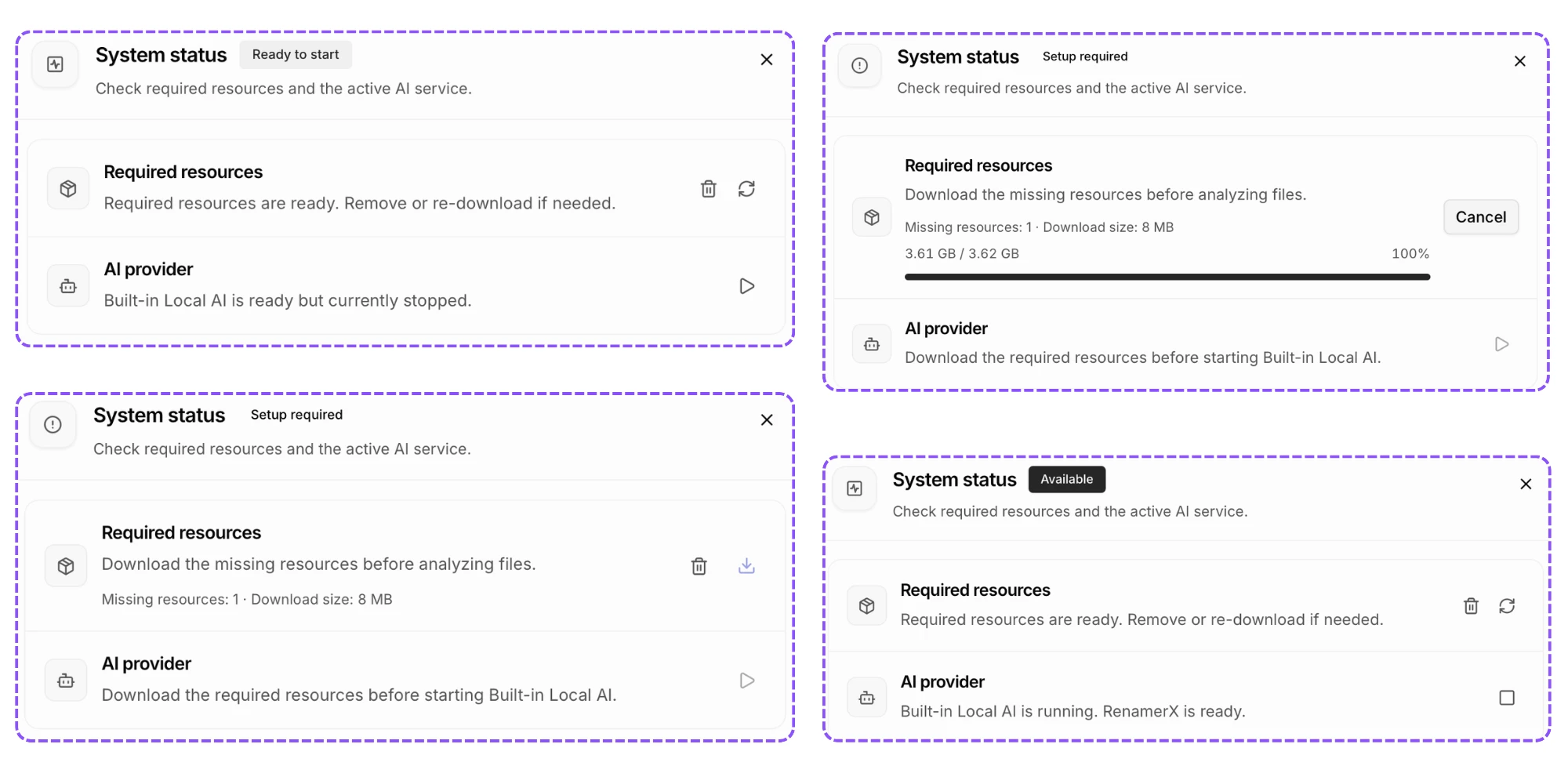
The badge at the top summarizes the two rows below it:
| State | What it means | What to do |
|---|---|---|
| Checking | RenamerX is checking resources, the Provider, or local AI | Wait for the check to finish |
| Available | Built-in Local AI is running and its required resources are installed | Process files or stop Local AI when you no longer need it |
| Configured | An external Provider has its required saved configuration and required resources are installed | Test the connection in Preferences when you need a live check |
| Preparing | A resource download or Built-in Local AI startup is in progress | Keep RenamerX open and wait, or cancel the download |
| Ready to Start | Built-in Local AI resources are installed, but the service is stopped | Select Start Built-in Local AI |
| Setup Required | Required resources or an active Provider configuration are missing | Complete the action shown in the affected row |
| Needs Attention | A check, download, configuration, or local AI action failed | Read the error and retry that action |
Configured means the required settings are saved. It does not confirm that an external AI service is currently available. Open Preferences → AI provider and model after changing a URL, model, API key, network, or service.
Check Required resources
This row reflects the scope required by the active Provider:
- External Providers require resources for reading files and resolving GPS locations offline
- Built-in Local AI also requires its local model files
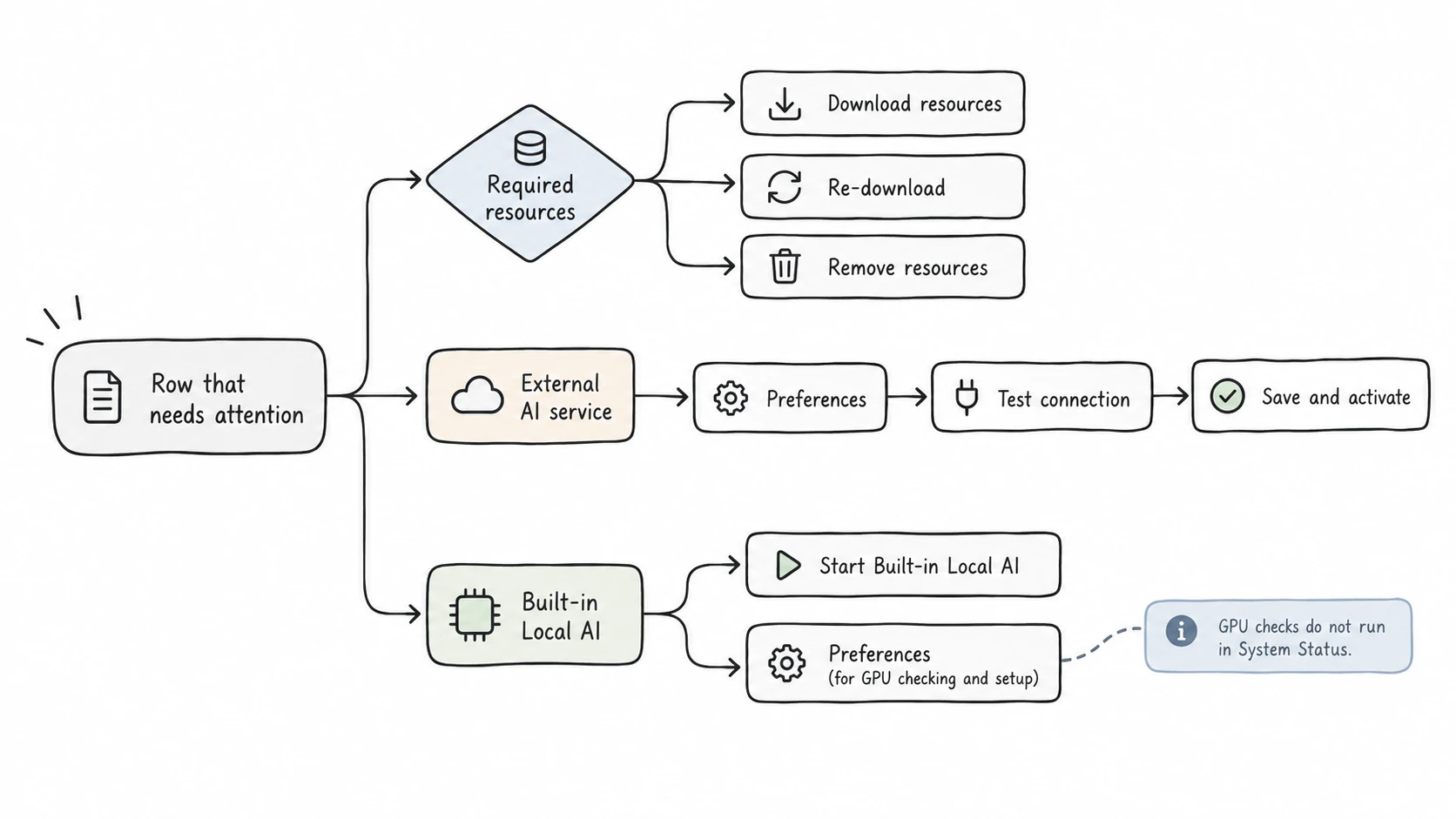
Click Download resources to install only missing items. You can cancel an active download, retry a failure, remove downloaded resources, or download them again.
Remove resources does not delete source files, applied files, templates, preferences, or license state. It makes dependent processing unavailable until you download those resources again.
Check the AI service
For Built-in Local AI, this row shows whether the service is stopped, starting, running, or failed. Select Start Built-in Local AI when the overall state is Ready to Start. Select Stop Built-in Local AI to close the service and release its memory.
For an external Provider, System Status checks whether its required settings are saved. It does not contact the AI service. Open Preferences to test or replace that configuration.
GPU device detection belongs to Built-in Local AI setup, not System Status. Open Preferences → AI provider and model, then open the GPU device selector to check devices or change the saved selection.
Export a diagnostic bundle
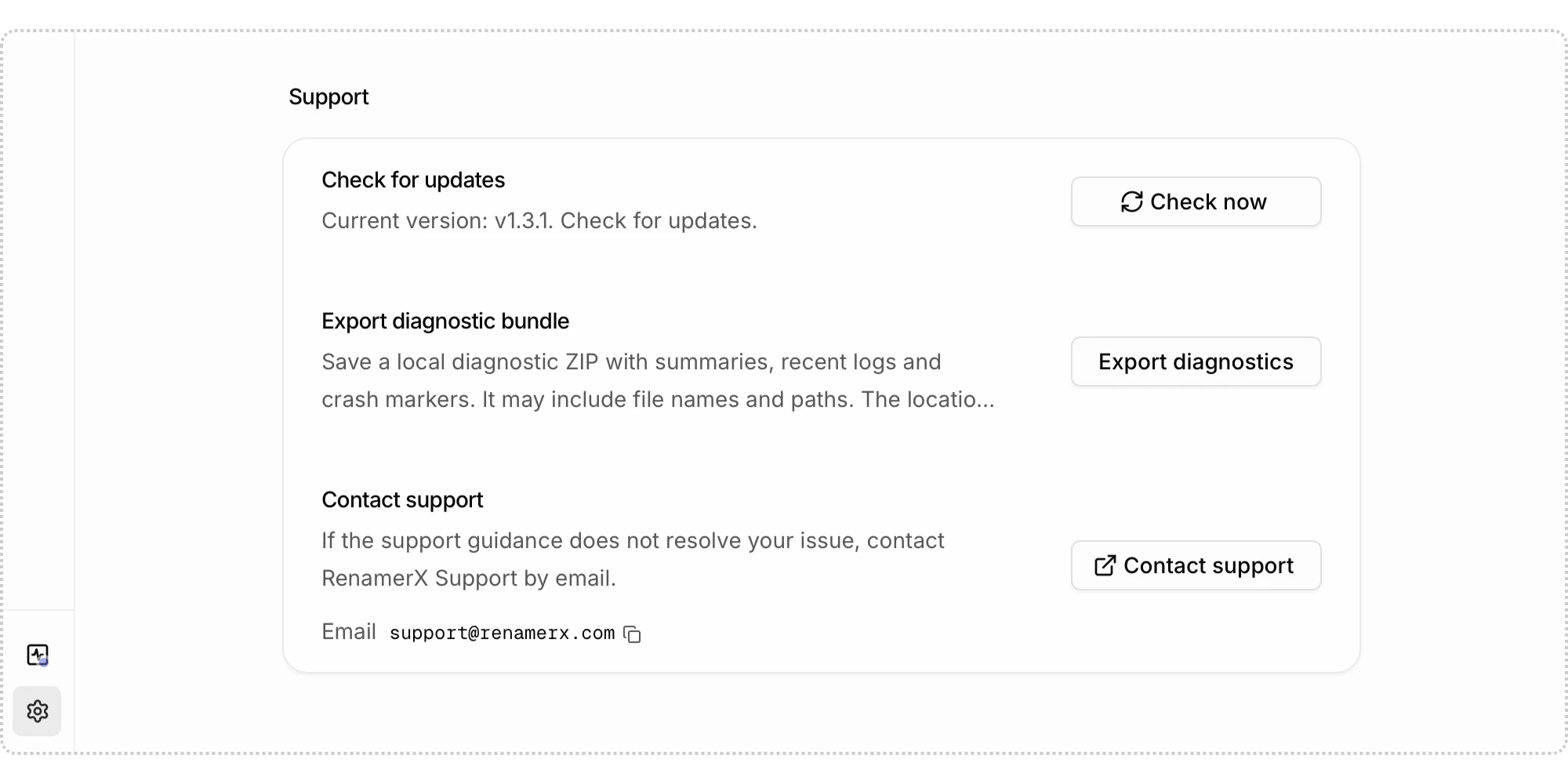
When a failure continues, open Preferences → Support and select Export diagnostics. A failed Built-in Local AI row also offers the same export action.
RenamerX creates a ZIP on your device and reveals it in the file manager. It does not upload or send the ZIP automatically. Collection can finish with warnings when one source is unreadable; the bundle records those omissions.
The bundle can include:
- App, operating-system, hardware, permission, resource, local AI, and Provider summaries
- Recent App logs
- Recent serious error and crash information
- Checks of saved App records, file errors, permission state, recovery summaries, and a preferences summary
RenamerX excludes Provider API keys, the readable license key, your original files, complete extracted content, all saved file information, and a complete copy of App records. Inspect the ZIP before sharing it.
Contact support
Open Preferences → Support → Contact support to open the RenamerX support page. The same section displays the support email. The Chinese interface also displays the WeChat contact and copy action.
When asking for help, include the RenamerX version, operating system, active Provider, failing stage, and exact visible error. Attach the diagnostic bundle only after reviewing it.
Follow a focused recovery sequence
- Open System Status and wait for Checking to finish.
- Act on the first row that shows Setup Required or Needs Attention.
- Download missing resources, correct the Provider configuration, or restart Built-in Local AI.
- Test one supported file in Batch Rename.
- Export diagnostics if the same failure continues.
- Contact support with the exact error and relevant context.