Troubleshoot RenamerX
Start from the symptom you see and fix Built-in Local AI, external AI Provider, naming, Location, Apply, Watch Folder, credit, license, or preview problems.
Start with the section that matches the symptom in RenamerX. Change one setting at a time, then test one supported file before processing a larger batch.
Fix Built-in Local AI problems
Built-in Local AI depends on your platform, GPU, and available memory. Check whether the device is supported before troubleshooting drivers, performance, or memory.
Check whether the device supports Built-in Local AI
| Device | Built-in Local AI | Recommendation |
|---|---|---|
| Apple silicon Mac | Supported | Use Built-in Local AI. If startup or processing fails, check resources and available memory. |
| Intel Mac | Not supported | Try Ollama or LM Studio if the device can run a local model. Otherwise, use a cloud AI Provider. |
| Windows with a dedicated GPU and at least 4 GB of GPU memory | Supported | Use Built-in Local AI. Performance still depends on the GPU, driver, and available memory. |
| Windows with a dedicated GPU and less than 4 GB of GPU memory | May work | Select Low memory and turn off Extended thinking. Processing may be slow or run out of memory. |
| Windows with integrated graphics | May work | Integrated graphics uses shared memory. Performance depends on the device and available memory. |
| Windows without a GPU | Not supported | Use OpenAI, Gemini, or an OpenAI-compatible Custom Provider. |
| Windows ARM64 | Not supported | Try Ollama or LM Studio if either supports the device. Otherwise, use a cloud AI Provider. |
Windows does not detect a supported GPU
First, confirm that the device has a GPU. If it does not, use OpenAI, Gemini, or an OpenAI-compatible Custom Provider.
If the device has a GPU but RenamerX cannot detect it, update the graphics driver. Prefer the driver from the computer manufacturer. If no current driver is available, use the NVIDIA driver download, AMD driver download, or Intel Download Center.
Restart Windows if the installer requests it. Then open Preferences → AI provider and model → GPU device, click Check again, and review the results.
Built-in Local AI is slow
Check the local AI settings:
- Turn off Extended thinking because it increases processing time and memory use.
- Use Balanced as the baseline. Low memory trades processing speed for lower memory use.
- Use High performance only when the device has enough available memory.
- On a Windows PC with multiple GPUs, confirm that RenamerX uses the dedicated GPU.
- The first file after five idle minutes may take longer because the model reloads into memory.
After changing the GPU, performance mode, or Extended thinking, stop and restart Built-in Local AI. If integrated graphics remains slow, use a faster external AI Provider for larger batches.
Windows uses the wrong GPU or has multiple GPUs
Set GPU device to Automatic first. If local AI uses integrated graphics, runs slowly, or fails, open Preferences → AI provider and model → GPU device and select the dedicated GPU.
Stop and restart Built-in Local AI after changing the GPU. The new selection takes effect at the next start. If a driver update or hardware change invalidates the saved device, switch back to Automatic, check again, and retry.
The GPU check passes, but the model cannot start or process an image
The device check confirms that RenamerX can detect the GPU. It does not load the model. A later failure can mean that the GPU or system has insufficient available memory.
If the error contains out of memory or allocation failed, try these steps in order:
- Close games, video editors, other AI tools, and memory-intensive apps.
- Open Preferences → Built-in Local AI and select Low memory.
- Turn off Extended thinking.
- If the computer has multiple GPUs, select the dedicated GPU with more available memory.
- Stop and restart Built-in Local AI, then test a smaller image.
If the same error continues, use another AI Provider or export a diagnostic bundle.
Resources fail to download or verify
Check the network connection and available disk space, then retry. RenamerX keeps completed downloads and downloads only missing resources.
Use Re-download only when the error says an installed file is missing, incomplete, or damaged. Remove resources deletes downloaded resources and may require another model download. It does not delete your files, templates, or preferences.
Do not remove every resource only because GPU detection, model startup, or the image test failed.
Fix external AI Provider problems
External AI Provider failures can come from connection settings, account status, or response format. Test the connection first, then use the default template to check the structured response.
Test connection fails
Check the setting named in the error:
- Start Ollama or LM Studio before testing its local server.
- Confirm the Server URL and Model ID.
- Replace a missing, expired, or rejected API key.
- Select a model that supports image input.
- Check the Provider's quota, rate limits, and service status.
- For Custom Provider, confirm that the service implements an OpenAI-compatible chat endpoint.
The connection test sends a built-in image and accepts a non-empty text response. It does not test your template, files, or the structured response required for filename generation.
The AI Provider returns an invalid response
RenamerX accepts only a JavaScript Object Notation (JSON) object with the exact fields requested. Each value must be text or null.
These responses are invalid:
- The response is empty or includes explanatory text outside the JSON.
- The JSON syntax is invalid.
- Required fields are missing or unexpected fields are present.
- A field value is not text or
null.
Use this sequence to isolate the problem:
- Retry once to rule out a temporary formatting error.
- Run Test connection. Fix the connection first if the test fails.
- Confirm that the model supports image input and structured JSON responses.
- Test one small supported file with General Naming Template (Default) and no custom instructions.
- If the default template works, restore fields and custom instructions one at a time.
- If every file still fails, select another compatible model or AI Provider.
Filename generation can fail after a successful connection test because the test does not require structured JSON. Export a diagnostic bundle if the same compatible model continues returning invalid responses.
Fix credit and license problems
Credit or license problems can stop new AI work. They do not remove filenames RenamerX has already generated.
Free credits are exhausted
Open Preferences → License & Billing to check the remaining balance. Free includes 50 filename suggestion credits each month. RenamerX uses 1 credit after it successfully generates a new filename for one file.
Wait for the next monthly reset, or activate Pro for unlimited RenamerX credits. You can still review, edit, apply, or undo items that already have new filenames. See Credits & License for the complete rules.
A license key will not activate
Remove spaces before or after the key. Confirm that it is a RenamerX license key from your purchase, then check the network connection. If you reached the activation limit, deactivate Pro on an old device before activating the new one.
Pro features disappear after an extended offline period
RenamerX checks a valid license again after 24 hours. A successful check provides a 7-day offline grace period. Pro can become unavailable after that period or when the service reports that the license is no longer valid.
Reconnect to the internet, open Preferences → License & Billing, then validate or reactivate the license. Active Watch Folders stop monitoring if RenamerX returns to Free.
Fix empty or unhelpful naming fields
A field can remain empty or inaccurate when the file does not contain reliable evidence, even if processing succeeds.
Location always stays empty
RenamerX fills Location only when all of these conditions are true:
- The selected template includes Location.
- The file contains valid Global Positioning System (GPS) coordinates.
- RenamerX can read the installed on-device location data.
- The coordinates match one reliable administrative area.
RenamerX does not ask AI to guess Location from the image or filename. Location stays empty when the metadata has no GPS coordinates, no area matches, or multiple areas match.
Use a photo or metadata app to confirm that the test file contains GPS coordinates. If Location remains empty, open System Status and confirm that Required resources is ready. See Add locations to filenames from GPS coordinates for the matching rules.
New filenames are vague or repetitive
Retest the same file with fewer fields and no custom instructions. Check the preview and Description to see which information RenamerX can identify.
Use the Naming Fields Dictionary to confirm what each field means. If the same structural problem affects several files, update the template. Update Controlled Vocabulary when Type, Subject, Status, Organization, or Project values are inconsistent.
Date is not the date you expected
RenamerX first looks for a meaningful date in the file's content. If it finds none, it uses the creation date stored in the file, then the file modification time.
Compare the new filename with the document date and file modification time. Remove Date from the template if these fallback values would mislead readers. Once you know which date is appropriate, select its format in Date Formatting.
A scanned PDF produces a weak result
RenamerX uses available text in the Portable Document Format (PDF) file. For image-based PDFs, it can also use an image of the first page. Multi-page scans, small text, handwriting, and low image quality may not provide enough evidence.
Test a clearer scan or a PDF with selectable text. Review every suggestion before applying changes.
Fix Description, Apply, and Undo problems
Apply and Undo process files individually, so a batch can partially succeed.
Some selected files apply and others fail
Review the Applied and Failed items separately. Apply can fail when:
- The source file has moved.
- The destination is unavailable or its permissions changed.
- A field required for organization is empty.
- RenamerX cannot find an unused destination filename.
Fix the reported problem, then retry only the failed files. To restore the entire batch first, undo the successful files before trying again. See Review, Apply, and Undo for conflict and partial-result rules.
A file was renamed, but Description was not written to its metadata
RenamerX can write Description metadata only to supported file types. It does not add the text to the document body. A metadata write failure does not reverse a successful rename or move.
See Supported File Types for metadata support. Keep the generated Description in the workspace if you need to copy it elsewhere.
Clear workspace did not restore files
Clear workspace removes Batch Rename records and Undo history. It does not reverse completed file changes.
Use Undo before clearing the workspace. After the records are deleted, RenamerX no longer has the original paths required for batch Undo.
Undo fails
Undo does not overwrite another file at the original path. It can also fail when the original parent folder is missing or not writable.
Move or rename the conflicting file, restore the folder and permissions, then retry. Do not move applied files outside RenamerX before using Undo.
Fix Watch Folder problems
Watch Folders require Pro, a valid source folder, and complete workflow settings.
A Watch Folder exists but is not active
Check whether the card shows Active, Paused, or an error. Confirm that the source folder still exists and the current device shows Pro in Preferences → License & Billing.
Restore the path or license, then start the Watch Folder again. If it stops again, test one source file in Batch Rename to separate a monitoring problem from a file-processing problem.
Auto apply is unavailable
Auto apply requires an active Pro license. Restore the license or transfer an activation to the current device, then reopen the Watch Folder settings.
Keep the Watch Folder set to Review first until the template and destination produce reliable results. Auto apply skips per-file review and changes files directly.
New files are not detected
Confirm that the Watch Folder is Active and that files arrive inside its source folder. Turn on subfolder monitoring when you need to process files in nested folders.
RenamerX waits for new or changed files to stop changing before processing them. It also skips temporary download files. Test by moving a supported file that has finished writing into the source folder.
Understand limited file previews
A generic icon or missing preview does not always mean processing failed. Native preview support depends on the file type and platform.
Check the item status and confirm the extension in Supported File Types. If the item reaches Needs review, you can review the new filename and Description even without a preview.
Some videos can be analyzed even when the details pane cannot play them. If processing succeeds, continue reviewing the generated filename and Description.
Get help and contact support
Email support@renamerx.com for additional help. Include:
- A description of the problem.
- The diagnostic bundle as an attachment.
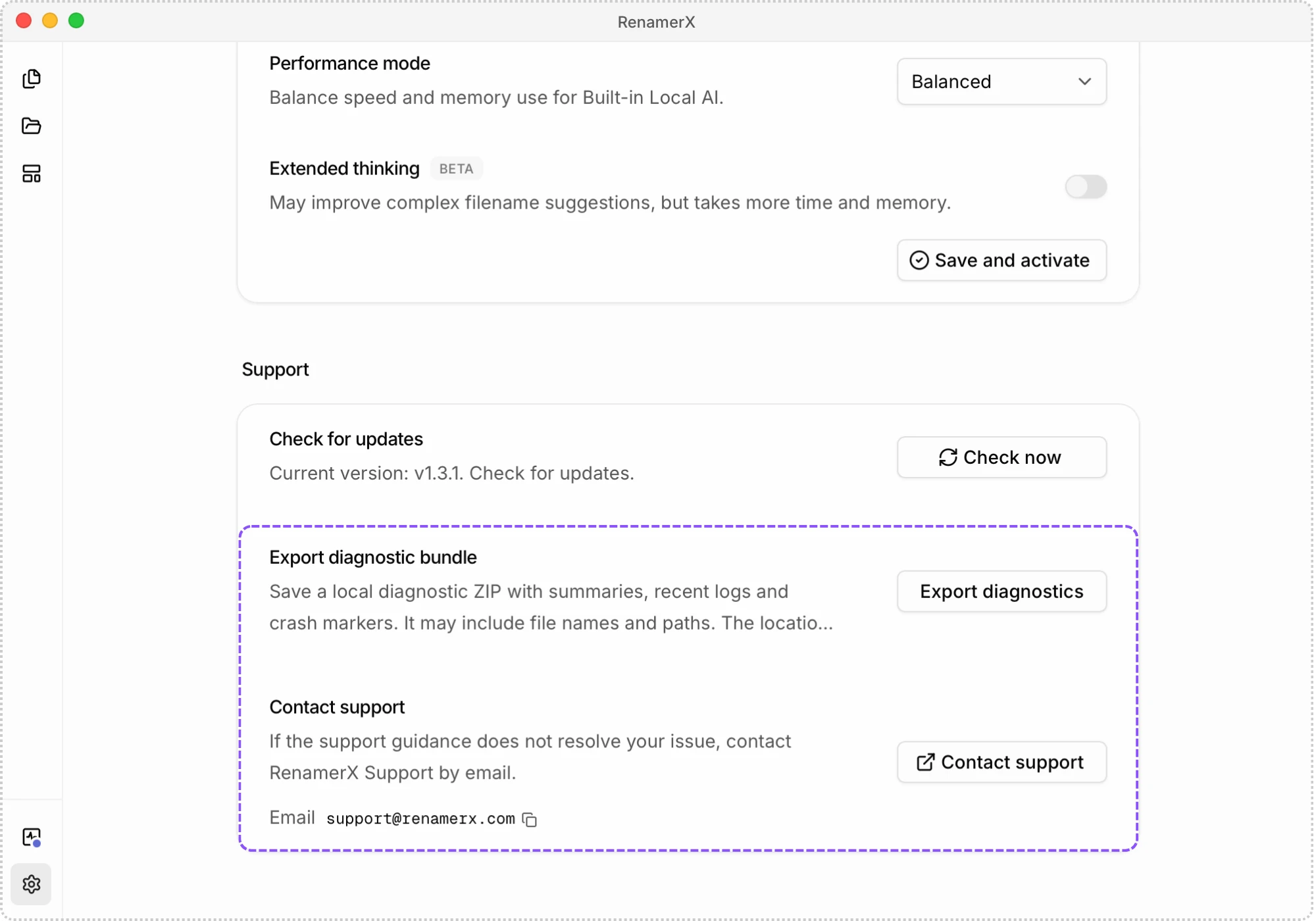
To export the bundle, open Preferences → Support, then click Export diagnostics. RenamerX does not upload the bundle automatically. Review its contents before sharing it.