Install and set up RenamerX
Install RenamerX on macOS or Windows, download the required resources, choose an AI Provider, and finish first-launch setup.
This guide covers installing RenamerX and completing first-launch setup. RenamerX downloads the required resources before you choose the AI Provider that will analyze file content.
Check the system requirements
RenamerX supports macOS and Windows.
| Platform | Minimum system | App support | Local AI hardware guidance |
|---|---|---|---|
| macOS | macOS 13.3 or later | Apple silicon and Intel Mac | Apple silicon supports Built-in Local AI. On an Intel Mac, use OpenAI, Gemini, or another cloud AI Provider. |
| Windows | Windows 10 version 1809 or later | 64-bit Windows PC | A dedicated GPU with at least 4 GB of video memory is recommended. Without one, use OpenAI, Gemini, or another cloud AI Provider. |
RenamerX checks whether the device can run Built-in Local AI during setup. If the compatibility check fails, choose another AI Provider and continue.
Keep an internet connection available during installation and downloads. RenamerX downloads the resources needed to process documents, images, and videos. Built-in Local AI also downloads about 3.4 GB of model files. You need to download these files only during the initial setup unless an update requires new resources.
Install the desktop app
Install on macOS
- Open the RenamerX website on your Mac.
- Select Download for macOS.
- Open the
.dmgand move RenamerX to Applications. - Launch RenamerX from Applications.
The macOS app is signed and notarized. RenamerX checks for macOS updates inside the app.
Install on Windows
- Open RenamerX in Microsoft Store.
- Select Install.
- Launch RenamerX from the Start menu.
Microsoft Store manages Windows updates and installs required supporting components. You may still need to update the graphics driver if Built-in Local AI cannot start.
Complete the first-launch setup
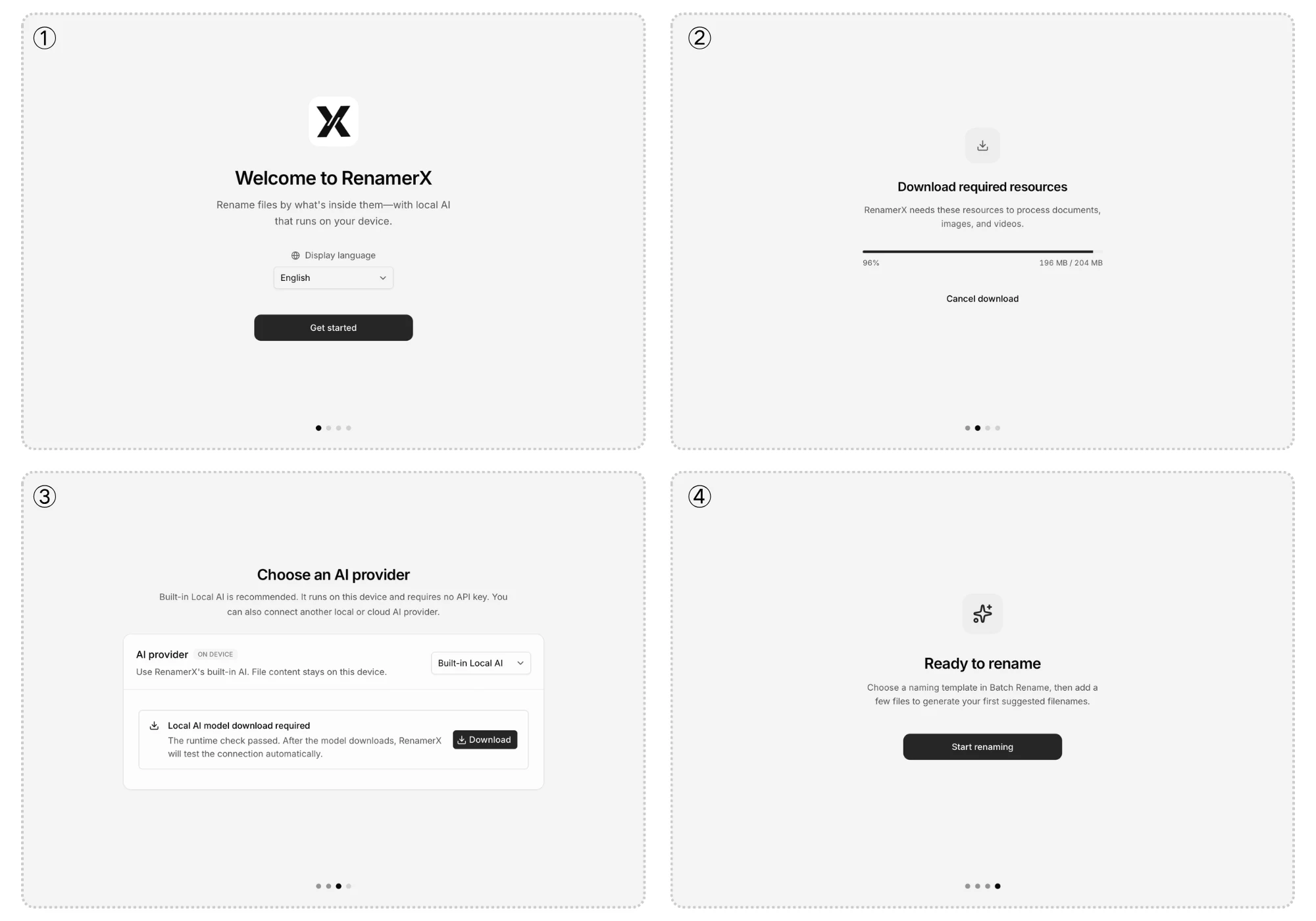
1. Choose the display language
On Welcome, choose the interface language, then click Get started.
2. Download the required resources
Click Download on the Resources step. RenamerX downloads the components needed to process documents, images, and videos offline, along with the data used to resolve GPS coordinates into place names on your device.
RenamerX continues to the AI Provider step when the resources are ready.
3. Choose and activate an AI Provider
Choose Built-in Local AI or another AI Provider.
Built-in Local AI checks whether the device has a compatible GPU, then asks you to download the local model. RenamerX tests the model with a sample image and activates it after a successful test. If compatibility checks fail, update the graphics driver and try again. You can also select another detected GPU or choose a different AI Provider.
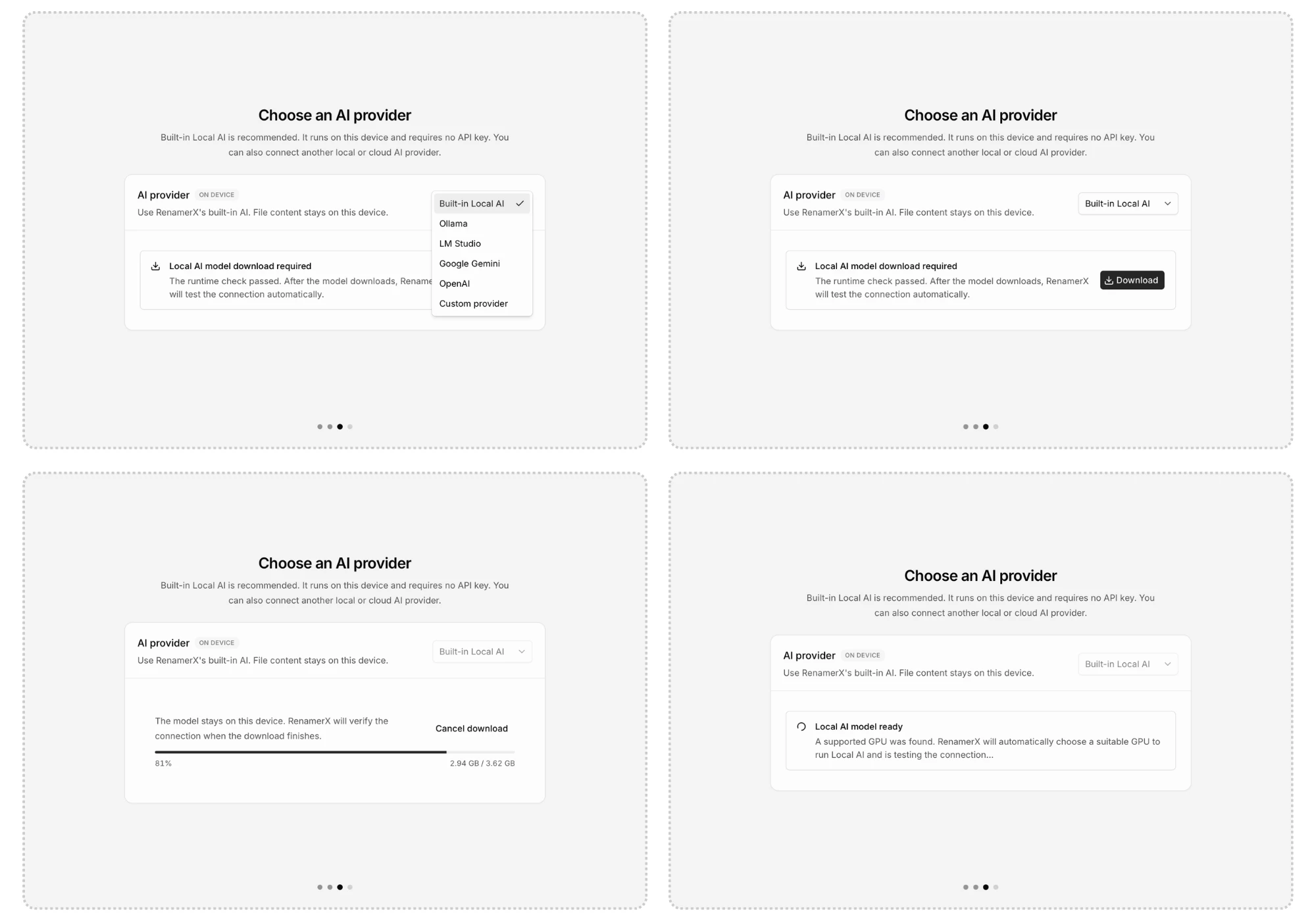
RenamerX also supports Ollama, LM Studio, OpenAI, Google Gemini, and any OpenAI-compatible service through Custom Provider. Choose a Provider, complete its settings, then click Continue. RenamerX tests the configuration before activating it.
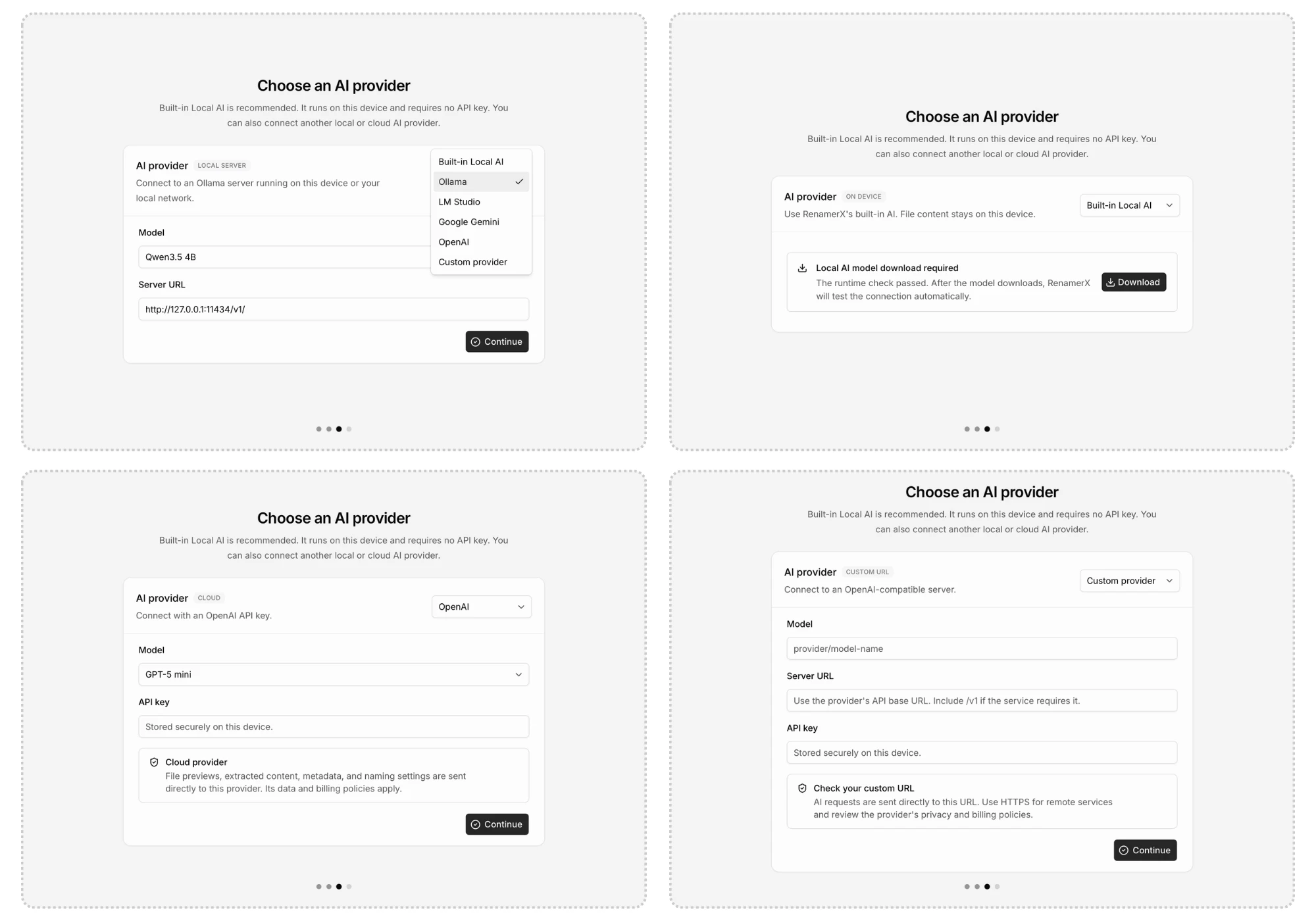
Built-in Local AI keeps processing on your device. Ollama and LM Studio process requests at the server URL you configure. OpenAI, Gemini, and custom cloud Providers receive prepared file content and metadata. See AI Providers for the data each Provider may receive.
4. Finish setup
On Complete, click Start renaming. RenamerX creates these built-in templates:
- General Naming Template (Default):
{Date}_{Title} - Image & Video Naming Template:
{Date}_{Location}_{Title}
Confirm that RenamerX is ready
Open System Status from the sidebar status icon:
- For Built-in Local AI, Ready to Start means its files are installed but local AI is stopped. Click Start Built-in Local AI and wait for Available.
- For an external Provider, Configured means the required settings and resources are present. It is not a live connection check.
If System Status shows Setup Required or Needs Attention, follow the action in the affected row. See System Status and Diagnostics for recovery and support options.
Rename a few test files
Continue with Rename your first files. Use 3 to 5 files in a test folder before processing important files.