Screenshot Renamer: How to Rename Screenshots by Content
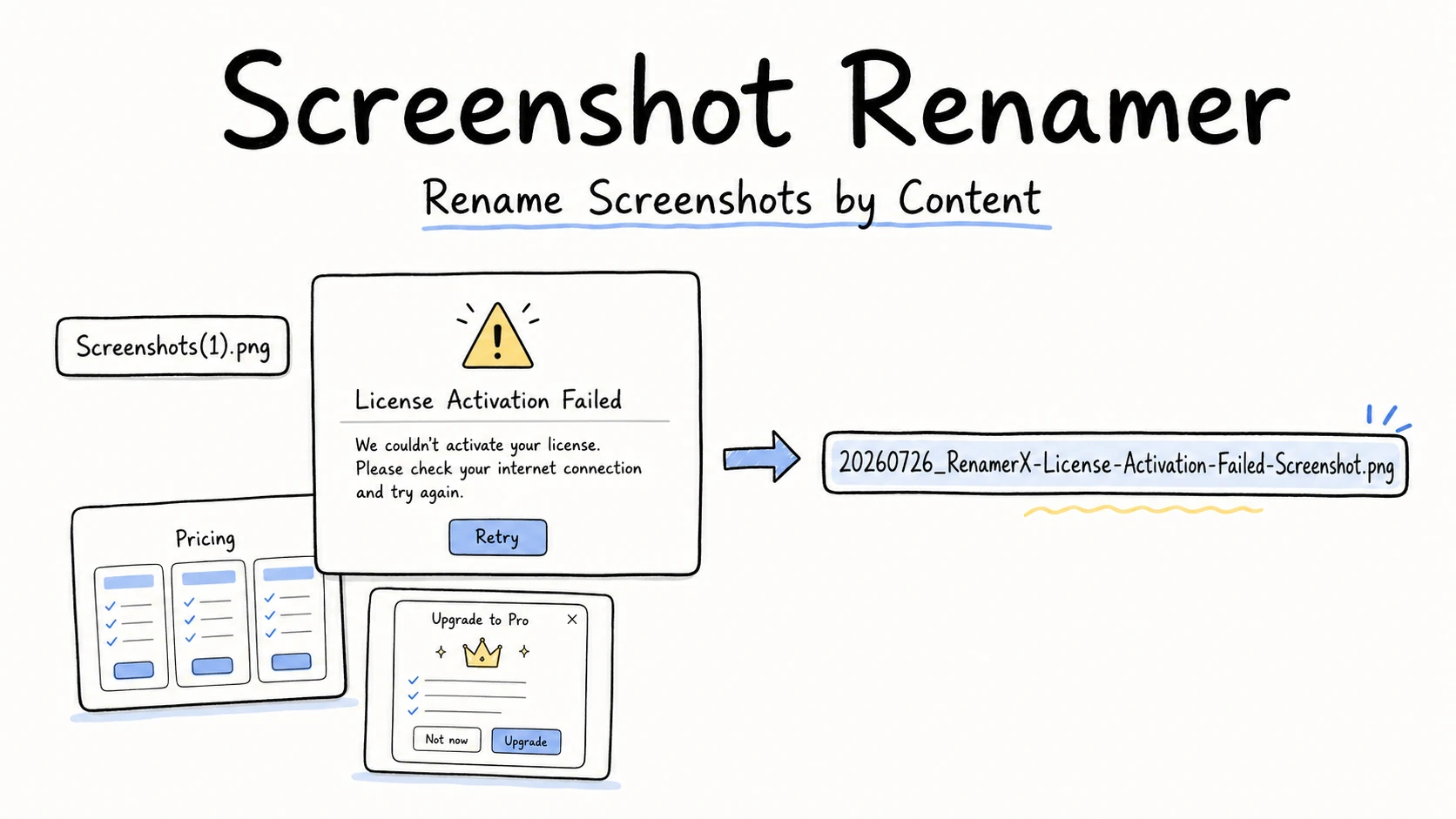
Once screenshots pile up, names such as Screenshots(1).png and Screenshots(2).png no longer tell you what is in each image. Finding a specific error, pricing page, or email means opening files one by one. Renaming screenshots by content puts the visible product, page, message, or state into the filename so you can search for it directly.
| Bad filename | Good filename |
|---|---|
Screenshots(1).png | 20260726_RenamerX-License-Activation-Failed-Screenshot.png |
Screenshots(2).png | 20260726_RenamerX-Pricing-Page-Screenshot.png |
Screenshots(3).png | 20260726_RenamerX-PRO-Upgrade-Modal-Screenshot.png |
Quick Answer: How Do You Rename Screenshots by Content?
Name each screenshot with the details that identify what is visibly on screen: the product or website, the specific page or dialog, and the state or message. If you browse the folder by time, put the capture date first. A practical screenshot naming convention looks like this:
Date_What-the-Screenshot-Shows.ext

20260726_RenamerX-License-Activation-Failed-Screenshot.png
Keep the description specific, but do not copy every word in the image. The date is optional when the product, page, or topic is the main way you search.
For a few screenshots, open each image and rename it manually. For a larger folder, a screenshot renamer can examine each image and generate a different descriptive filename from what appears on screen. Before renaming the batch, compare each image with its new filename and check the product, page, state, date, and sensitive details.
Finder and PowerRename work well when every selected file needs the same replacement, prefix, or sequence. They cannot derive License-Activation-Failed from Screenshots(1).png, because that information appears only inside the image.
A Useful Filename Should Include What the Screenshot Shows
The most useful part of a screenshot filename is usually a short description of the visible screen. A model can identify a RenamerX license dialog and see that activation failed. It cannot know why someone captured the image or how the image will be used unless that context is supplied separately.
Describe the main screen and its state
A description grounded in the image can look like this:
RenamerX-License-Activation-Failed-Screenshot
GitLab-Issues-Page-Screenshot
ICASSP-2024-Review-Results-Email-Screenshot
The description does not need every word shown on the screen. Navigation labels, browser controls, notifications, and footer text often add length without making the screenshot easier to find. They can also expose account names, email addresses, or payment details.
The page or state becomes important when several screenshots show the same product:
20260726_RenamerX-Pricing-Page-Screenshot.png
20260726_RenamerX-PRO-Upgrade-Modal-Screenshot.png
20260726_RenamerX-PRO-Payment-Screenshot.png
Pricing Page, Upgrade Modal, and Payment keep the files distinguishable. RenamerX-Screenshot would give all three images nearly the same name.
Keep the date when you use the folder chronologically
Most screenshot folders do not need a new date chosen from the image. If you browse the folder chronologically, keep the capture date from the original filename or file metadata.
A date visible inside the screenshot may belong to an email, payment, result, or event. Use that date only in a collection where the screenshots serve as records of those events and the date can be verified. Picking whichever date is most prominent on each screen produces inconsistent results.
The dedicated guide to date formats in file names covers YYYY-MM-DD, YYYYMMDD, and shorter date forms. For the examples here, YYYYMMDD keeps the prefix compact and sortable.
Add another piece only when it helps you find the file
A screenshot folder often works with a description alone, or with a date followed by a description. Add a project name when screenshots move outside their project folder. Add an issue or order number when that number is visible, stable, and likely to be searched. Add Screenshot when the file may sit beside documents or photos and its format needs to be obvious.
More fields do not automatically produce a better name. Repeating the project in both the folder and filename adds noise, while putting an ambiguous number into the name can make it misleading.
Choose a Screenshot Naming Template
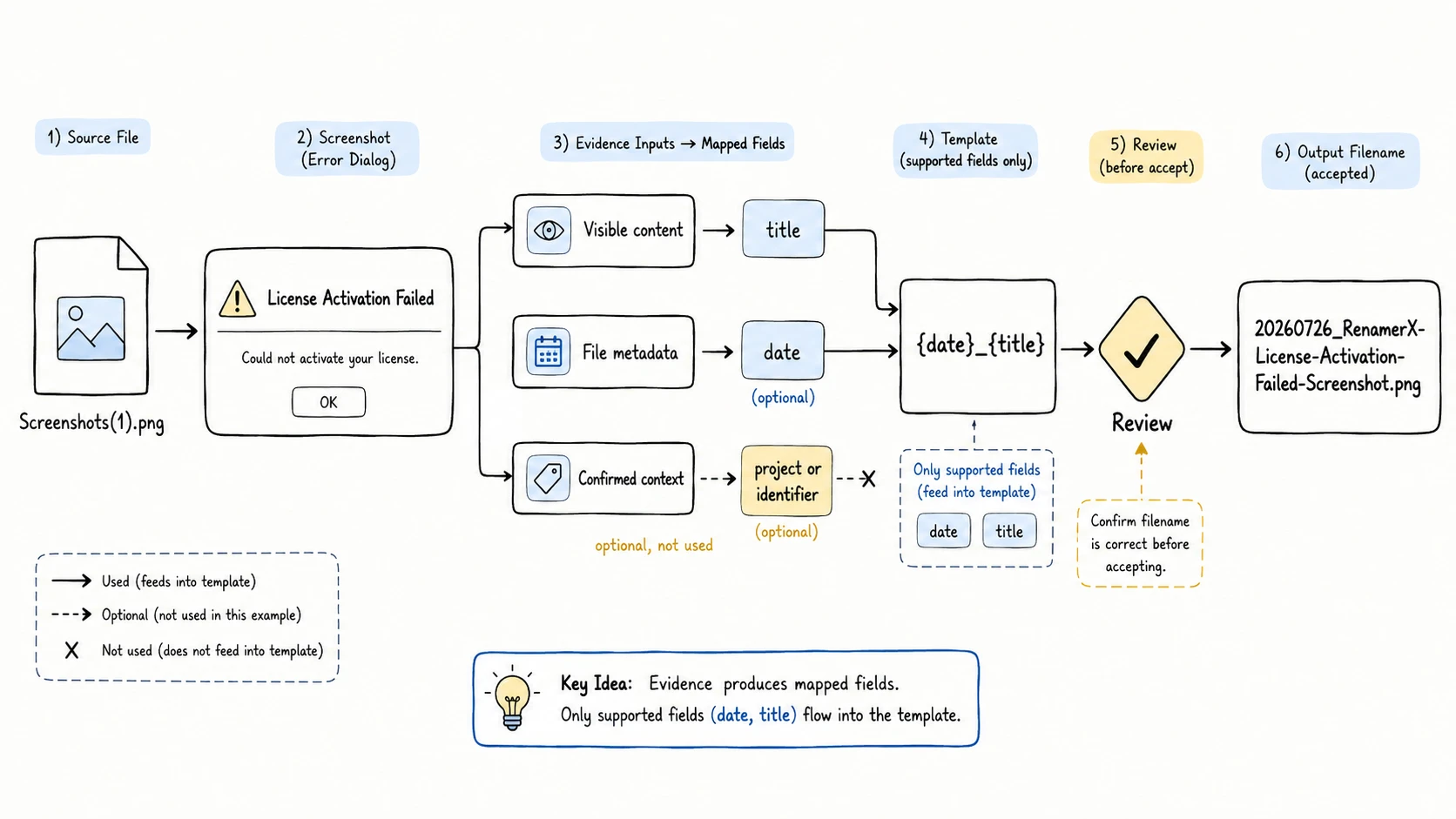
Once the useful words are clear, decide how they should be ordered. RenamerX calls that repeatable pattern a naming template. In {date}_{title}, {date} is replaced by the chosen date and {title} is replaced by the short description of the visible screen. The braces do not appear in the finished filename.
| How you usually find the screenshot | Naming template | Example |
|---|---|---|
| Browse captures in chronological order | {date}_{title} | 20260527_GitLab-Issues-Page-Screenshot.png |
| Search by screen or topic first | {title}_{date} | GitLab-Issues-Page-Screenshot_20260527.png |
| Keep screenshots inside one confirmed project | {project}_{title} | RenamerX_License-Activation-Failed-Screenshot.png |
| Match screenshots to stable issue records | {project}_{identifier}_{title} | RenamerX_ISSUE-1842_License-Activation-Failed.png |
The template can use the supported date, title, project, identifier, and type fields when the folder needs them. Here, title means the visible-screen description, not the HTML page title or an AI-written sentence. Do not invent separate app, page, domain, window-title, or screen-text fields.
Use the shortest pattern that still makes sense when a file leaves its folder. If the description already ends in Screenshot, adding {type} repeats the same information. If every image stays inside a RenamerX project folder, repeating RenamerX in both the project field and description may also be unnecessary.
The file naming templates guide explains how field order affects sorting. The controlled vocabulary guide is useful when a team needs one spelling for repeated projects, types, or statuses.
How a Screenshot Renamer Creates the New Names
A rule-based renamer transforms information already present in the filename. Finder can replace or add text and create a shared format with an index, counter, or date. PowerRename can apply search and replace rules, regular expressions, and enumeration with a preview. These tools work well when the new name can be derived from the old one. Apple Finder rename documentation, Microsoft PowerRename documentation
Content-based renaming has to inspect each image because Screenshots(1).png contains no words that can be transformed into License-Activation-Failed. The broader content-based file renaming workflow explains how that content becomes structured, reviewable filenames.
RenamerX uses the screenshot, its file information, and any confirmed folder context.
The local vision-language model describes the visible interface and text. File information can supply a capture date. A confirmed folder or workflow can supply a project or identifier. RenamerX places those parts in the chosen order, formats the date and separators, removes unsafe characters, and preserves the extension.
The visual preview may not preserve every small character. Cropped dialogs, long pages, dark overlays, multiple panes, similar screens, and unrelated notifications can lead to a weak or incomplete proposed name. This is why the app shows the image and proposed filename together for review.
In the {date}_{title} example below, project and identifier remain supported fields, but this template does not use them.
How to Batch Rename Screenshot Files with RenamerX
1. Start with one screenshot collection
Choose one recognizable group, such as product screens, bug evidence, research captures, purchase records, or documentation images. Similar screenshots make it easier to see whether the names use the same level of detail.
Work on a copied sample when another application, sync rule, or publishing workflow may depend on the current paths.
2. Decide how the filenames should read
Put the date first when you browse the folder by time. Put the screen description first when you usually search by product, page, or topic. Add a project or identifier only when it is confirmed and useful outside the current folder.
For the supplied examples, {date}_{title} is a practical fit:
field separator: _
words inside title: -
date format: YYYYMMDD
3. Let RenamerX prepare the new names
Add the PNG, JPG, or other supported image files and generate suggestions. RenamerX examines a preview of each image, reads available file information, and prepares a proposed filename in the chosen format.
Each image can receive a different description while the date format, order, and separators stay consistent.
4. Check each image beside its proposed filename
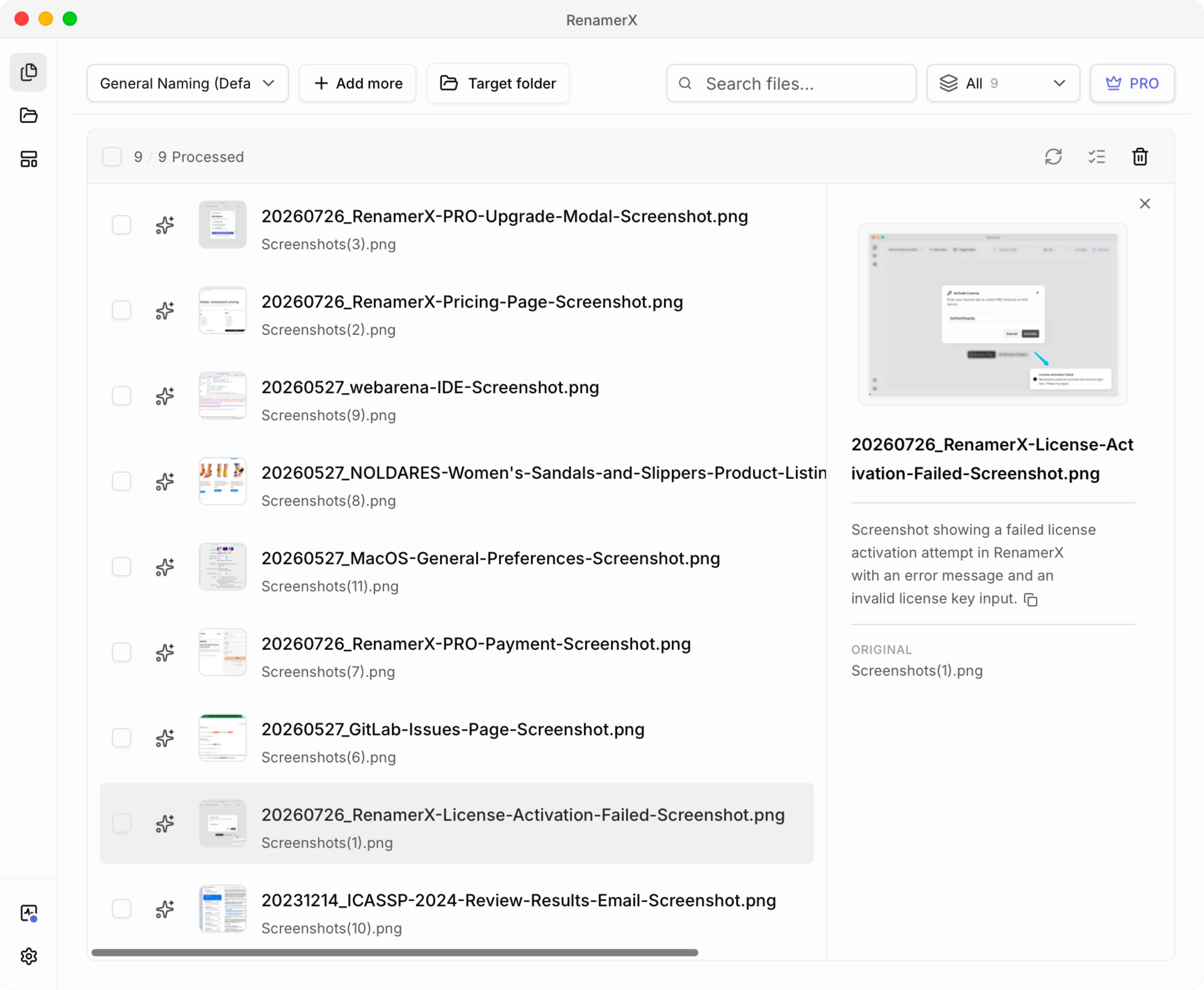
The Batch Rename workspace shows the current filename, the proposed filename, and the screenshot preview together. If the proposed name describes the wrong screen or includes an unwanted detail, edit it, retry the file, ignore it, or remove it from the batch.
Check the whole name. The description may be accurate while the date is wrong, the project is repeated, private text appears in the name, or two similar screenshots end up with the same filename.
5. Apply a small batch and verify the folder
Apply a few approved suggestions first. Check sorting, search, extensions, duplicates, and any workflow that refers to the old paths.
RenamerX resolves target filename conflicts with suffixes such as -01 and supports Undo while the original path remains available. A suffix prevents overwriting, but a more specific screen description, date, version, or identifier is better when two screenshots need to remain meaningfully distinct.
After the required resources are installed, image analysis, filename generation, Apply, and Undo run on the device. Initial resource downloads, license validation, purchases, and updates use their documented network connections.
Check the Details That Commonly Go Wrong
Screenshots often contain more text than the filename needs. Navigation labels, browser tabs, notifications, usernames, footer text, and error details may all be readable. Keep the description centered on the main page, dialog, message, or state that is clearly visible.
Sensitive text needs a stricter edit. Filenames can appear in shared links, cloud histories, backups, recent-file lists, issue attachments, terminal output, and application logs. Leave out passwords, license keys, email addresses, customer names, account numbers, payment details, private messages, and health information unless the workflow has a clear reason and permission to expose them.
Similar screens need a distinguishing state, such as Pricing-Page, Upgrade-Modal, or Payment. When the images still produce the same name, add a verified date, identifier, version, or another visible difference that matters. Do not rely on -01 and -02 when the distinction will matter later.
Keep the extension unchanged and avoid characters that cause trouble across operating systems. Microsoft reserves characters such as <, >, :, ", /, \, |, ?, and * in ordinary Windows filenames. The safe filename characters guide covers the wider cross-platform boundary. Microsoft filename documentation
Automate New Screenshots After the Pattern Works
An existing batch reveals whether the descriptions are specific enough, the date rule is consistent, and similar screens collide. Once those decisions hold up on real files, a RenamerX Watch Folder can apply the same naming pattern to new screenshots.
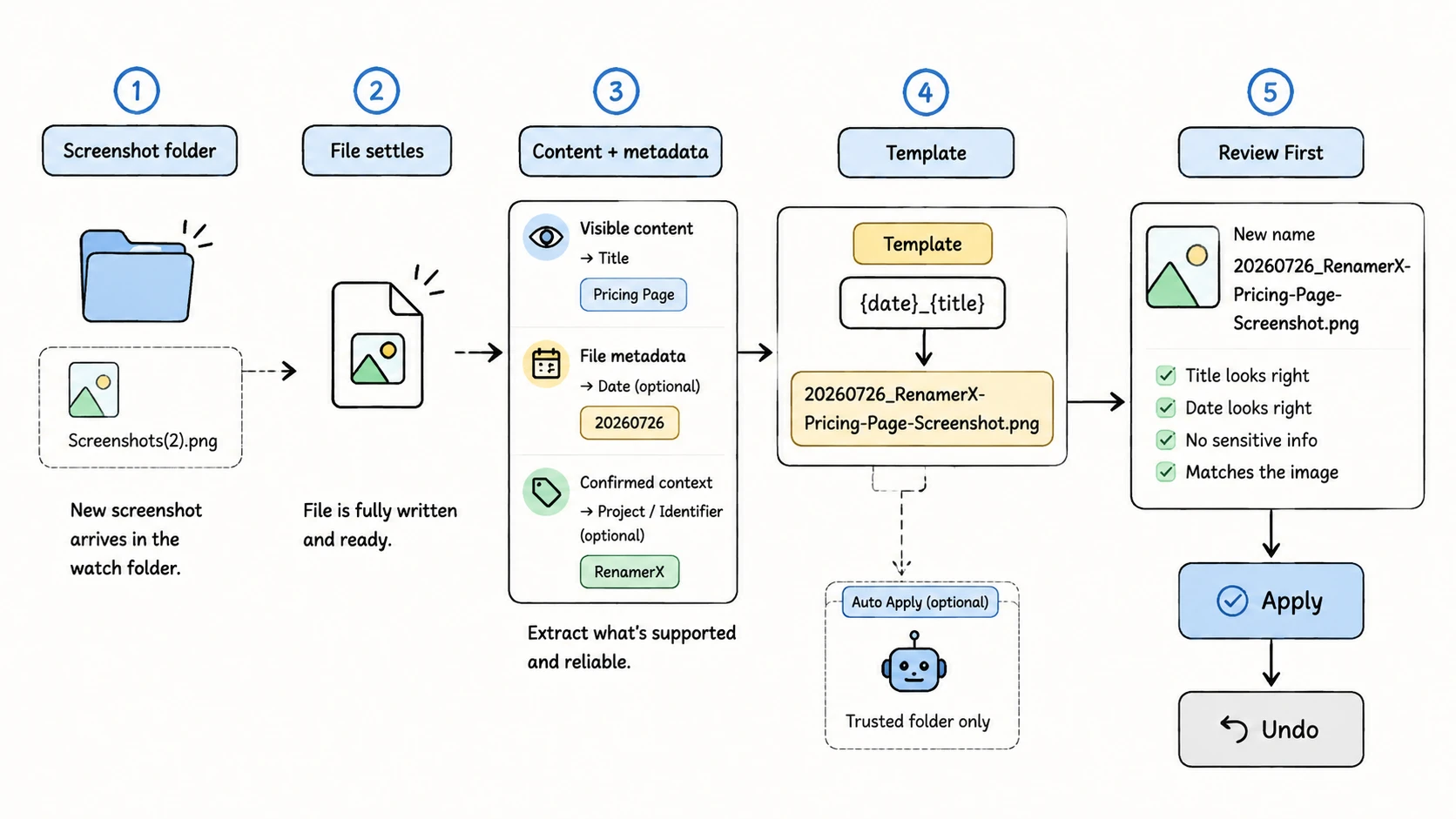
Watch Folder is a Pro feature. In review_first mode, new screenshots receive suggestions and wait for approval. Use auto_apply only for a trusted, low-risk folder with a stable template. Payment records, private conversations, customer data, and mixed desktop folders should remain review-first.
Related Guides
- Use file naming conventions to design a broader naming system.
- Use file naming templates to compare reusable field patterns.
- Use metadata-driven file naming to understand the complete supported field model.
- Use controlled vocabulary for file naming when repeated project, type, or status values begin to drift.
- Use the Mac batch rename guide or Windows batch rename guide when the new names can be derived from existing filename text.
- Use image filename SEO when screenshots will become public website assets.
Sources and Further Reading
- Apple: Rename files, folders, and disks on Mac
- Apple: Take screenshots or screen recordings on Mac
- Microsoft Learn: PowerRename utility
- Microsoft Support: Use Snipping Tool to capture screenshots
- Microsoft Learn: Naming Files, Paths, and Namespaces
- Harvard Biomedical Data Management: File Naming Conventions