How to Batch Rename Files on Mac
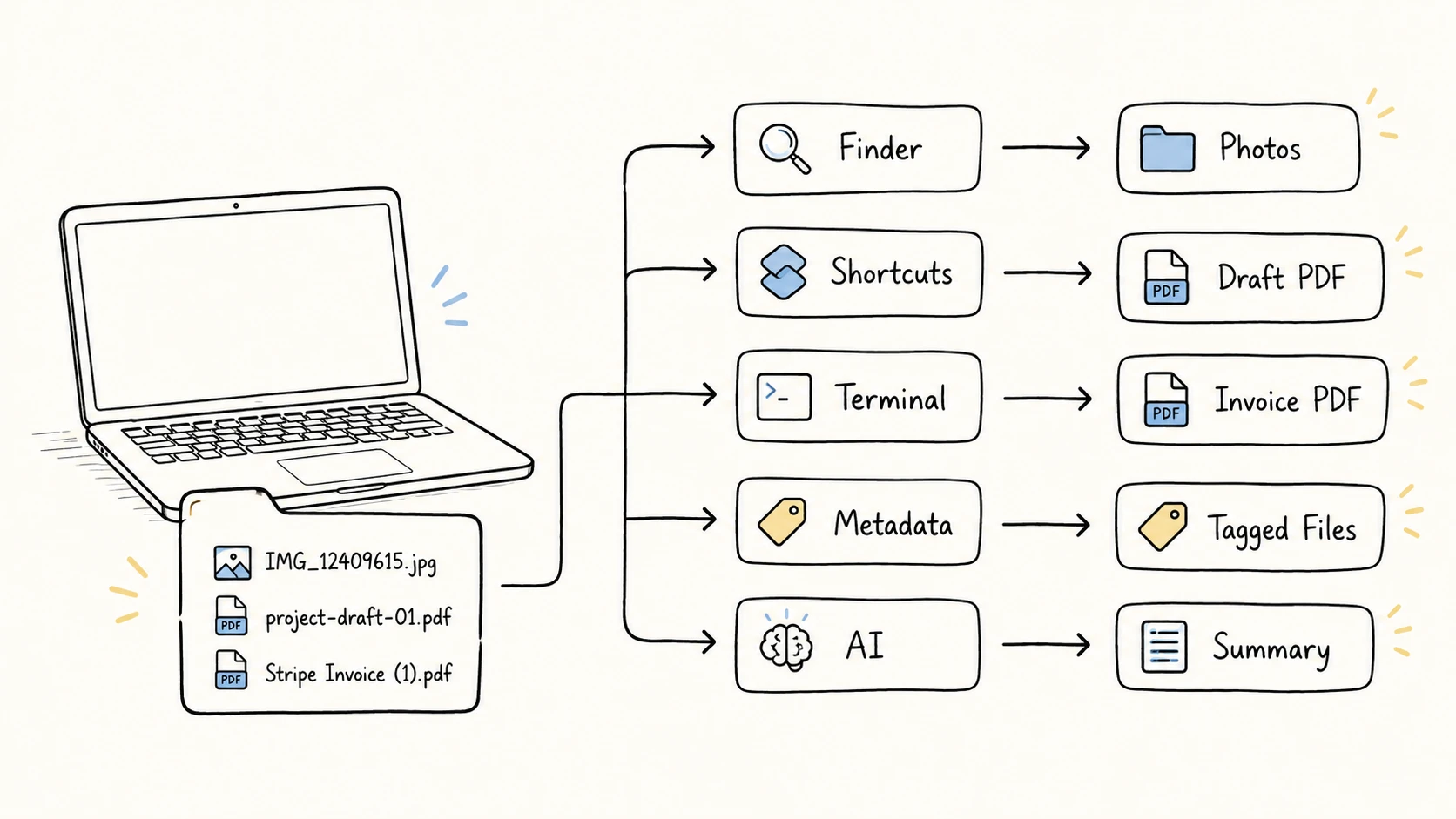
To batch rename files on Mac, start with Finder for shared text replacement, a common prefix or suffix, or one base name with sequence numbers. Use Shortcuts or Automator for reusable workflows, Terminal for precise scripted rules, and a metadata-capable batch renamer or ExifTool for EXIF/XMP, capture dates, or other embedded metadata. When the right name depends on what each document, image, or video contains, use an AI file renamer that reads the content and lets you review each suggestion.
Choose the best Mac batch renaming method
| Task | Good starting method |
|---|---|
| Replace part of existing filenames | Finder Replace Text |
| Add one prefix or suffix | Finder Add Text |
| Give files one base name and a sequence | Finder Format |
| Repeat a multi-step Finder workflow | Shortcuts or Automator |
| Apply a scripted rule | Terminal or a rule-based app |
| Build names from EXIF/XMP, capture dates, or other embedded metadata | A Better Finder Rename, Name Mangler, or ExifTool |
| Build names from the document, image, or video itself | AI file renamer that reads file content |
Batch rename files in Finder
Apple's current Mac User Guide documents this path:
- Select the items in Finder.
- Control-click one selected item.
- Choose Rename.
- Choose to replace text, add text, or change the name format.
- Enter the values and click Rename.
Apple's Finder rename documentation also warns against casually changing filename extensions, because an incorrect extension can stop the expected application from opening the file.
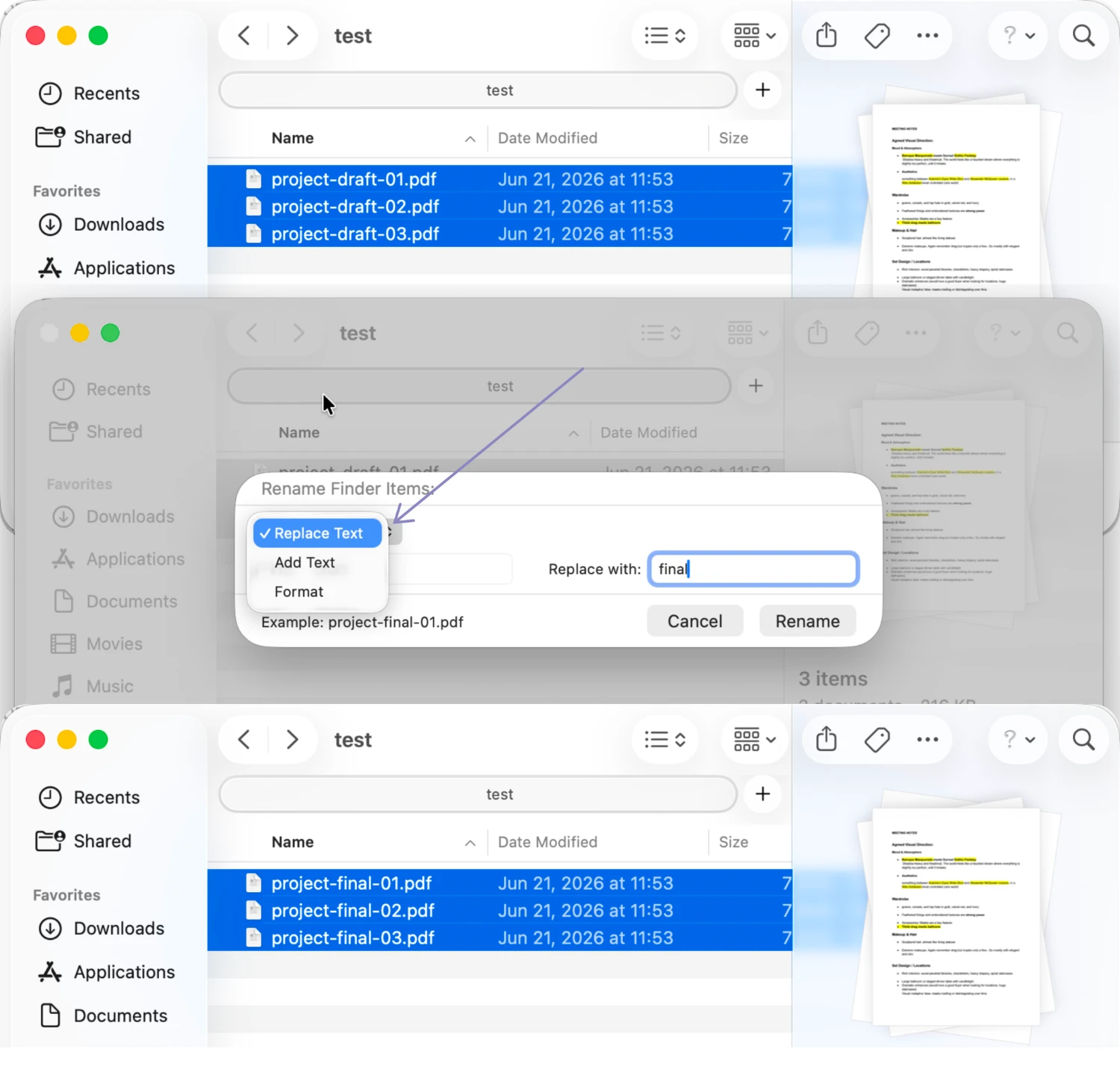
Replace text in existing names
Replace Text preserves the parts of each name that you do not match.
project-draft-01.pdf              project-final-01.pdf
project-draft-02.pdf      ->      project-final-02.pdf
project-draft-03.pdf              project-final-03.pdf
Choose Replace Text, enter draft in the Find field and final in the replacement field, then inspect the example. A precise search term matters. Replacing 1 in a mixed folder could change dates, versions, IDs, and sequences that happen to contain that digit.
Leaving the replacement field empty removes the matched text. Check the result for doubled separators such as project--01.pdf.
Add text before or after each name
Add Text keeps the existing base name and inserts one fixed value before or after it.
invoice-1042.pdf              2026-07_invoice-1042.pdf
invoice-1043.pdf      ->      2026-07_invoice-1043.pdf
Choose Add Text, enter the prefix or suffix, then choose before name or after name. Text added after the name should still appear before the extension. Confirm the example before applying the batch.
A shared date prefix only makes sense when one date applies to the whole set. If every photo needs its own capture date or every invoice needs its own invoice date, use metadata or content extraction instead.
Format names and add sequential numbers
Format replaces the current base names with a common format. Apple documents formats that can place an index, counter, or date before or after a custom name.
IMG_4281.jpg              Yosemite Trip 1.jpg
IMG_4282.jpg      ->      Yosemite Trip 2.jpg
IMG_4283.jpg              Yosemite Trip 3.jpg
Arrange the files before selecting them when the sequence must reflect capture time or page order. If you Command-click files one at a time to create a custom selection, test a copied set first rather than assuming Finder will follow the visible sort. In every case, use the Example line in the dialog and inspect the first and last few results after the rename.
Know where Finder stops being enough
Finder's Rename dialog performs one basic transformation at a time. It does not provide a general regular-expression editor or content analysis. A more capable method is useful when the job requires:
- several transformations in one saved workflow
- conditional logic or regex
- a specific zero-padding format
- values from EXIF/XMP, capture dates, or other embedded metadata
- a full old/new table for a complex batch
- names derived from a PDF, image, document, or video
Do not move to a more complex tool when Finder already expresses the rule cleanly. A saved script is harder to audit than a Finder replacement if the whole job is changing draft to final.
Use Shortcuts or Automator for reusable workflows
Shortcuts and Automator suit jobs that recur and need more than one action. Automator provides a practical way to turn a tested rename into a Finder Quick Action:
- Open Automator and choose File > New.
- Select Quick Action, then click Choose.
- Set the workflow to receive files or folders in Finder.
- Search the action library for Rename Finder Items and add it to the workflow.
- If Automator offers to add Copy Finder Items, keep that safety step while testing or decline it only when you intentionally want an in-place rename.
- Configure the rename action, save the workflow, then run it from Finder's Quick Actions menu on copied files.
Apple documents that a Quick Action can receive Finder input and becomes available in Finder after it is saved. Apple Automator User Guide Finder Quick Actions can also come from Shortcuts, and many Automator workflows can be imported into Shortcuts. Conversion stops when an action is unsupported. Apple Finder Quick Actions guide, Apple Automator and Shortcuts guide
Action availability and labels can change between macOS versions. Keep a working Automator version if importing it into Shortcuts drops an action. For a one-time rename, Finder or a reviewed one-off script usually requires less setup.
Use Terminal for scriptable rename rules
Terminal works when the transformation can be stated precisely and the person running it can review the command. Apple documents mv as the built-in command for moving or renaming a file. Apple Terminal User Guide
This zsh loop adds a prefix to .jpg files in the current directory:
for file in ./*.jpg; do
  name=${file#./}
  printf '%s -> %s\n' "$name" "2026-07_$name"
done
The first version only prints the proposed mapping. After checking it, the rename form is:
for file in ./*.jpg; do
  name=${file#./}
  mv -n "$file" "./2026-07_$name"
done
-n tells the macOS mv command not to overwrite an existing destination. The loop still needs a test folder. It does not create an automatic undo log, and a partially completed run can leave a mixed set if one row fails.
This example replaces a known suffix while preserving the PDF extension:
for file in ./*-draft.pdf; do
  name=${file#./}
  target="${name%-draft.pdf}-final.pdf"
  printf '%s -> %s\n' "$name" "$target"
done
Do not copy a command that changes extensions when the files also need format conversion. A renamed extension does not change the data inside the file.
Use a dedicated batch renamer or ExifTool for metadata
A dedicated Mac renamer can add a graphical preview and saved rule chains without requiring shell code. A Better Finder Rename supports tag-based names from shooting dates, image, camera, music, and other media metadata. Name Mangler provides a metadata browser, multi-step actions, previews, presets, and duplicate detection. For a scriptable cross-platform option, ExifTool can rename or move files from date/time and other metadata at the command line, and its TestName tag can preview the mapping without changing files.
Use a GUI batch renamer when you want visual rules, previews, and saved presets. Use ExifTool when the metadata field and command-line workflow are already clear. In both cases, check how the tool handles missing tags, duplicate target names, and files whose metadata uses a different date or field than expected.
Metadata also needs a reliability check. A copied image's file modification time may not be its capture time. A scanned document may have a filesystem creation date but no embedded invoice date. The metadata-driven file naming guide explains how to choose fields and fallbacks.
Use AI to rename files based on their contents
Some folders have no rule to transform:
scan0042.pdf
IMG_4821.jpg
final_v3.mov
The useful details may exist only inside each file. A scanned invoice can contain its vendor, invoice date, and invoice number. A photo can contain a recognizable subject. A video can contain project context that never reached its exported filename.
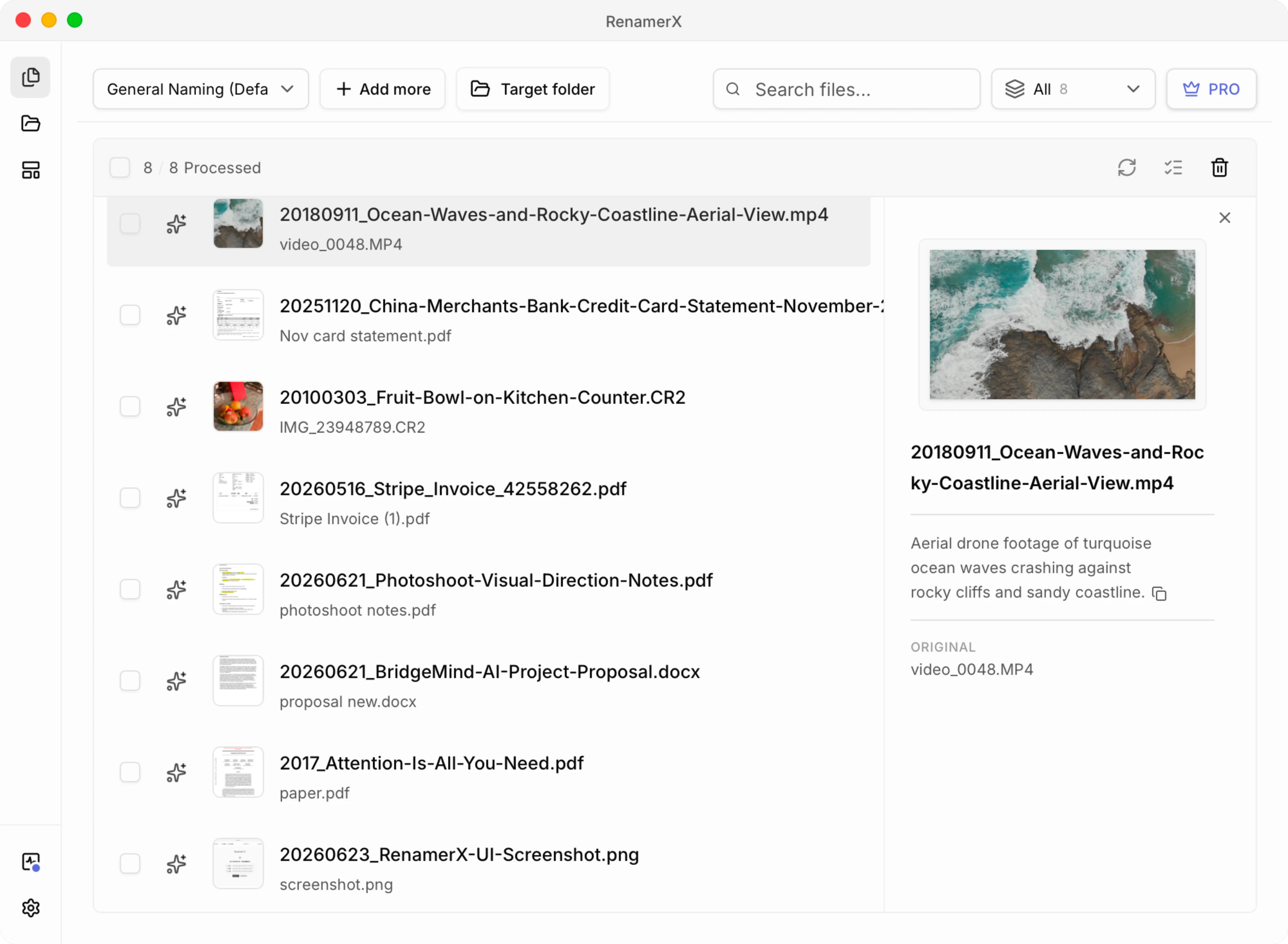
RenamerX handles this content-dependent case on Mac and Windows. After its required resources are installed, local AI extracts structured fields from supported documents, images, and videos. A naming template controls the field order, date format, separator, and output language. The Batch Rename workspace shows the original and suggested names before you apply them, and applied renames can be undone.
Stripe Invoice (1).pdf
-> 2026-05-16_Stripe_Invoice_42558262.pdf
Use Finder for shared string operations and sequences. Use RenamerX when the missing part is the information inside each file; metadata-driven file naming explains how extracted fields and a naming template produce consistent, reviewable results.
Compare Mac batch rename methods
| Method | Already available | Best for | Main limit |
|---|---|---|---|
| Finder | Yes | Replace, add text, shared format and sequence | Basic single-step operations |
| Shortcuts / Automator | Yes | Saved Finder workflows | Setup and action availability vary |
| Terminal | Yes | Precise scripted rules | Requires testing and manual recovery planning |
| Rule-based app | Separate app | GUI rule chains, regex, preview | Does not necessarily read file content |
| Metadata-capable batch renamer or ExifTool | Separate app | Dates, EXIF/XMP, and other embedded fields | Depends on complete, trustworthy metadata |
| AI file renamer | Separate app | Names derived from each file's contents | Needs review when extracted fields are uncertain |
Troubleshooting Mac batch renaming
Rename is missing from Finder
Select at least two normal files or folders, then Control-click one of the selected items. Avoid protected system locations. If the items are controlled by another application or stored in a location where you lack permission, Finder may not be able to rename them.
The numbers are in the wrong order
Undo the operation if it is still the most recent Finder action, arrange the files by the intended field, and run Format again. Check the first and last few rows rather than assuming the visible order was used.
The extension looks wrong
Turn on extension display in Finder settings before a risky batch. Apple advises against changing filename extensions casually. If the format needs to change, convert the files with an appropriate application instead of editing the suffix.
A Terminal loop renamed only part of the folder
Stop and compare the current names with the printed or saved mapping. Do not rerun the same loop blindly, because already-renamed files may match a different pattern on the second pass.
Two files need the same target name
Add a stable distinguishing field such as date, identifier, version, or sequence. Do not depend on silent suffixes if those suffixes will be meaningless later.
Use Finder until the source of the name changes
Finder is the shortest route for replacing text, adding one shared value, and rebuilding names as a numbered set. Shortcuts, Automator, and Terminal help when the rule becomes repeatable or more precise. Metadata-capable tools use embedded fields; AI file renamers are useful when the required information must be read from the file itself.
For a cross-platform method chooser and the old-name/new-name mapping branch, see how to batch rename files.