How to Batch Rename Files
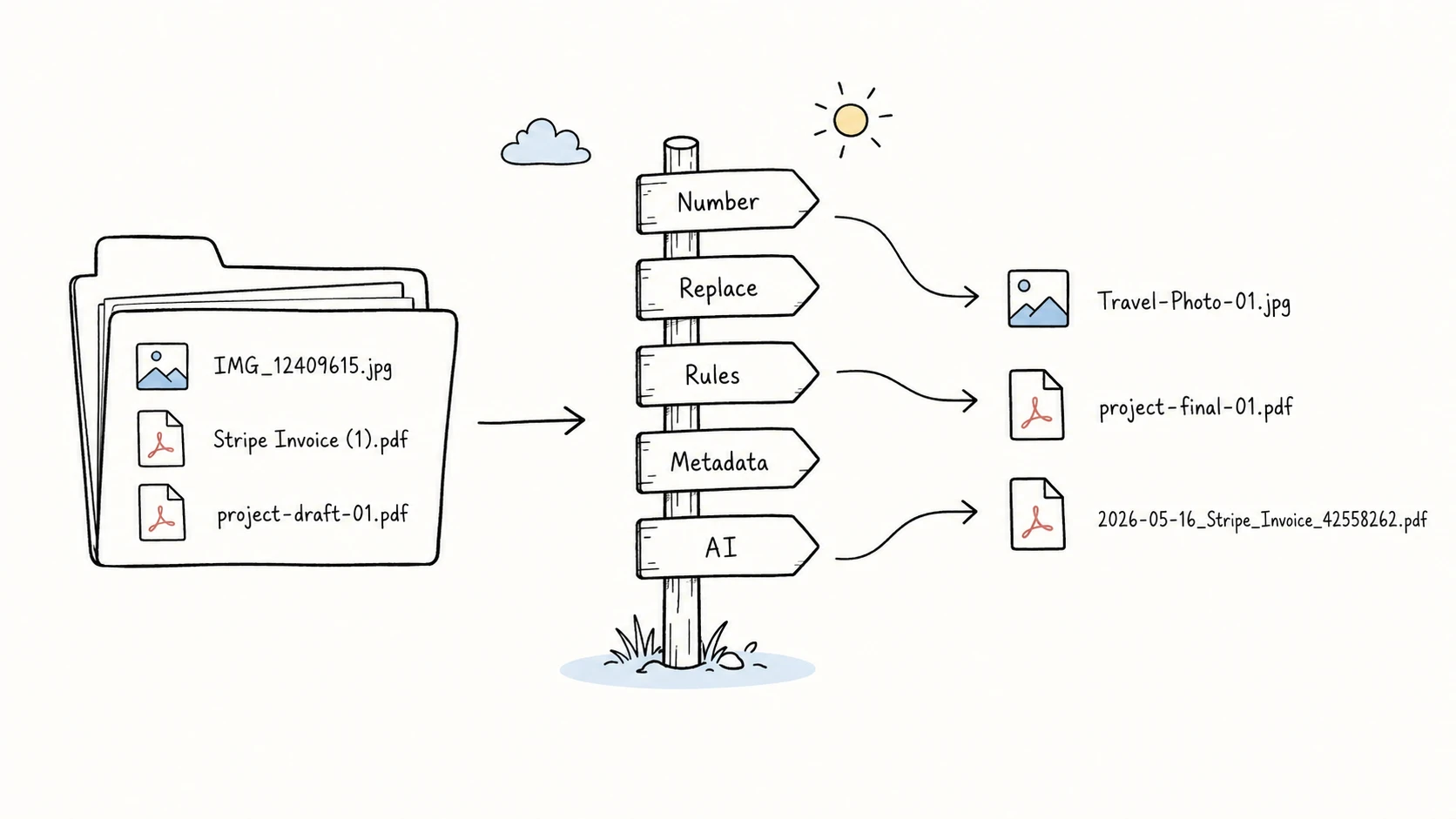
To batch rename files, choose the method by the result you need. Built-in tools can give a group one base name and sequence, replace shared text, or add a prefix, suffix, or date. Regular expressions, scripts, and metadata-capable batch renamers handle structured rules. When the right name depends on what each PDF, image, document, or video contains, use an AI file renamer that reads the content and suggests a descriptive, searchable name for each file.
Choose a batch renaming method by the result you need
The operating system matters, but the shape of the new names matters more. Pick the row that matches the folder in front of you.
| What you need | Good starting method |
|---|---|
| One shared name with sequence numbers | Finder or File Explorer |
| Replace text already present in each name | Finder or PowerRename |
| Add one prefix, suffix, or date | Finder or PowerRename |
| Apply a complex, repeatable rule | Shortcuts, Automator, Terminal, PowerRename, or PowerShell |
| Use a prepared old-name/new-name list | A list-based renamer or custom script |
| Build names from dates, EXIF/XMP, or other embedded metadata | A metadata-capable batch renamer or ExifTool; PowerRename supports selected photo fields on Windows |
| Build names from a PDF, image, document, or video itself | An AI file renamer that reads file content |
Use the simplest method that can access the information needed for the new name. A text rule can reuse filename text, a metadata tool can use embedded capture dates or tags, and an AI file renamer can read the document or media itself.
Rename files with one base name and sequential numbers
This is the quickest batch rename on both platforms. It works when the files belong to one set and a sequence is enough to distinguish them.
IMG_4281.jpg              Yosemite Trip 1.jpg
IMG_4282.jpg      ->      Yosemite Trip 2.jpg
IMG_4283.jpg              Yosemite Trip 3.jpg
On Mac
- Open the folder in Finder and arrange the files in the order you want.
- Select the files, then Control-click the selection.
- Choose Rename.
- Choose Format, enter the shared name, select an index or counter format, and choose the starting number.
- Check the example in the dialog, then click Rename.
Apple documents three Finder batch operations: replace text, add text, and change the name format with an index, counter, or date. Apple Mac User Guide
The current arrangement matters when the sequence must follow capture time, page order, or another meaningful order. Sort first and inspect the first few results after the rename. The Mac batch rename guide covers Finder's modes and the alternatives for more involved jobs.
On Windows
- Open the folder in File Explorer and sort the files in the intended order.
- Select the files.
- Press
F2, or right-click the selection and choose Rename. - Enter the shared base name and press
Enter.
File Explorer assigns the selected files the same base name and adds numbered suffixes to keep the names unique. This is fast, but it gives you little control over the exact numbering format. For custom numbering, find-and-replace, or regex, move to PowerRename or PowerShell. See the full Windows batch rename guide.
Find and replace text in multiple filenames
Use find and replace when the useful parts of the current names are already correct.
project-draft-01.pdf              project-final-01.pdf
project-draft-02.pdf      ->      project-final-02.pdf
project-draft-03.pdf              project-final-03.pdf
Use Finder on Mac
Select the files, open Rename, choose Replace Text, then enter draft in the Find field and final in the replacement field. Finder changes the matching text and leaves the rest of each name in place.
Choose a precise search string. Replacing v1 across a mixed folder could also affect a project code or date that happens to contain the same characters.
Use PowerRename on Windows
PowerRename is part of the free Microsoft PowerToys collection. After it is installed and enabled:
- Select the files in File Explorer.
- Right-click and choose Rename with PowerRename.
- Enter the text to find and its replacement.
- Set Apply to to Filename only when the extension should remain unchanged.
- Inspect the old and new names in the preview pane.
- Click Apply when every matching row looks right.
Microsoft documents search and replace, regular-expression matching, preview, and undo as PowerRename capabilities. Microsoft PowerRename documentation
Add a prefix, suffix, or date
A shared prefix works well when it adds context without discarding useful names:
invoice-1042.pdf              2026-07_invoice-1042.pdf
invoice-1043.pdf      ->      2026-07_invoice-1043.pdf
Finder's Add Text mode places fixed text before or after the current name. On Windows, PowerRename can also insert supported file creation dates and photo EXIF/XMP fields. On either platform, a metadata-capable desktop renamer or ExifTool can build names from a wider range of embedded fields.
Put dates in filenames only when they mean something. A batch renamed today does not necessarily belong to today's date. An invoice usually needs its invoice date; a photo may need its capture date. The guide to date formats in file names explains how to choose and format that date.
Use advanced rules for more complex renaming
Native tools run out of room when one operation needs several transformations. A job such as "move the date to the front, remove the camera prefix, add a project code, and pad the sequence to four digits" needs a rule chain or script.
On Mac, Shortcuts or Automator can turn a repeated workflow into a Finder Quick Action. Terminal works well when the rule can be expressed safely in a shell loop. On Windows, PowerRename covers many interactive regex jobs, while PowerShell handles scripts that need filters, variables, or repeatable logic.
PowerShell's Rename-Item cmdlet accepts -WhatIf, which prints what the command would do without performing the rename. Microsoft also notes that Rename-Item changes a name but does not move an item to another directory. Microsoft Rename-Item documentation
Keep the rule narrow. Filter to the intended folder and extension, preview the output, and account for the possibility that two inputs produce the same target name.
Create clear, searchable filenames
The goal is usually not to make filenames different for its own sake. It is to give each file a clear, concise, searchable name while keeping the whole batch consistent. If Photo (1).jpg, Photo (2).jpg, and Photo (3).jpg provide enough context, Finder or File Explorer already solves the job.
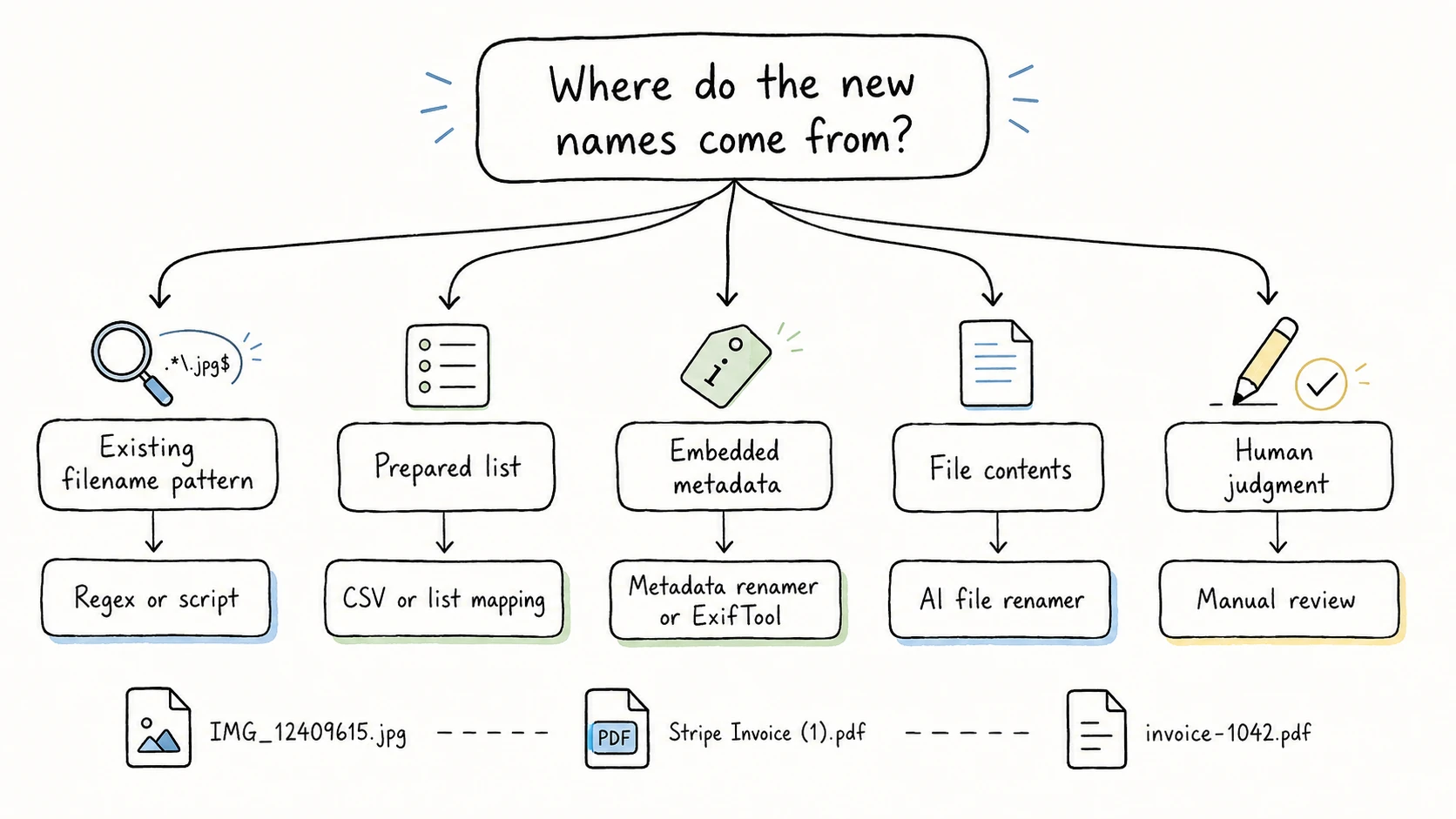
When each file needs its own descriptive fields, identify where those values come from:
| Where the filename fields come from | Example | Method |
|---|---|---|
| A pattern in the old names | Move 20260712 to the front | Regex or a script |
| A prepared list | Each employee file has a supplied full name | List-based renamer or custom script |
| Embedded metadata | Capture date, artist, title, camera | Metadata-capable batch renamer or ExifTool |
| The file contents | Vendor and invoice number inside a PDF | AI file renamer that reads file content |
| Human judgment | Subjective editorial descriptions | Manual or review-assisted rename |
When the target names are already known, use an explicit old-name/new-name mapping instead of relying on folder order. When useful values must be extracted from a file and arranged consistently, metadata-driven file naming explains how fields and a naming template work together.
RenamerX is designed for that content-dependent case. It reads supported documents, images, and videos with local AI after the required resources are installed, extracts fields that belong in the name, and lets a template determine the output. You review and edit the suggestions before applying them, and applied renames can be undone. A plain string replacement is still faster when a plain string replacement is all the folder needs.
Compare the main batch rename methods
| Method | Installation | Preview | Rules | Metadata | Reads file content |
|---|---|---|---|---|---|
| Finder | Built into macOS | Limited example | Basic | No | No |
| File Explorer | Built into Windows | No full old/new table | Shared base name | No | No |
| PowerRename | PowerToys required | Full list | Search, replace, regex, enumeration | File creation time and supported photo EXIF/XMP | No |
| Shortcuts / Automator | Built into macOS | Workflow-dependent | Reusable actions | Workflow-dependent | No by default |
| Terminal / PowerShell | Built-in shell tools | Manual or dry-run output | Scriptable | Available through additional tools or scripts | No by default |
| Metadata-capable batch renamer | Separate tool | Tool-dependent | Usually strong | Yes | No semantic analysis |
| AI file renamer | Separate tool | Tool-dependent | Template-dependent | Extracted fields | Yes |
Match the review process to the cost of a mistake. Five copied screenshots need less checking than a shared folder of signed contracts. A method without a full old/new table may be adequate for the first folder and a poor fit for the second.
How to batch rename files safely
Use this checklist before applying a large batch:
- Work on a small sample or copied files until the rule is proven.
- Sort the files before any operation that assigns sequence numbers.
- Keep the extension unchanged unless changing the extension label is the actual task.
- Remember that changing
.jpgto.pngdoes not convert the image format. - Scan the proposed names for empty values, accidental matches, illegal characters, and duplicate targets.
- Use a preview, dry run, or
-WhatIfwhen the method provides one. - Record an old-name/new-name mapping when a script has no built-in undo.
- Avoid system folders, application resources, and files that another application is actively writing.
Apple warns that changing a filename extension can stop the file from opening in the expected application. Microsoft documents that the Windows rename command rejects a target name that already exists. Apple Mac User Guide, Microsoft rename command
Pick the smallest method that fits the folder
Finder and File Explorer handle the quickest sequence jobs. Finder and PowerRename cover common text changes. Shortcuts, Terminal, and PowerShell take over when a rule needs several steps. Lists and metadata tools work when the new values already exist somewhere structured. An AI file renamer fits the remaining case, where someone would otherwise have to open each file to discover the right name.
Start with the method in the decision table and test it on a few files. Continue with the Mac guide or Windows guide when you need platform-specific steps, or use the metadata-driven naming guide when the name must be assembled from fields extracted from each file.