How to Batch Rename Files on Windows
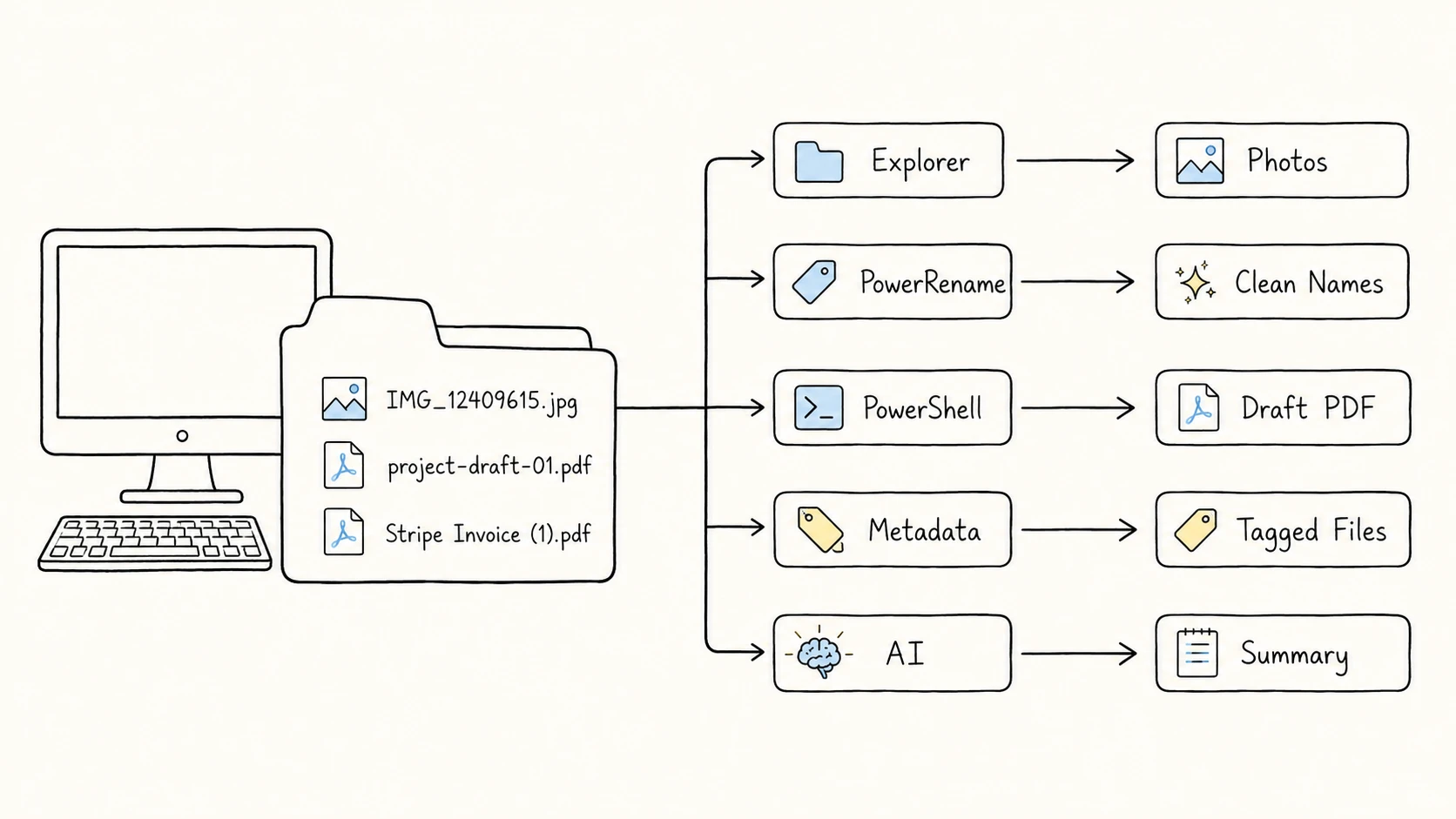
To batch rename files on Windows, use File Explorer for one shared base name with numbered suffixes. PowerRename adds find and replace, regular expressions, custom numbering, supported photo EXIF/XMP fields, and a full old/new preview. Use PowerShell for repeatable scripts and a metadata-capable renamer or ExifTool for embedded fields that PowerRename does not expose. When the right name depends on a PDF, image, document, or video's contents, use an AI file renamer that reads the file and proposes descriptive names for review.
PowerRename belongs to the free Microsoft PowerToys collection. It must be installed and enabled before Rename with PowerRename appears in File Explorer.
Choose the best Windows batch renaming method
| Task | Good starting method |
|---|---|
| Give files one shared base name and numbers | File Explorer |
| Type different names one file at a time | F2, then Tab |
| Find and replace text | PowerRename |
| Add prefixes, suffixes, custom numbering, or regex rules | PowerRename |
| Use file creation dates or supported photo EXIF/XMP fields | PowerRename |
| Run a repeatable script | PowerShell |
| Run a narrow exact rename from a batch file | Command Prompt ren |
| Build names from metadata that PowerRename does not expose | Metadata-capable batch renamer or ExifTool |
| Build names from a PDF, image, document, or video itself | AI file renamer that reads file content |
File Explorer is the shortest route for a numbered set. PowerRename is the practical center of the Windows workflow because it keeps the operation visual while supporting more precise matching. PowerShell belongs to jobs that need repeatable logic, explicit sorting, or custom calculations.
Batch rename files in File Explorer
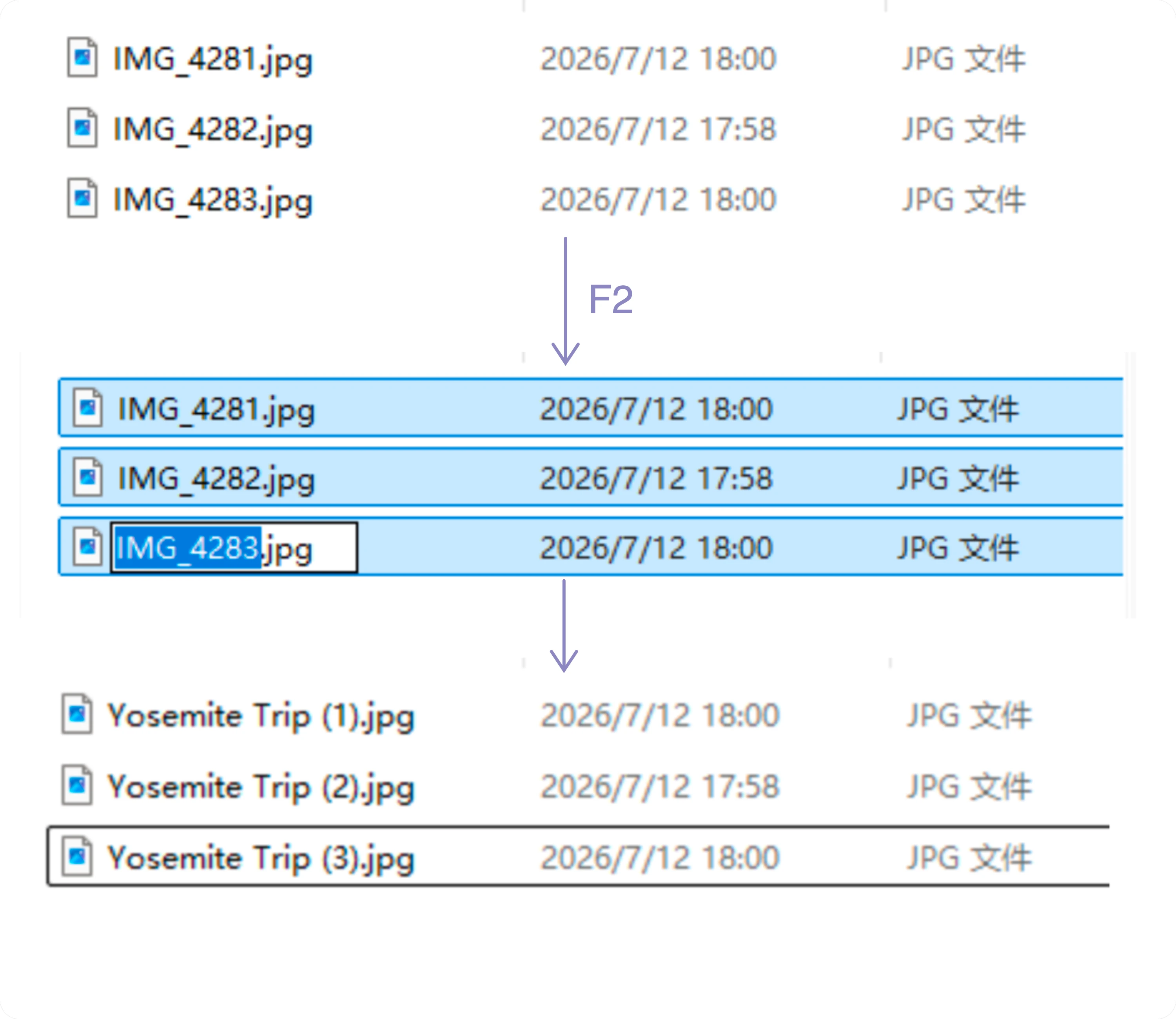
File Explorer can replace a group of names with one base name and numbered suffixes:
IMG_4281.jpg              Yosemite Trip (1).jpg
IMG_4282.jpg      ->      Yosemite Trip (2).jpg
IMG_4283.jpg              Yosemite Trip (3).jpg
- Open the folder and arrange the files in the intended order.
- Select the files. Use
Ctrl+Afor all visible items,Shiftfor a range, orCtrlfor individual files. - Press
F2, or right-click one selected item and choose Rename. - Enter the shared base name and press
Enter.
Windows assigns a unique numbered suffix to each selected item. The exact result depends on the current names and selection, so inspect the first and last few files after the operation. File Explorer does not give you a custom sequence format or a full table of proposed old and new names.
Rename files one by one with F2 and Tab
When every name requires manual judgment and the folder is small, File Explorer can reduce the clicking:
- Select the first file and press
F2. - Type the new name.
- Press
Tabto commit the name and move into rename mode on the next item. - Continue until the set is complete.
This is sequential manual renaming, not an automated batch rule. It becomes fragile when dozens of files must match a prepared list. Use a list-based renamer or a carefully reviewed custom script when the target names are already known, or an AI file renamer with a review table when the names must be derived from the files.
Use PowerRename for search, replace, and patterns
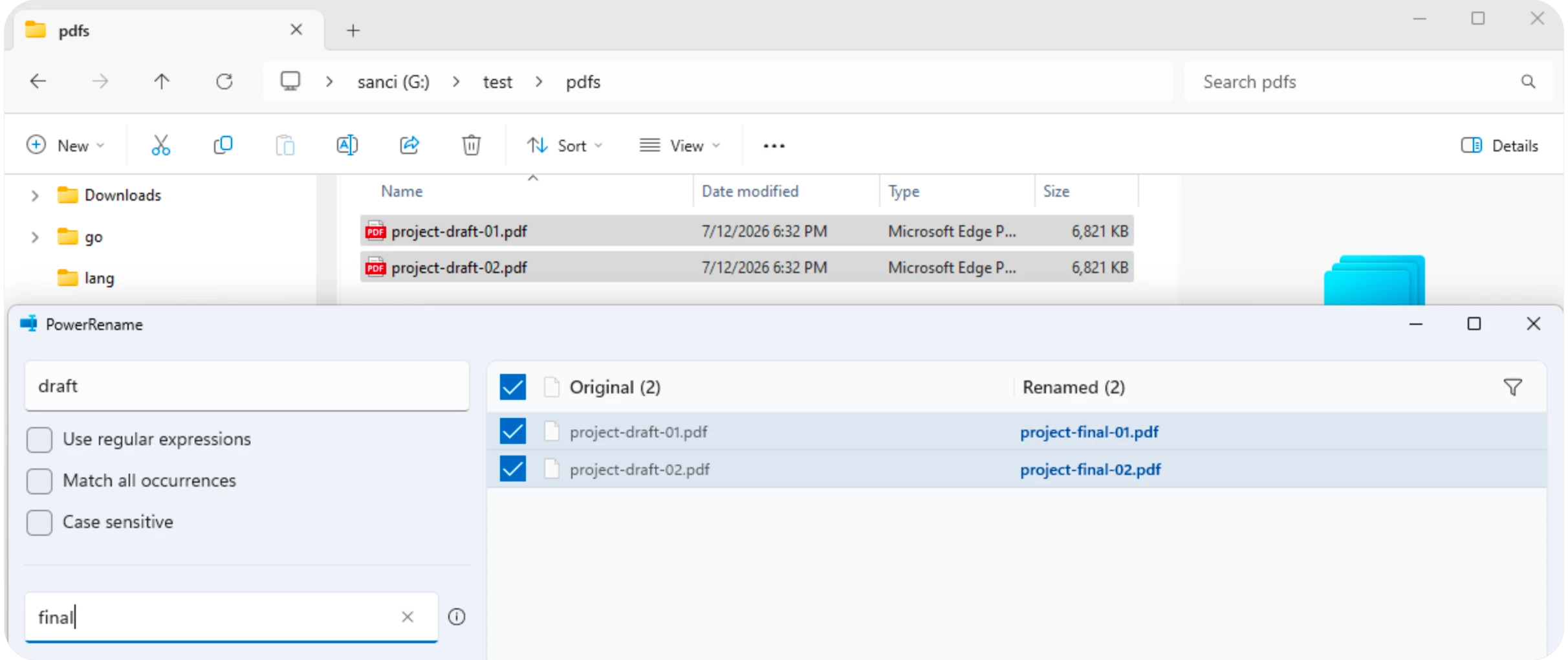
Microsoft describes PowerRename as a PowerToys utility for changing many names without giving all files the same name. It supports targeted search and replace, regular expressions, a preview pane, and undo through File Explorer. Microsoft PowerRename documentation
After installing and enabling PowerRename:
- Select the files in File Explorer.
- Right-click the selection and choose Rename with PowerRename.
- Enter a search value and replacement.
- Choose whether the rule applies to filenames, extensions, or both.
- Check every matching row in the preview.
- Click Apply.
Find and replace text
For a direct replacement:
project-draft-01.pdf              project-final-01.pdf
project-draft-02.pdf      ->      project-final-02.pdf
Set Search for to draft, Replace with to final, and Apply to to Filename only. Filename only protects the extension from an accidental match.
Add a prefix or suffix
A regular expression can target the beginning or end of the filename. To add 2026-07_ at the start, search for ^, enable regular expressions, and replace it with 2026-07_. Keep Apply to on Filename only.
invoice-1042.pdf
-> 2026-07_invoice-1042.pdf
Use one shared date only when it applies to the whole set. A file creation date, photo capture date, and invoice date can be different facts.
Rearrange fields with a regular expression
Regex is useful when every current name has the same structure. Files such as:
ACME_1042_2026-06-18.pdf
NORTH_1043_2026-06-19.pdf
can be transformed into date-first names if the expression captures the organization, identifier, and date separately. Test the expression against files that should match and files that should remain unchanged. A regex that works on two tidy examples may overmatch a mixed folder.
With Apply to set to Filename only, enable regular expressions and use:
Search for:   ^([A-Z]+)_(\d+)_(\d{4}-\d{2}-\d{2})$
Replace with: $3_$1_$2
The first file becomes 2026-06-18_ACME_1042.pdf. Adjust the pattern when organization codes contain lowercase letters, spaces, or hyphens, and read the full preview before applying it.
Add numbering, file dates, or photo metadata
PowerRename's Enumerate items option supports a counter with a custom start, increment, and padding. This gives you more control than File Explorer when the output needs a sequence such as Yosemite-Trip-0001.jpg.
PowerRename can also insert a file's creation date and time, or supported EXIF/XMP photo fields such as date taken, camera model, dimensions, and GPS coordinates. Choose the relevant variable from the Replace with field rather than typing one shared value for every file. Microsoft lists the current enumeration, date/time, and photo metadata variables in the PowerRename documentation.
Choose the field for its meaning, not merely because it is available. A copied file's creation time may describe the copy, and photo EXIF cannot supply an invoice date printed inside a PDF.
Review the PowerRename preview
The preview is the main reason to prefer PowerRename over an untested command for an interactive job. Check:
- which rows are included
- whether the extension stays unchanged
- whether case-sensitive matching is intended
- whether all or only the first occurrence changes
- whether two rows produce the same target name
- whether folders or subfolders are included
PowerRename can undo the completed operation through File Explorer, but review still matters. Undo is recovery, not a substitute for selecting the correct files.
Use PowerShell for repeatable rename scripts
PowerShell is a better fit when the rename must be saved, repeated, filtered, or driven by a table. Microsoft documents Rename-Item for renaming files and supports -WhatIf, which reports the operation without running it. Microsoft Rename-Item documentation
Open PowerShell in the intended folder. You do not need an administrator session for ordinary files that your account already has permission to rename.
Replace text in PDF filenames
Get-ChildItem -File -Filter '*.pdf' |
    Rename-Item -NewName { $_.Name -replace 'draft', 'final' } -WhatIf
The filter limits the input to PDF files. -replace changes the matching text, and -WhatIf prevents the rename during review. Remove -WhatIf only after checking the full output.
Add a prefix to JPG files
Get-ChildItem -File -Filter '*.jpg' |
    Rename-Item -NewName { "2026-07_$($_.Name)" } -WhatIf
The script keeps the original name and extension. It does not read a different date from every photo.
Create a padded sequence
$i = 1
Get-ChildItem -File -Filter '*.jpg' |
    Sort-Object Name |
    ForEach-Object {
        $newName = 'Yosemite-Trip-{0:D4}{1}' -f $i, $_.Extension
        Rename-Item -LiteralPath $_.FullName -NewName $newName -WhatIf
        $i++
    }
D4 produces a four-digit sequence such as 0001. Sort-Object Name makes the ordering choice explicit. Replace the sort field when capture time or another property should determine the sequence.
Use Command Prompt ren for narrow exact renames
The Windows rename command, also available as ren, accepts wildcard characters in the source and target names. Microsoft documents that it renames files or directories without moving them to a different path or drive. It also rejects a target that already exists. Microsoft rename command
A batch file can contain exact old/new pairs:
ren "project-draft-01.pdf" "project-final-01.pdf"
ren "project-draft-02.pdf" "project-final-02.pdf"
The ren command also accepts wildcards, but target wildcards reuse characters in corresponding source positions; they are not regular-expression replacement. A pattern that looks intuitive can produce an unexpected result. Command Prompt also lacks PowerRename's old/new preview and PowerShell's -WhatIf, so use PowerRename for interactive pattern changes or PowerShell for logic that needs validation.
Do not use an extension-only rename as a file conversion. Changing .txt to .doc or .jpg to .png changes the suffix, not the underlying format.
Use a dedicated rule-based or metadata renamer
PowerRename already covers file creation time and a documented set of photo EXIF/XMP variables. Traditional Windows renamers remain useful for saved rule chains, broader photo, audio, video, or document metadata, case conversion, and field combinations that PowerRename does not expose.
For a scriptable metadata workflow, ExifTool can rename or move files from date/time and other embedded fields. Use a desktop renamer when a visual preview and saved presets matter; use ExifTool when the required tags and command-line workflow are already clear.
Choose a tool whose preview shows the exact target name and whose metadata support covers the fields you need. Check its behavior for missing tags, duplicate targets, saved presets, and undo before running a large folder.
Metadata needs the same caution as a script. File modification time may record a copy or download. A scan may contain an invoice date on the page while its embedded properties contain only the scan time. Use the field that describes the content, not whichever timestamp is easiest to reach. See metadata-driven file naming.
Use AI to rename files based on their contents
Rule-based tools need a pattern or a structured value. They cannot infer the missing details in these names without another source:
scan001.pdf
IMG_4821.jpg
final_v3.mov
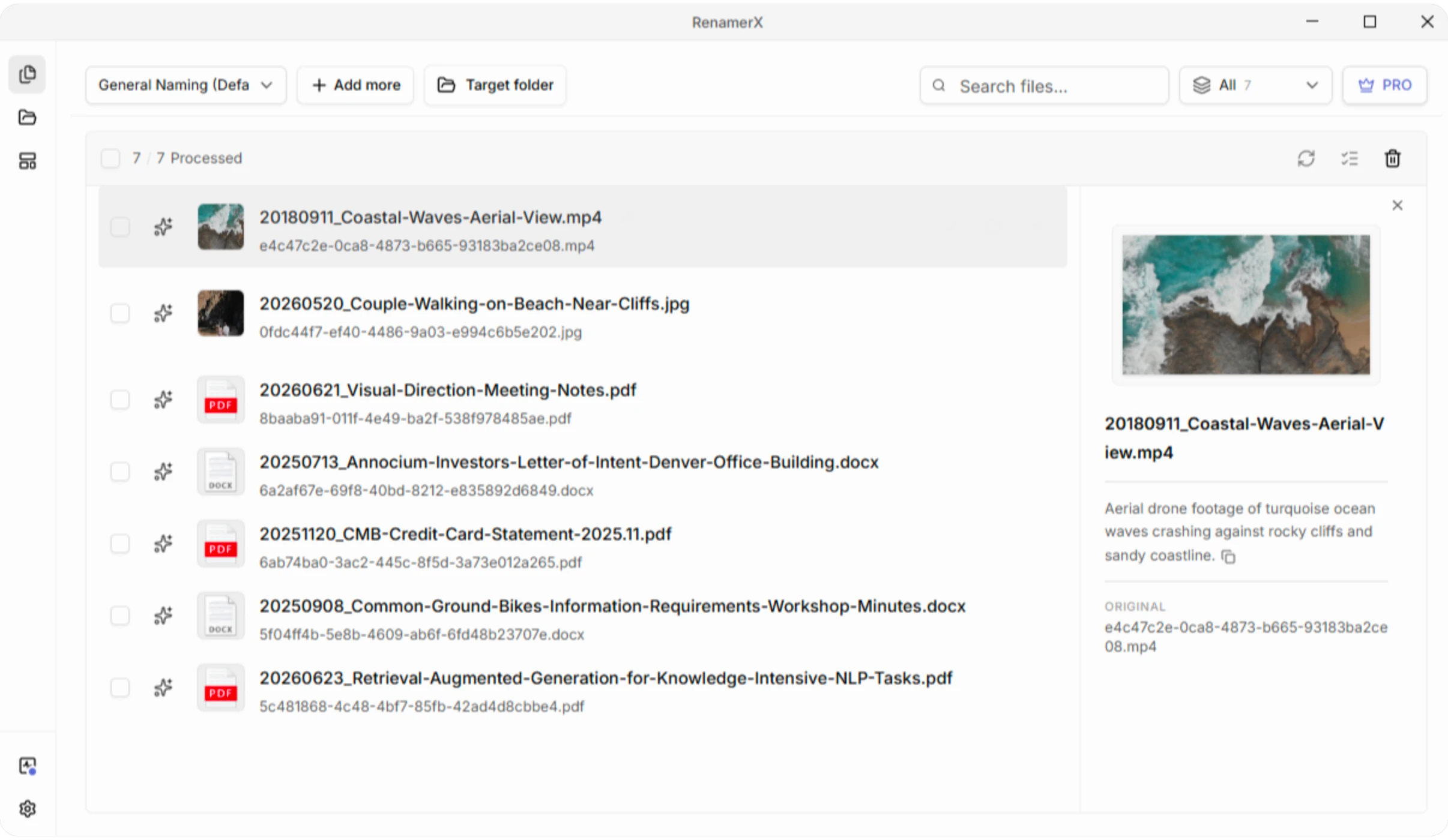
RenamerX handles batches where useful details are inside supported documents, images, or videos. After the required local resources are installed, AI extracts fields such as date, organization, type, identifier, project, or title. A naming template controls the output format. You review and edit the suggestions before applying the batch, and applied renames can be undone.
Stripe Invoice (1).pdf
-> 2026-05-16_Stripe_Invoice_42558262.pdf
PowerRename remains the right choice when the rule is visible in the existing filenames. Use the content-based renaming workflow when someone would otherwise have to open each file to find the date, organization, title, subject, identifier, or another naming field.
Compare Windows batch rename methods
| Method | Setup | Best for | Preview | Main limit |
|---|---|---|---|---|
| File Explorer | Built in | Shared base name and sequence | No full old/new table | Little format control |
| PowerRename | Install PowerToys | Interactive rules, regex, numbering, file dates, and photo metadata | Full old/new list | Does not read semantic file content |
| PowerShell | Built into Windows | Scripts, filters, sorting, custom calculations | -WhatIf | Requires command review |
Command Prompt ren | Built in | Exact pairs or narrowly tested wildcard changes | Manual | Positional wildcards and no dry run |
| Rule-based app | Separate app | Saved GUI rule chains | Tool-dependent | Does not necessarily read content |
| Metadata-capable batch renamer or ExifTool | Separate app | Broader embedded photo, audio, video, or document metadata | Tool-dependent | Depends on metadata quality |
| AI file renamer | Separate app | Names derived from each file's contents | Tool-dependent | Extracted fields need review |
Troubleshooting Windows batch renaming
PowerRename is missing from the context menu
Confirm that Microsoft PowerToys is installed and PowerRename is enabled in its settings. Microsoft states that the menu item appears only when PowerRename is enabled. Microsoft PowerRename documentation
File Explorer numbered the files in the wrong order
Undo the recent rename if possible, sort the folder by the intended property, select the files again, and rerun the operation. For a sequence tied to a specific property, use PowerShell and sort that property explicitly.
A file is in use or access is denied
Close the application that is writing the file and confirm that the current account can modify the folder. Administrator mode is not a general fix for an incorrect path, locked application file, or cloud-sync state.
PowerRename matched too many files
Tighten the search string or regex, turn on case sensitivity when appropriate, and use the filename-only setting. Read the entire preview before Apply.
A PowerShell script creates duplicate targets
Stop at the -WhatIf stage. Add a stable date, identifier, version, or sequence. Rename-Item cannot replace an existing target, and silently overwriting would be unsafe even if another command allowed it.
The extension changed but the file format did not
Restore the original extension and convert the file with an application that understands the source and target formats. Rename tools change names; converters rewrite file data.
Match the Windows tool to the source of the name
File Explorer handles a shared base name. PowerRename handles visible text, regex patterns, custom numbering, file creation dates, and supported photo metadata. PowerShell handles saved logic, sorting, and custom calculations. Other metadata-capable tools cover broader embedded fields. AI file renamers handle values that must be extracted from the file's actual content.
For a cross-platform method chooser and an explanation of where meaningful filename fields can come from, read how to batch rename files.