AI Document Renamer: Rename Office Files by Content
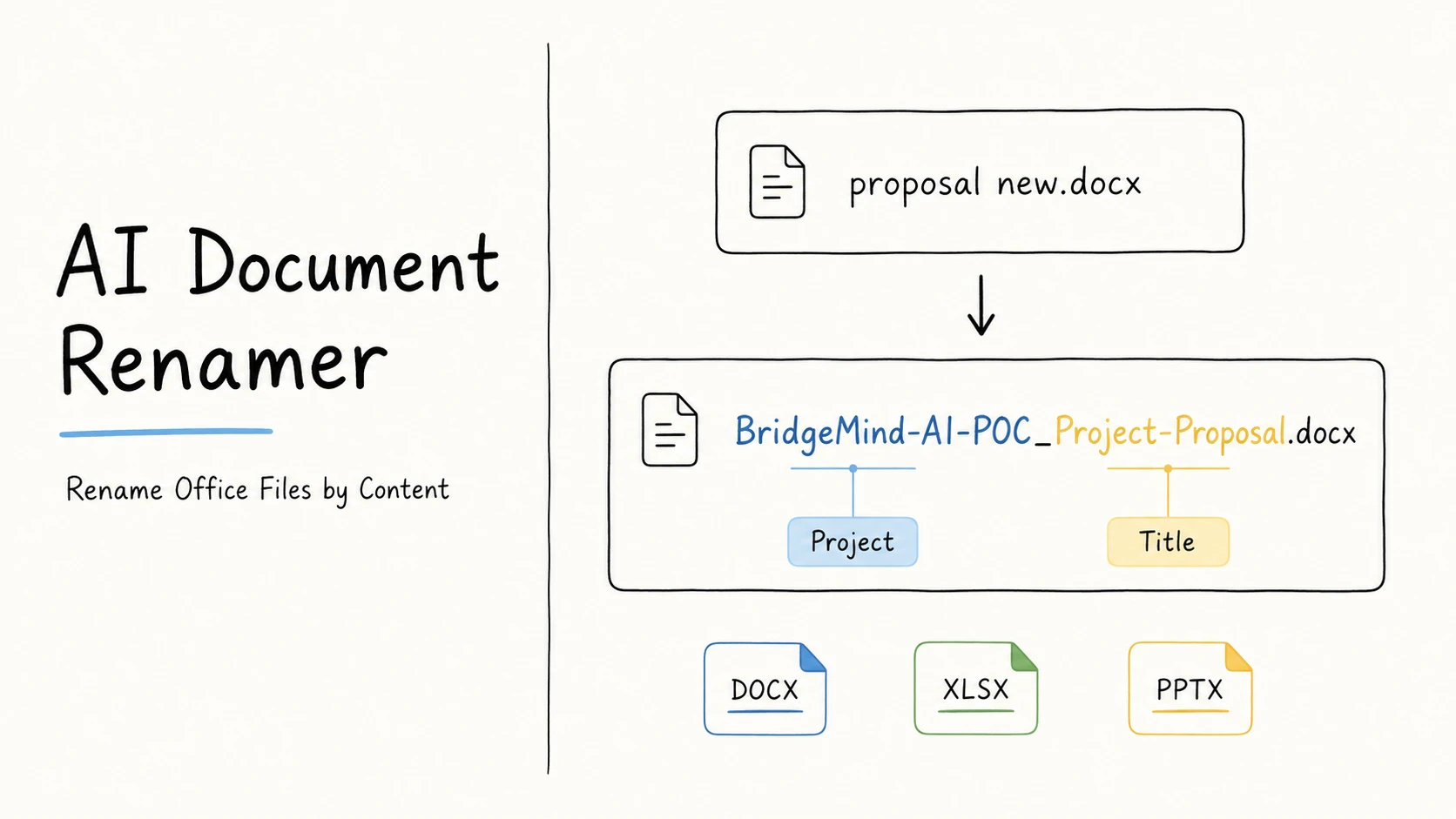
Large folders of Word documents, spreadsheets, and presentations become difficult to browse and search when filenames do not contain the clues people will use later. Names such as proposal new.docx, sales report may.xlsx, and monthly progress report FINAL v1.pptx do not provide the information the workflow needs. You have to open files one by one, guess between similar copies, and clean up the names again before sharing or handoff.
A good filename adds only a few useful details, making Office files easier to recognize, search, sort, and share.
Quick Answer
Renaming Office files by content means choosing two to five pieces of information people will use to find, sort, or distinguish the files later. A compact project proposal may need only project and title; a recurring sales report may use reporting period, organization, and title; a project progress report may use date, project, title, status, and version when several periods and revisions need to coexist. Use the same information order for related files, put the most-used search clue first, and keep date formats, separators, status terms, and version styles consistent.
You can open and rename a small number of documents one by one. For a large folder of unclear Office files, use RenamerX. Its built-in local AI reads file content without uploading the files, then generates clear, searchable filenames that follow your naming convention. Review the rename results before applying them in batch, and undo applied renames if needed.
| Messy filename | Better filename | Pattern |
|---|---|---|
proposal new.docx | BridgeMind-AI-POC_Project-Proposal.docx | {project}_{title} |
sales report may.xlsx | 2026-05_Common-Ground-Bikes_Sales-Performance-Report.xlsx | {date}_{organization}_{title} |
monthly progress report FINAL v1.pptx | 2026-05_BridgeMind-AI-POC_Monthly-Progress-Report_Final_v1.pptx | {date}_{project}_{title}_{status}_{version} |
Choose Two to Five Useful Naming Fields
Start with how people will recognize and retrieve the document, then choose the fields that support those tasks, such as project, title, date, organization, status, or version. A good Office filename uses only the fields that help someone recognize the document, find it through search, sort it with related files, or distinguish it from similar documents.
Use two to five useful fields. Each field should help someone recognize, find, sort, or distinguish the document.
| What the filename should do | Useful information | Example |
|---|---|---|
| Find and recognize the document | Short title or document type | Project-Proposal |
| Keep related files together | Project, client, or organization | BridgeMind-AI-POC |
| Support sorting | Date or reporting period | 2026-05 |
| Distinguish similar documents | Stable identifier, status, or version | Approved_v2 |
Use only the information that improves the real folder. A mixed collection may need only {date}_{title}. A project file may need {project}_{title}, while a monthly report may need {date}_{organization}_{title}. Add status and version only when drafts, approved copies, or revisions need to coexist. The metadata-driven file naming guide explains how to choose reliable information from file content and metadata without turning the filename into a full record.
Put the Most-Used Search Clue First
The first field controls how files group when the folder is sorted by name. Put the information people use most often to find that kind of document near the front.
| How people usually find the file | Put near the front | Example |
|---|---|---|
| By project | Project | BridgeMind-AI-POC_Project-Proposal.docx |
| By reporting period | Date or period | 2026-05_Common-Ground-Bikes_Sales-Performance-Report.xlsx |
| By client | Client | Common-Ground-Bikes_Business-Requirements-Report_Approved_v2.docx |
| By meeting date | Date, then project | 2025-10-06_BridgeMind-AI-POC_Payment-API-Integration-Review-Meeting-Minutes.docx |
| By official number | Identifier | AGR2024042801_Vehicle-Purchase-Agreement_Signed.docx |
Use the reporting period from the document, not the day someone downloaded or edited it. A monthly report usually needs YYYY-MM; a daily operational file may need YYYY-MM-DD. Status and version usually belong near the end because they qualify the document rather than define its main group. The date format guide and file naming examples provide more patterns.
Filename Templates for Common Office Workflows
| Workflow | Template | Use it when |
|---|---|---|
| Mixed or unclear documents | {date}_{title} | The files are unrelated or not sorted into workflows, and a meaningful date plus descriptive title is enough |
| Project files | {project}_{title} | The folder already supplies date, client, and status context |
| Dated project records | {date}_{project}_{title} | Time order matters inside a project |
| Client deliverables | {client}_{title}_{status}_{version} | Several accounts and revisions share one delivery folder |
| Recurring reports | {date}_{organization}_{title} | A period and organization identify the workbook or report |
| Controlled records | {identifier}_{title}_{status} | A stable official or internal ID is the primary lookup key |
Choose templates by the document's purpose, not by its extension. A Word proposal and a PowerPoint project update can share the same project spelling, date style, status terms, and separators. A recurring workbook may need a different template because people retrieve it by reporting period rather than project.
The file naming templates guide explains how to choose field order, date precision, and separators. The controlled vocabulary guide helps keep repeated values such as Proposal, Report, Presentation, Draft, Approved, and Signed consistent.
Keep status and version separate
Status describes workflow state. Version distinguishes revisions.
Draft_v1
Draft_v2
Approved_v2
Do not infer a version from words such as copy, new, or revised unless the folder already defines how those words map to a version. The cleanest choice may be to omit version when the file contains no reliable revision information.
Leave out information the folder already provides
A document in Clients/Common-Ground-Bikes/Contracts/ may not need the client and document type repeated in every filename. Add that information when the file will be emailed, uploaded, delivered, or moved somewhere the folder path no longer explains it. The file naming conventions guide covers this tradeoff in more detail.
How to Rename Office Files by Content
For a few Office files, you can open each document, identify the useful information, and apply the naming pattern manually. The process becomes difficult across a large folder because every file must be opened, the correct title, date, project, status, or version must be identified, and every name must follow the same structure. RenamerX handles that repetitive work while keeping every result reviewable. This Office-specific process follows the broader content-based file renaming workflow.
Step 1: Choose a template for each document workflow
Start with a representative sample that includes ordinary files and the cases most likely to be confused. Decide how project files, recurring reports, client deliverables, meeting records, and controlled documents should be named. You can also start with a built-in general template, which will usually produce a useful filename, and adjust it later to fit the folder.
Step 2: Add the files and generate suggestions
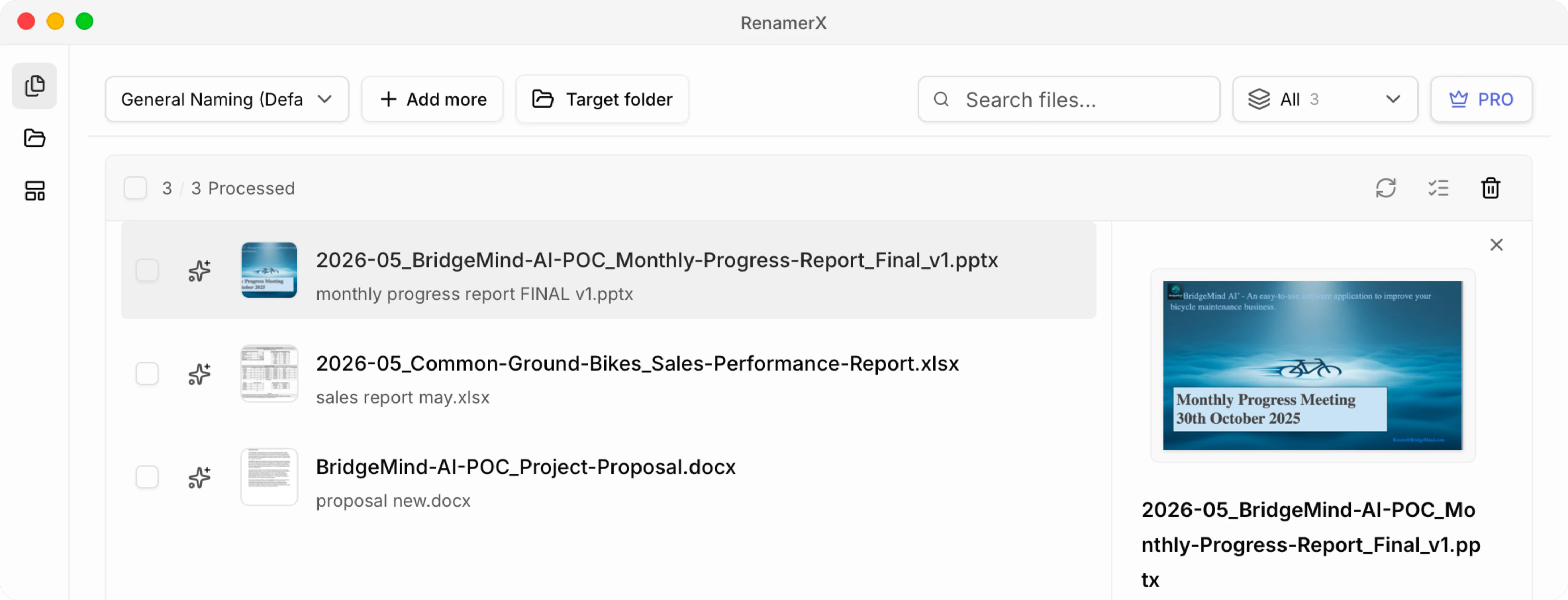
Drag the files into RenamerX and select the appropriate template. RenamerX uses built-in local AI to read and understand the document content without uploading the files, extracts the information required by the template, and shows the original and suggested names side by side. The template controls field order, date format, separators, output language, and how missing fields are handled, while the original extension remains unchanged.
RenamerX supports DOCX, XLSX, PPTX, older DOC, XLS, and PPT files, and related Office, OpenDocument, text, and tabular formats including CSV, TSV, RTF, ODT, ODS, and ODP.
Step 3: Review the suggested names against the documents
Compare each suggestion with the document before renaming. Confirm that the title, project or client, reporting period, status, and version describe the current document rather than an old template, copied content, or a temporary filename label. The format-specific checks below cover the details most likely to be misread. Edit or retry an inaccurate suggestion, and skip any file that does not provide enough reliable information.
Step 4: Apply the approved names and verify the folder
Before renaming active Office files, check whether linked workbooks, linked images or data sources, linked media, macros, scripts, shortcuts, SharePoint, or a document-management system depends on the existing path. Renaming changes the path, not the document content, and a filesystem renamer cannot repair every downstream reference. Use the managing application's rename or relink workflow when necessary, then verify the dependent files. Microsoft Support: Create workbook links, Microsoft Support: Rename a file
Apply only the suggestions you have approved, then check several results in the destination folder. If a name is wrong after the batch is applied, Undo can restore the original filename. Core processing and renaming run on the device after the required resources are installed; the current boundaries are documented in How RenamerX Works and Security and Privacy.
Review Office Details That Are Easy to Misread
Office files often reuse templates, worksheets, and slide layouts. Not every title, organization, date, or status in the file describes the current document. When reviewing a suggested name, check the details that actually shape the filename.
Word documents
- Does the title describe this document rather than the template it came from?
- Did boilerplate, headers, or footers carry over an old client or project?
- Is
Draft,Approved, orSignedclearly supported by the document or workflow?
Excel workbooks
- Does the date represent the reporting period rather than the modification time?
- Do copied or hidden sheets contain an older subject, organization, or period?
- Is the source-system identifier more reliable than a generated title?
PowerPoint presentations
- Does the cover title describe the full deck?
- Did the slide master or copied slides introduce an old company or project?
- Is the deck an internal review, a client presentation, or an approved deliverable, and does that distinction belong in the filename?
Make Office Files Easy to Find Without Opening Them
A useful Office filename exposes the few details that help people recognize and retrieve documents, sort related files, or tell similar documents apart. A mixed folder can use {date}_{title} when those two fields are enough. Known workflows can use more specific fields, with the strongest lookup clue near the front and the same order and formatting across related files.
For a few documents, you can apply the convention manually. For a large collection, RenamerX can read the content, fill the selected naming fields through a template, and keep every proposed name reviewable before the files change.