How to Rename Scanned PDF Files by Content
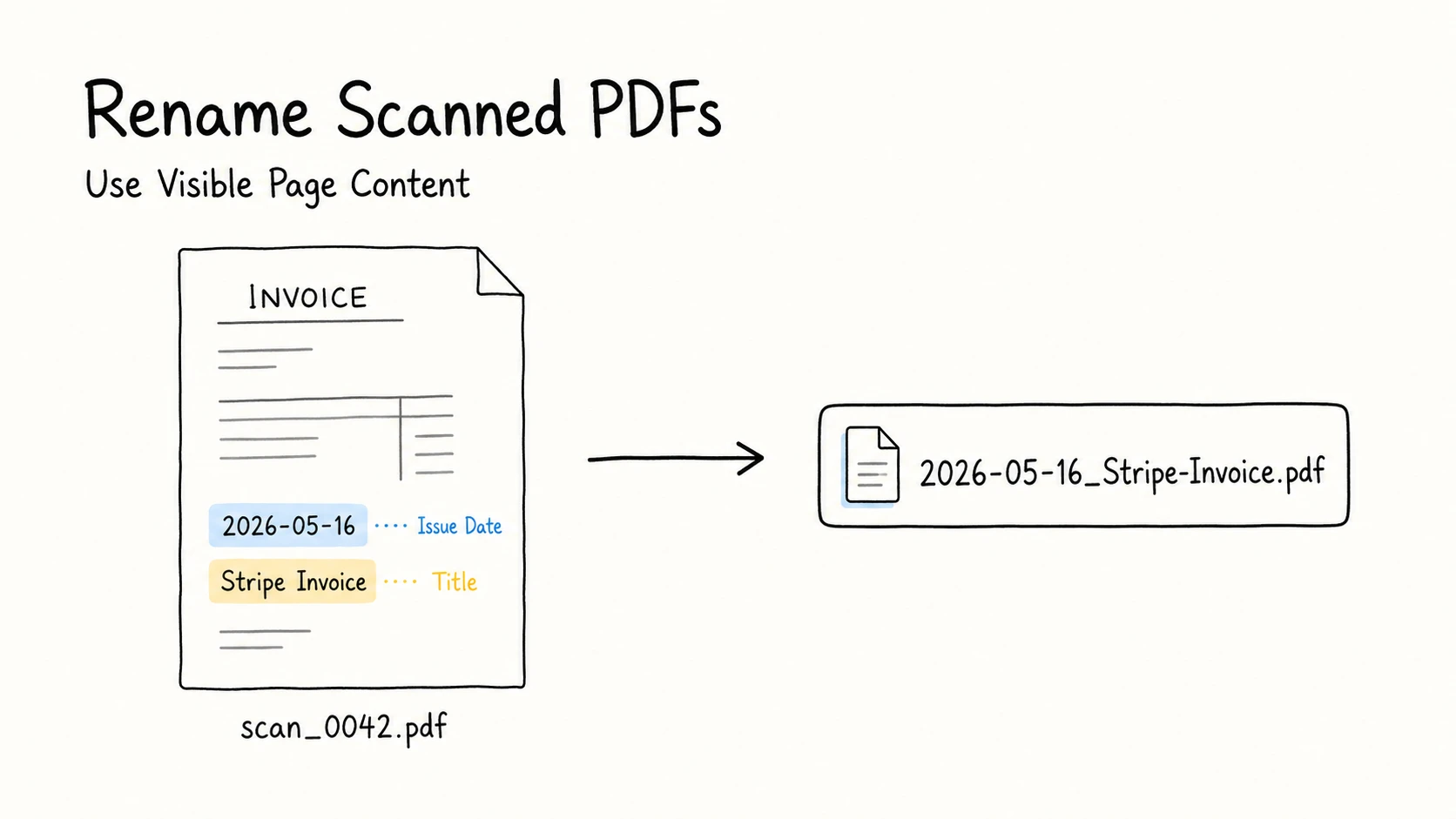
A scanner can turn a stack of paper into PDFs in minutes and still leave you with a folder that is almost impossible to browse. scan_0042.pdf, scan_0043.pdf, and scan_0044.pdf record the scanner's sequence, but they do not tell you which file is an invoice, signed agreement, or insurance certificate.
The useful clues are already on the pages: an invoice's issue date and supplier, an agreement's title and status, or a certificate's issuer and number. Bringing those clues into the filename makes scanned PDFs easier to recognize, search, sort, and share without opening them one by one.
Quick Answer
Renaming scanned PDFs by content means putting two to five page details you will use later into the filename. An invoice can use issue date, supplier, and invoice number; an agreement can use official identifier, title, and status. For the same kind of scan, keep the information order, date format, and separators consistent, and put the most useful lookup clue first.
You can open and rename a few scans manually. For a large folder, RenamerX uses local AI to analyze clear scanned pages without uploading the files, then generates clear, consistent filename suggestions from the page content. Review the suggestions before renaming. You do not need OCR just to name a clear scan; OCR is useful when you also need searchable or copyable text inside the PDF.
| Scanner-generated filename | Better filename | Pattern |
|---|---|---|
scan_0042.pdf | 2026-05-16_Stripe-Invoice.pdf | {date}_{title} |
scan_0043.pdf | 2024-04-28_Signed-Vehicle-Purchase-Agreement.pdf | {date}_{title} |
scan_0044.pdf | 2026-02-17_Harbor-Mutual-Insurance-Certificate.pdf | {date}_{title} |
Why Scanned PDFs Are Harder to Rename by Content
A PDF created by an accounting system, word processor, or website often contains text that software can read directly. A scanned PDF may contain little more than images of paper pages. Its visible date, title, organization, and document number may never appear in the existing filename or ordinary file metadata.
That is why conventional batch rules have little to work with. Find and replace, counters, prefixes, and date insertion can reshape an existing filename, but they cannot turn scan_0042.pdf into a descriptive name when every useful clue is visible only on the page.
None of this means you should diagnose every PDF before renaming it. You do not need to test whether text can be selected or decide which extraction method to use. For a few scans, read the page and name the document manually. For a large folder, visual AI can inspect a clear page, identify the document, and use the visible information to suggest a descriptive filename.
Choose Information That Makes Each Scan Easy to Find
Princeton Research Data Service recommends identifying the important elements of a project and using short, descriptive, consistent filenames. Applied to scans, that means choosing only details supported by the page that will help someone retrieve the document or distinguish it from similar records later. Princeton Research Data Service
Scanning describes how the PDF was created, not what kind of document it contains. A useful filename should reflect the document shown on the page and the clues someone will use to find it later.
For a folder of unrelated scans, you can standardize filenames with a pattern such as {date}_{title}. The date should be the one that identifies the document in context, such as an issue date, signing date, or reporting period. It shows the relevant time point or period and also supports chronological browsing, while title gives each file a short description based on the page.
The examples below show how the useful information changes with the document on the page.
| Document type | Useful information | Example filename |
|---|---|---|
| Invoice | Issue date, supplier, document type, invoice number | 2026-05-16_Stripe_Invoice_42558262.pdf |
| Agreement | Official identifier, title, status | AGR2024042801_Vehicle-Purchase-Agreement_Signed.pdf |
| Insurance certificate | Issue date, insurer, certificate title, policy or certificate number when appropriate | 2026-02-17_Harbor-Mutual_Insurance-Certificate_POL-28419.pdf |
| Bank or card statement | Statement period, institution, account type | 2025-11_Chase_Credit-Card-Statement.pdf |
| Project report | Reporting period, project, report title | 2026-05_BridgeMind-AI-POC_Monthly-Progress-Report.pdf |
| Market research report | Publication year, publisher or organization, report title | 2025_Northstar-Research_Global-EV-Market-Outlook.pdf |
| Book or manual | Creator or organization, publication year, title, edition | Chen_2021_Practical-Archive-Management_2nd-Edition.pdf |
Whichever fields you choose, the same basic rules apply:
- Use a short title or document type and the strongest visible clues needed to recognize the file.
- Add a date, organization, project, status, or identifier only when it helps retrieve the document or distinguish it from similar records.
- For a known document set, put the most common lookup clue near the front and keep the information order, date format, separators, and repeated terms consistent.
- Use an identifier only when it is official, useful, and safe to expose.
- Leave out information the page does not clearly support instead of guessing.
The file naming templates and file naming examples libraries provide more patterns without requiring one formula for every scan. Use the focused guide to renaming invoice files when a financial document contains competing dates and numbers. For clean digital PDFs and mixed document collections, use the broader PDF renaming guide.
How to Rename Scanned PDF Files by Content
For a small batch, open each scan and apply the same naming pattern manually. The process becomes difficult when dozens or hundreds of scans must be opened, interpreted, typed, and formatted one by one.
RenamerX handles the repetitive part while keeping the naming decisions reviewable.
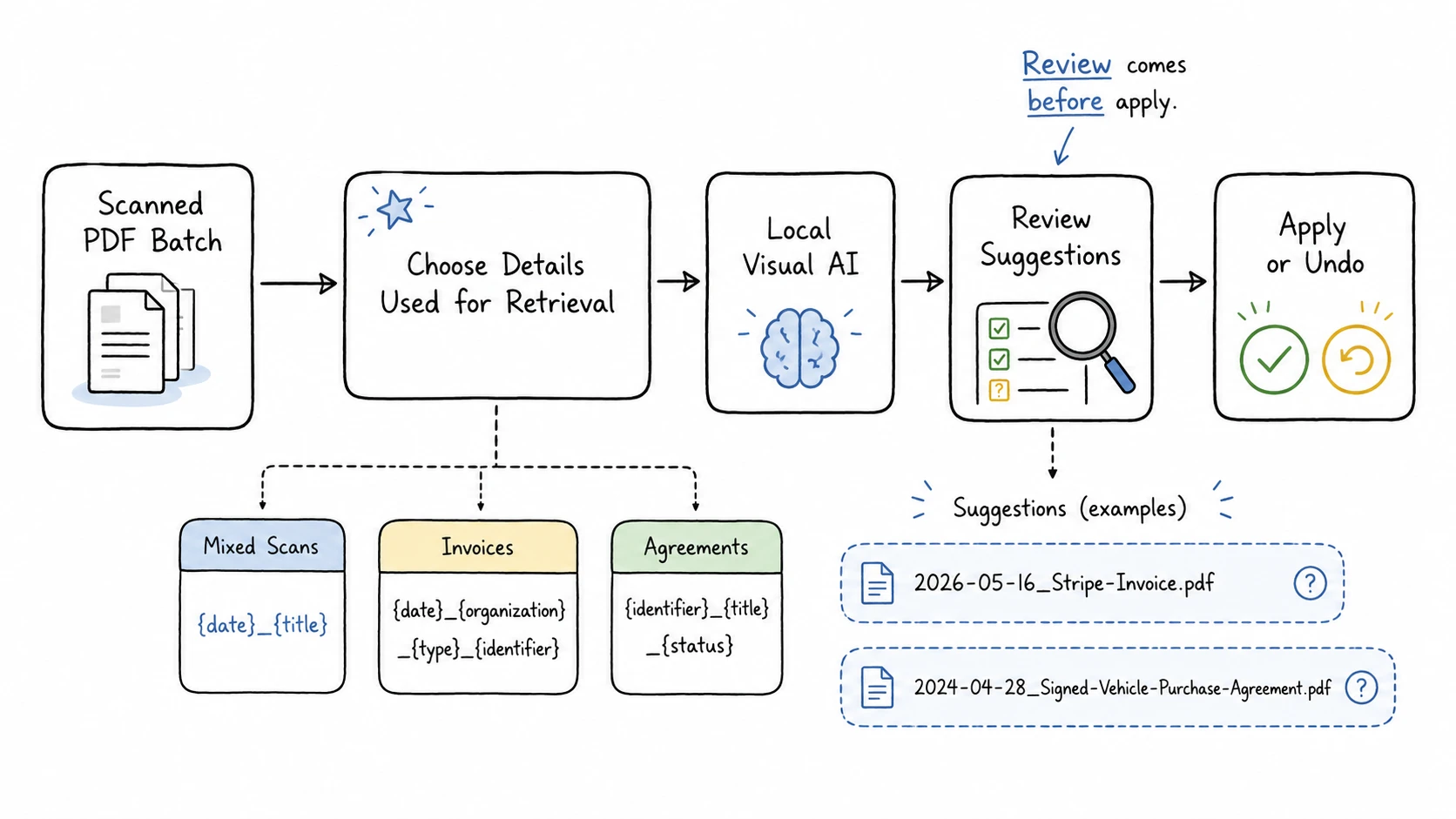
Choose one template for the current batch
Use {date}_{title} when the batch contains mixed or unclassified scans. If the batch consists of one known document type, choose the details people use to retrieve those records, such as supplier and invoice number for invoices or project and reporting period for reports.
Add the scans and generate suggested names
RenamerX uses built-in local AI to read available PDF content and, when a clear scan provides little usable text, analyze the visible first page. It extracts the information required by the selected template and keeps the original and suggested filenames side by side.
Review details that could be confused
Compare each suggested name with the page. Confirm that the date is meaningful and the title distinguishes the document from similar records. When the selected template also includes organization, project, status, or an official identifier, verify those details as well. Edit a wrong value, retry a weak suggestion, or skip an uncertain file.
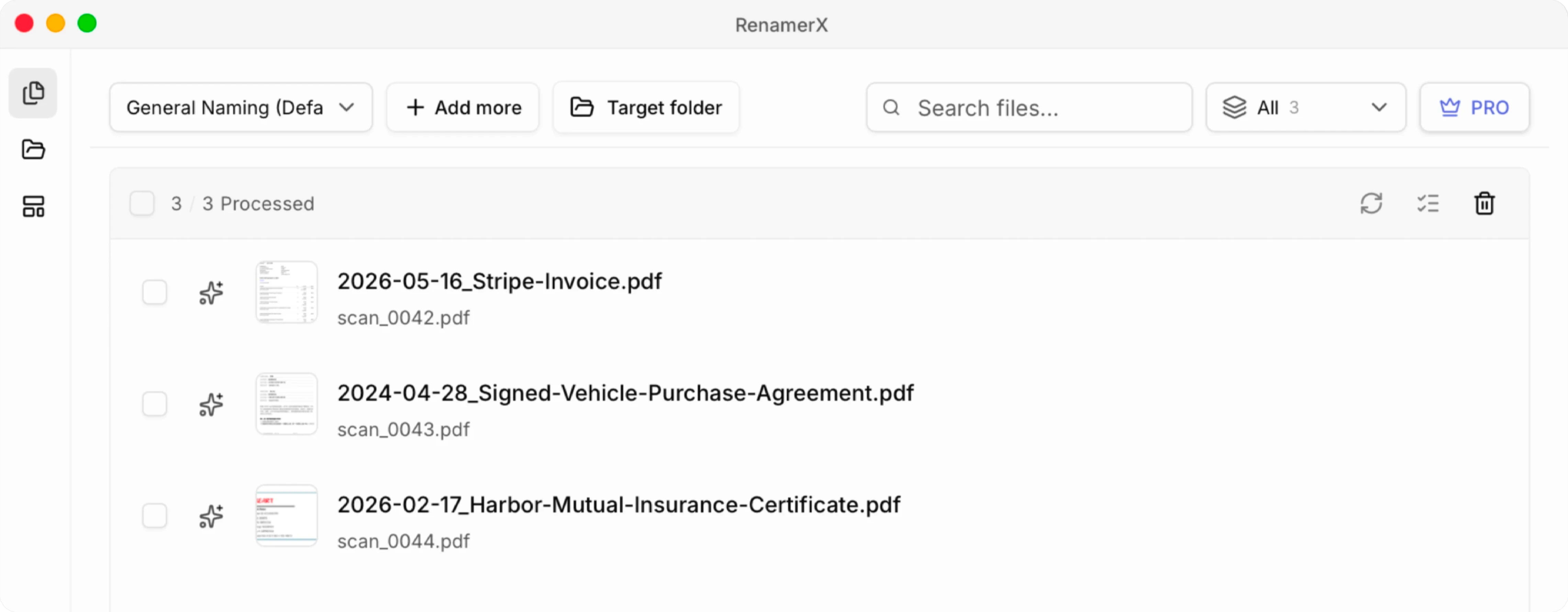
Apply only the approved names
Check for unnecessary sensitive information and duplicate target names, then apply the approved batch. Inspect several results in the destination folder and keep Undo available until the batch has been verified.
Review the Details Scans Commonly Get Wrong
Scanned pages introduce uncertainty that a clean digital export may not have. The safest response is not to make every filename vague; it is to review the details whose errors would matter.
| Scan problem | What to check before renaming |
|---|---|
| Blur, rotation, glare, folds, or poor cropping | Correct the page or rescan it before relying on small text and long numbers. |
| A cover sheet or generic first page | Inspect later pages when the first page does not identify the document. |
| Several visible dates | Confirm whether the filename needs the issue date, reporting period, effective date, signature date, or expiration date. |
| No meaningful document date | Use a template without date, or edit the suggestion when a file modification or scan date would be misleading. |
| Several organizations | Identify the issuer, supplier, client, recipient, or owner rather than choosing the most prominent logo automatically. |
| Several numbers | Distinguish an invoice, agreement, certificate, case, or policy number from an order number, account number, page number, or scanner ID. |
| Long identifiers and similar characters | Verify 0/O, 1/I, punctuation, and leading zeros against the page. |
| Handwriting, signatures, and corrections | Use them as confirmation, not as the sole source of an exact filename unless a person verifies the result. |
| Several documents inside one PDF | Decide whether the PDF should be split before giving the combined scan one misleading name. |
| Sensitive personal or financial information | Use a safe record ID, broad document type, and date when a full value should not appear in a folder listing. |
RenamerX's current visual path works best when the details required by the filename appear clearly on the first page. If the first page is only a cover or the official number appears later, inspect the relevant page and edit the suggestion before applying it. The important requirement is access to the evidence on the page, not a particular recognition technology.
Microsoft lists characters such as <, >, :, ", /, \, |, ?, and * as reserved in ordinary Windows filenames. A reliable template should normalize unsafe characters and preserve the .pdf extension. Microsoft Learn
Do You Need OCR to Rename a Scanned PDF?
Not when the only goal is to name a clear scan from information visible on the page. Visual AI can identify a document and read enough visible context to suggest a date, organization, document type, short title, or other naming information without first creating a searchable text layer.
OCR solves a related but different problem. Adobe describes OCR as converting text in scanned page images into selectable and searchable text. Use it when the PDF itself must support full-text search, copying, indexing, accessibility work, or downstream text extraction. Adobe Acrobat
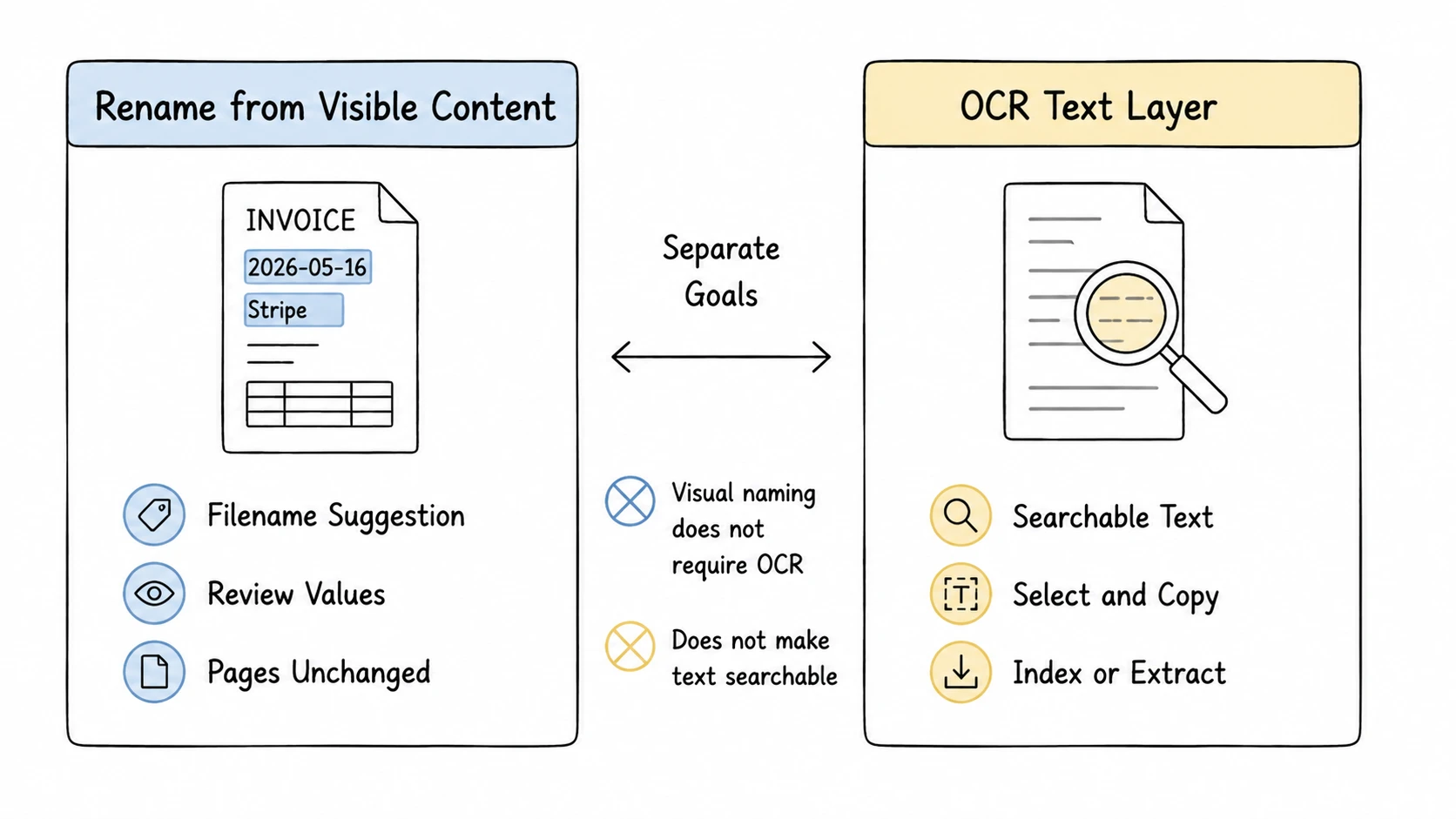
Renaming changes the filename only. It does not alter the page images or make the PDF's internal text searchable. RenamerX does not currently create an OCR text layer as a separate feature; it uses available PDF content and visual context to generate a filename suggestion. If a separate workflow needs searchable text, run OCR for that purpose and verify the resulting text.
Keep New Scanner Files From Piling Up Again
Use {date}_{title} for a Watch Folder that receives mixed scans and needs descriptive names. If a source consistently receives one known document type—for example, the same form every week—choose and test the fields people use to retrieve those records.
Keep Review First for mixed document types, financial or legal records, weak scans, and folders where exact identifiers matter. Auto Apply is better reserved for a low-risk source whose document type, page layout, and naming pattern have already been tested.
Core file understanding, rename suggestions, Apply, and Undo run on the device after the required resources are installed. Files do not need to be uploaded for the core renaming workflow. The current network boundaries are documented in How RenamerX Works and Security and Privacy.
Make the Scan Folder Readable Without Opening Every File
A scanned PDF should be named from information visible in the document. For a mixed folder, {date}_{title} can provide a useful starting point. For a known business workflow, a more specific template can keep organization, project, status, or official identifier in consistent positions. In both cases, verify ambiguous values against the page.
For a few files, apply the method manually. For a large scan folder, RenamerX can analyze clear scanned pages, fill the selected template, and keep every suggested name reviewable before anything changes on disk.