Batch Rename Files on Mac: Finder, Automator, or AI?
Batch Rename Files on Mac: Finder, Automator, or AI?
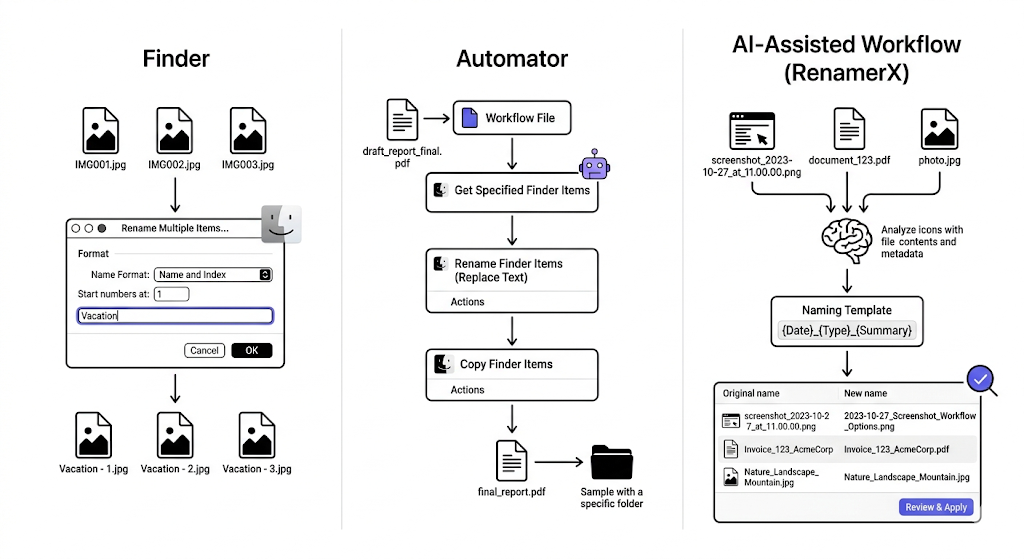
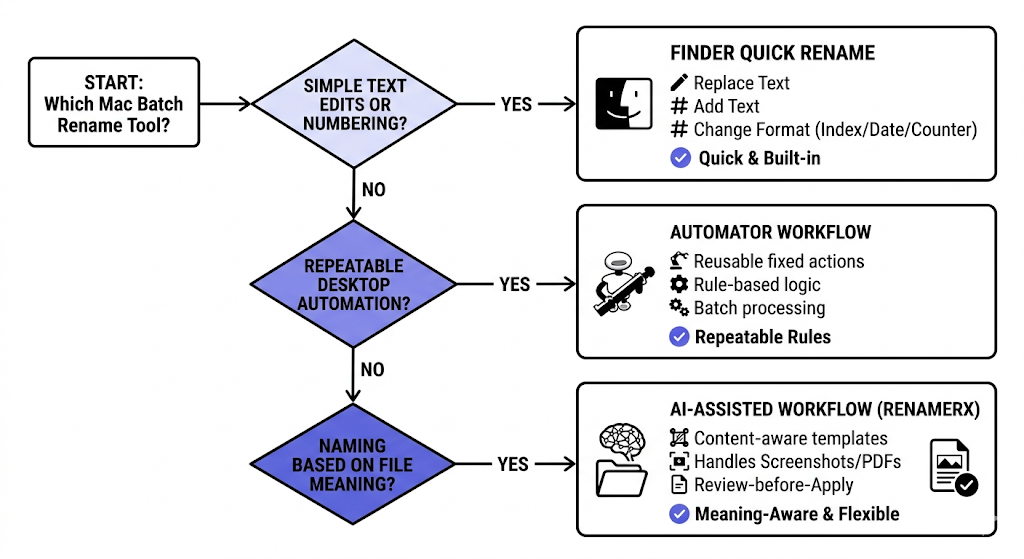
Finder is best for quick built-in batch rename tasks. Automator is better for repeatable Mac automation that still follows fixed rules. AI-assisted workflows become useful when filenames should reflect file meaning or reusable naming templates rather than simple add, replace, or format actions.
So the real question is not which tool is smartest. It is what kind of rename problem you actually have.
What Finder batch rename is good at
Finder already supports three practical batch rename actions:
- replace text
- add text
- change name format
Apple documents this clearly in its Finder help: select multiple items, choose Rename, then replace text, add text, or use format with index, counter, or date options: Rename multiple files on Mac.
Finder works well when:
- the current filename already contains the right meaning
- you only need a prefix, suffix, or numbering pattern
- the batch is straightforward
Finder works less well when the new filename should reflect file content rather than only string edits.
What Automator is good at
Automator is useful when the rename workflow itself repeats.
Apple describes Automator as a way to create custom workflows for repetitive tasks without requiring complex scripting: Automator User Guide.
That makes Automator a good fit when:
- the same batch steps repeat regularly
- the logic is still rule-based
- the user wants reusable Mac automation without writing a full script
Automator is less useful when the rename logic depends on understanding what the file is about.
When AI-assisted rename becomes better on Mac
AI-assisted rename helps when:
- filenames should reflect actual file meaning
- PDFs, screenshots, or images arrive with weak names
- the same naming template should work across larger batches
- users want review before apply instead of blind automation
This is where Finder and Automator often stop short. They are good at string logic. They are not built to infer naming-relevant context from the file itself.
A direct comparison
| Option | Best for | Main limitation |
|---|---|---|
| Finder | Quick built-in batch rename | No content-aware naming |
| Automator | Repeatable rule-based desktop workflows | Still depends on explicit fixed rules |
| AI-assisted workflow | Naming based on file meaning, reusable templates, review-first batches | Needs stronger setup and trust model |
Which one should you use?
Use Finder when:
- you need fast built-in rename tools
- the rename is mostly text editing or numbering
Use Automator when:
- the same fixed rename or routing workflow repeats on Mac
- you want reusable automation without manual repetition
Use AI-assisted rename when:
- the file meaning matters more than the visible filename
- the batch contains documents, screenshots, or images with weak names
- the naming pattern should stay consistent across repeated work
Why Mac users often start with Finder and end up needing more
Finder is often the right first step because it is immediate and low-risk. But once users keep renaming similar files every week, the next question appears quickly:
Can this become a system instead of a repeated manual action?
That is the point where Automator or a template-based AI workflow becomes worth considering.
How RenamerX fits the Mac batch rename decision
RenamerX is most useful in the third case: when batch rename on Mac should be based on file meaning plus a reusable naming structure.
The product supports:
- naming templates
- local-first processing after setup
- Batch Rename with review
- Watch Folders for repeated intake
- undo after apply
That means it is not trying to replace Finder for quick text edits. It is solving the next class of problem: when simple batch rename stops being enough.
If you want the product workflow details, see /docs/core-workflows/batch-rename, /docs/customization/templates, and /docs/help-support/security-and-privacy. If the larger goal is Mac file organization rather than only renaming, read /blog/best-file-organization-app-for-mac-what-to-look-for and /blog/ai-file-organizer-what-it-actually-needs-to-get-right. If you want to try the workflow yourself, compare plans on /pricing.
FAQ
What is the easiest way to batch rename files on Mac?
Finder is usually the easiest way for basic batch rename tasks such as replace text, add text, or change the file name format with counters and dates.
When should I use Automator instead of Finder?
Use Automator when the same fixed workflow repeats often and you want reusable automation without doing the same Finder steps manually every time.
When is AI-assisted rename better than Finder or Automator?
It is better when filenames should reflect file meaning, when templates matter, or when documents and images need reviewable naming rather than only string manipulation.
Can Finder batch rename handle PDFs and screenshots well?
It can rename them in bulk if the logic is simple. It becomes less effective when the new name should reflect the content or context of the file rather than the text already visible in the filename.
Conclusion
Finder, Automator, and AI-assisted rename each solve a different Mac batch rename problem.
Finder is the fastest built-in tool. Automator helps when rule-based automation should repeat. AI-assisted rename becomes useful when the file meaning itself should shape the final name. Choose the smallest tool that still matches the real job, and batch rename on Mac gets much easier to reason about.