AI Folder Organizer for Windows: How to Organize Files Without Losing Control
AI Folder Organizer for Windows: How to Organize Files Without Losing Control
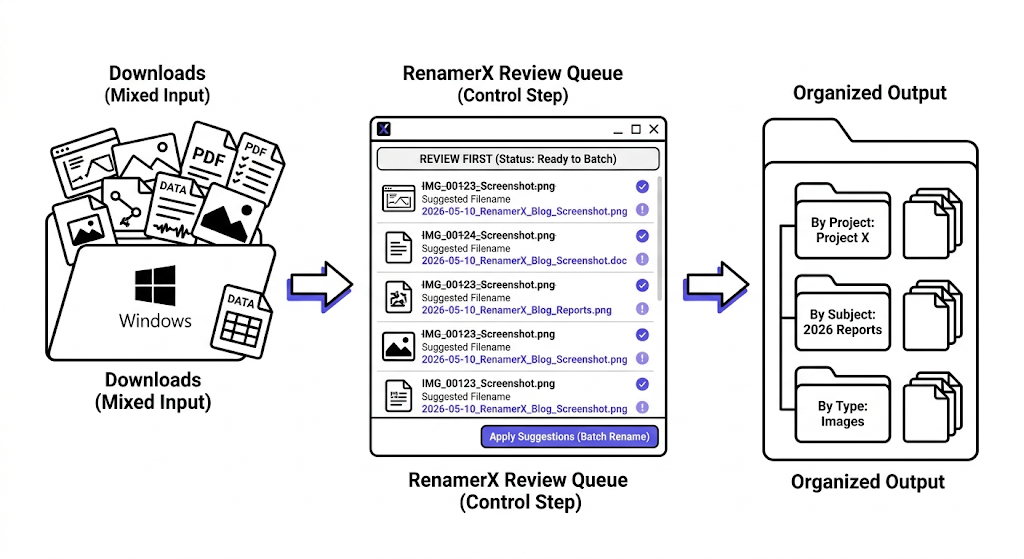
The best AI folder organizer workflow on Windows is one that improves filenames, keeps folder grouping explicit, and lets you preview the result before it changes real files. If a Windows file organizer feels powerful but hard to predict, it will usually lose user trust before it saves much time.
This matters because Windows users already have several ways to do partial organization. File Explorer, PowerRename, and rule-heavy tools can handle some cleanup. The question is when a more content-aware, template-based workflow becomes worth it.
What Windows tools already do well
Windows users already have useful options for basic file cleanup.
For example, Microsoft's PowerRename supports:
- search and replace
- regex rules
- preview before rename
- date-based replacements
- photo metadata variables
- undo through Explorer after rename
That makes it a strong bulk rename tool for string-based operations: PowerRename utility for Windows.
What tools like that do less well is deciding a naming system when the final filename should reflect the file's meaning, not just text operations.
That trust gap is why the control model matters as much as the rename model. NIST's AI Risk Management Framework treats trustworthiness as something that should be designed and evaluated explicitly, not assumed after the fact: NIST AI Risk Management Framework.
When Windows file organization needs more than manual rules
A stronger workflow becomes useful when:
- Downloads keeps filling with mixed files
- file names depend on content, not just existing strings
- users want project, subject, or type grouping
- screenshots, PDFs, and images all need clearer naming
- recurring intake folders should be organized gradually
At that point, the problem is not only rename these items. It becomes build a system I can trust on Windows.
A practical Windows AI organization workflow
1. Start with a narrow file lane
Pick one lane that repeats, such as:
- screenshots
- report exports
- downloaded PDFs
- product image batches
2. Define the naming template first
If you do not know the target structure, the tool will not save you. Decide whether the pattern is based on date, subject, title, type, project, or a mix.
3. Keep the folder logic explicit
If you want grouping, decide whether it should be:
- flat
- subject-based
- type-based
- project-based
The grouping rule should be visible, not inferred from hidden behavior.
4. Review suggestions before applying them
This is how Windows file organization stays manageable when the workflow moves beyond simple search-and-replace.
5. Use ongoing automation only after the batch pattern proves stable
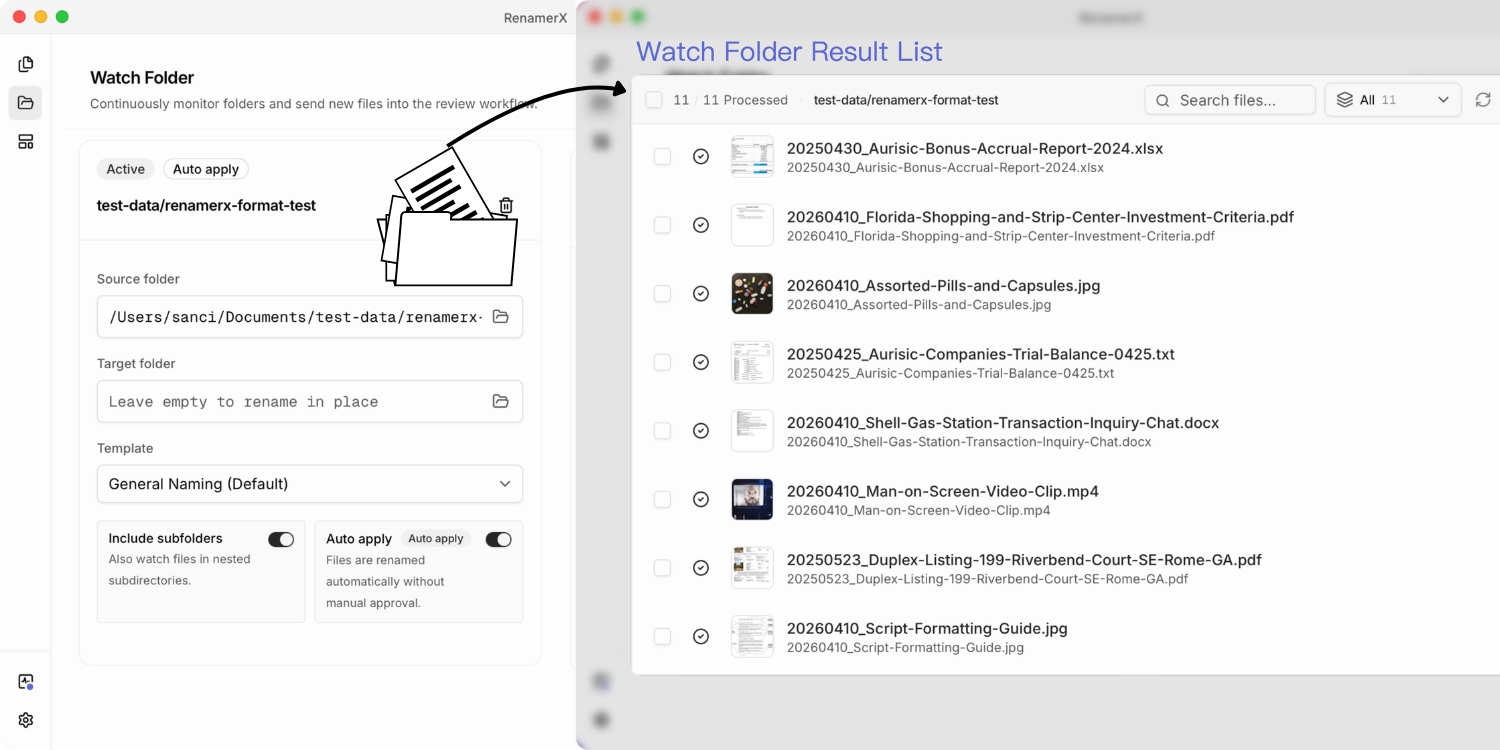
If the same source keeps behaving predictably, a recurring watch-folder workflow may make sense. If not, stay with batch review.
Why Windows users often need both naming and folder logic
Many file organization tools focus on routing or renaming, but not both. In practice, Windows users often need:
- readable filenames
- predictable folder grouping
- a clear review step
- a recovery path after apply
That combination is what makes the system feel usable over time.
How RenamerX fits the Windows workflow
RenamerX runs as a desktop app across macOS, Windows, and Linux-oriented environments, and the current app includes Windows-specific platform handling for file previews, window controls, and local resources.
For Windows users, the useful part is not just cross-platform support. It is that the product combines:
- local-first processing after setup
- template-based naming
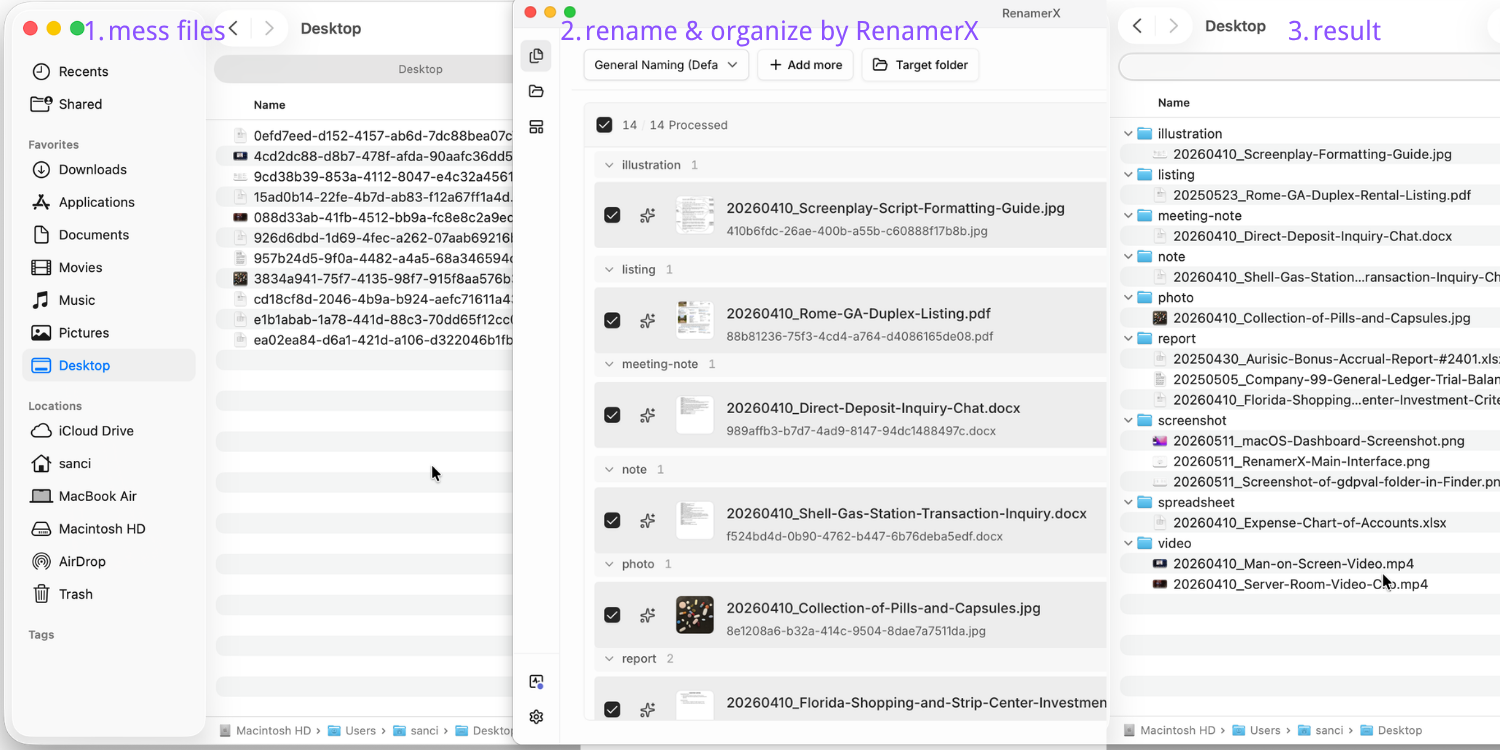
- review-first Batch Rename
- Watch Folders for recurring intake
- organize modes for subject, type, or project grouping
- undo after apply
That makes it a stronger fit than a pure string-manipulation tool when the file system needs meaning-aware organization instead of only rule-based rename patterns.
If you want the product workflow details, see /docs/core-workflows/batch-rename, /docs/core-workflows/watch-folders, and /docs/help-support/security-and-privacy. If you want the adjacent comparison, read /blog/ai-file-organizer-vs-manual-folder-rules-what-actually-works and /blog/ai-file-organizer-what-it-actually-needs-to-get-right. If you want to test the workflow on Windows-style batches, compare plans on /pricing.
How to decide between PowerRename and an AI organizer on Windows
Use PowerRename when:
- string replacement is enough
- regex cleanup solves the task
- the filename already contains the right meaning
Use an AI-assisted organizer when:
- file meaning matters
- naming templates should be reused
- mixed desktop workflows need reviewable organization
- screenshots, PDFs, and images need more than text edits
This is not a replacement story. It is a workflow fit story.
FAQ
What is the best AI folder organizer workflow for Windows?
The best workflow starts with a narrow repeated file lane, uses a clear naming template, keeps folder logic explicit, and begins with preview or review before any real changes are applied.
Can Windows built-in tools organize files well enough?
They can handle some tasks, especially simple rename or folder work. They become less effective when filenames should reflect content meaning or when recurring organization needs reusable templates.
Is PowerRename enough for Windows file organization?
It is enough for many search-and-replace or regex-based rename tasks. It is less suited to workflows where naming should reflect file content or where grouping by subject or project matters.
Should I automate Windows file organization right away?
Usually not. Start with review-first batch workflows until the naming and grouping pattern proves stable on real files.
Conclusion
Windows users do not need more automation for its own sake. They need a file organization workflow that stays understandable once real files are involved.
If the tool improves naming, keeps grouping explicit, and makes review part of the workflow, it becomes easier to trust. That is the point where AI file organization on Windows starts to feel useful instead of risky.